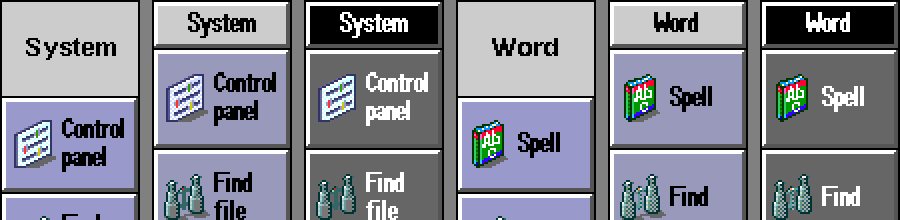
A name box that fits
The program's name at the top of the toolbar is shorter, raised like the buttons, and in the theme's own colours.
Coda for the Psion netBook
The netBook shipped in 1999 with software that was never quite done. Coda is a new edition of its operating system, by Dan Edge.
Install Coda What Coda is Beta 1
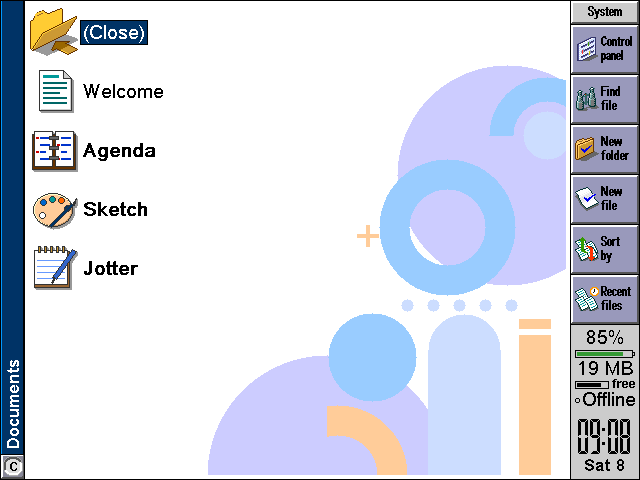
Every picture on this page is a real screenshot, straight from the screen.
What Coda is
Coda is a modernised system for the Psion netBook. The netBook came out in 1999: a clamshell with a 640 by 480 colour screen, a 190 MHz StrongARM and a CompactFlash slot. Its software, EPOC, never quite got finished. A lot of it was written for a smaller, greyscale screen and came across as it was.
The name is a musical one. A coda is the closing passage that brings a piece to its proper end. The netBook was one of the last machines Psion made, and its software never got finished. This is meant to finish it. Why it's called Coda.
You notice. Programs draw a half height layout in the middle of the screen. Icons are grey or dithered. Time's map is bright green on navy. None of it stops the machine working. Together it feels half done. Coda goes through it all, one piece at a time, and finishes what Psion didn't.
What you get: themes, a dark one among them, and a toolbar that shows the battery, the memory and the connection. A file manager and a launcher. Office files, email, the web and SSH, calendar and contact sync, and a real Linux shell. It comes as one zip for the CompactFlash card, with Psion's own system beside it, so you can always go back.
Beta 1Released 23 November 2026
Coda Beta 1.07 is out too, with minor bug fixes, and a fix for a battery drain. Release notes. How to update.
This is the first beta, and it is early. Back up your CompactFlash card before you install it, and keep your netBook's own OS.IMG safe.
Feedback is welcome, good or bad. Tell us what worked, or what didn't, on the issues page on GitHub.
Download Beta 1 Read the install guide
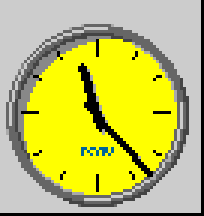
The bright yellow clock has been spoken to. Details under the toolbar.
Colour where Psion left grey, type you can read, and a toolbar that tells you what you need.
Themes
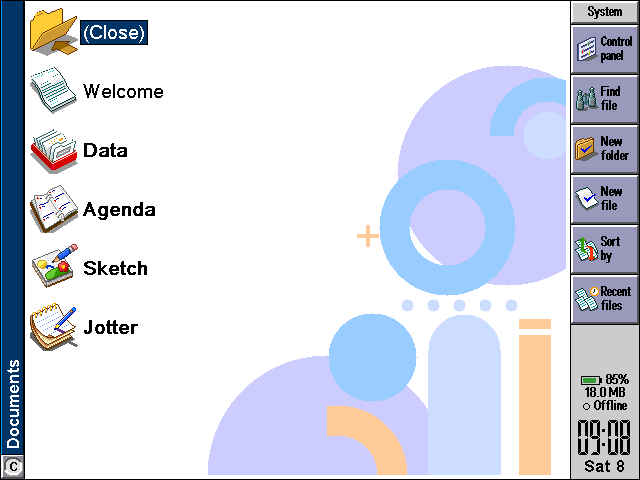
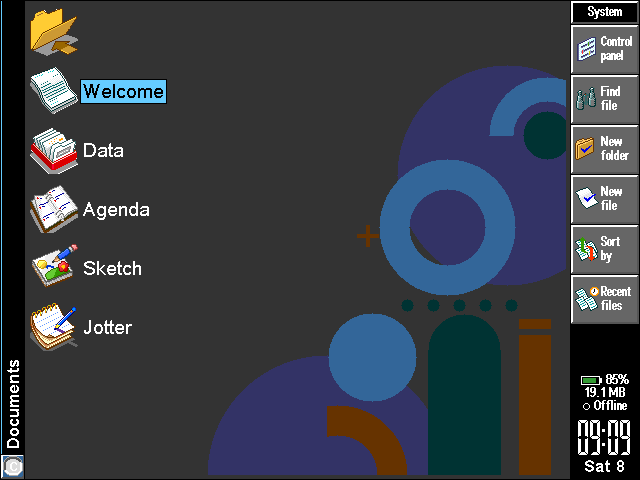
Pick a theme in the Control panel and watch a preview before you commit; it's used from the next start. The toolbar, the Documents bar, the wallpaper and both clocks follow along. Every colour comes from the screen's steady palette, so nothing shimmers.
 CodaDark
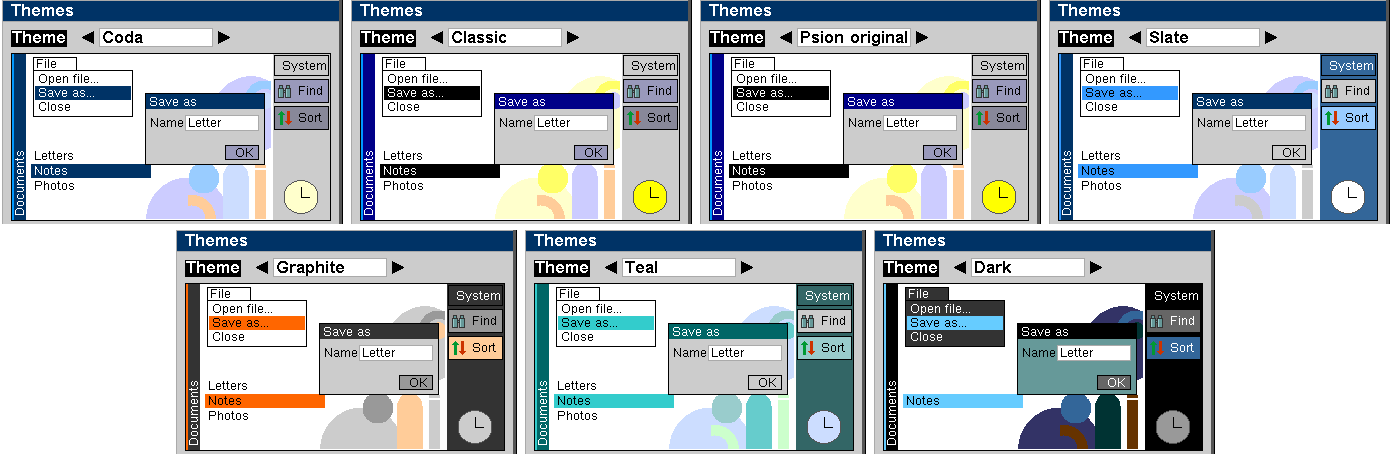
The program's name at the top of the toolbar is shorter, raised like the buttons, and in the theme's own colours.
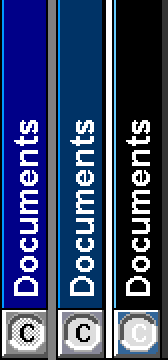
The strip down the left of the System screen is painted in the theme. It used to stay navy whatever you chose.
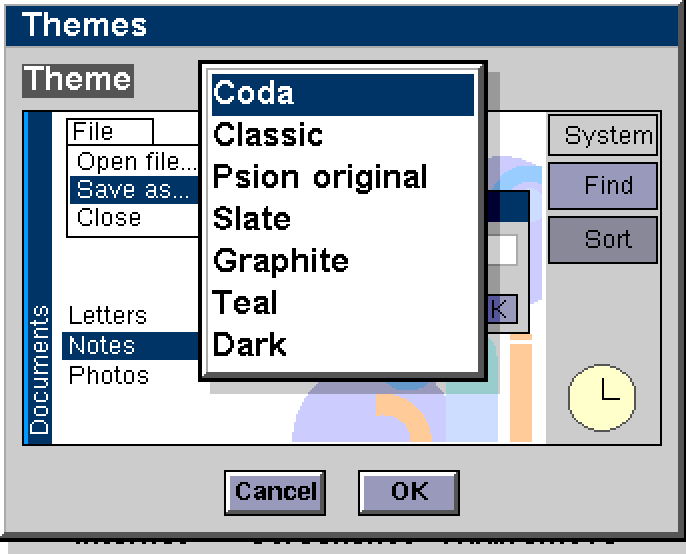
Psion asked for button colours the palette didn't have. Psion original tunes the screen to the blue greys Psion meant; Classic shows them as EPOC's palette has them.
 PsionCoda
 BeforeCoda
Wallpapers
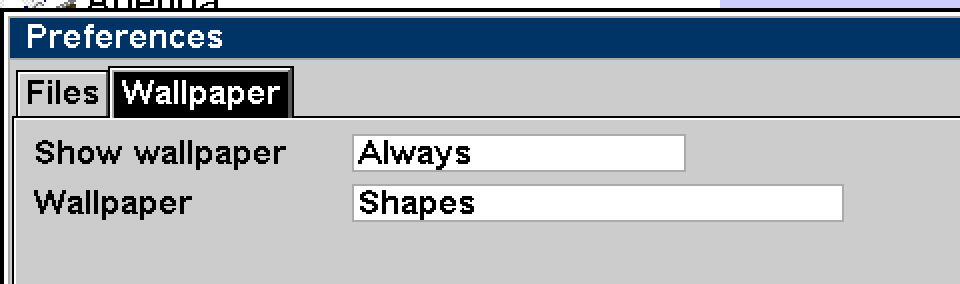
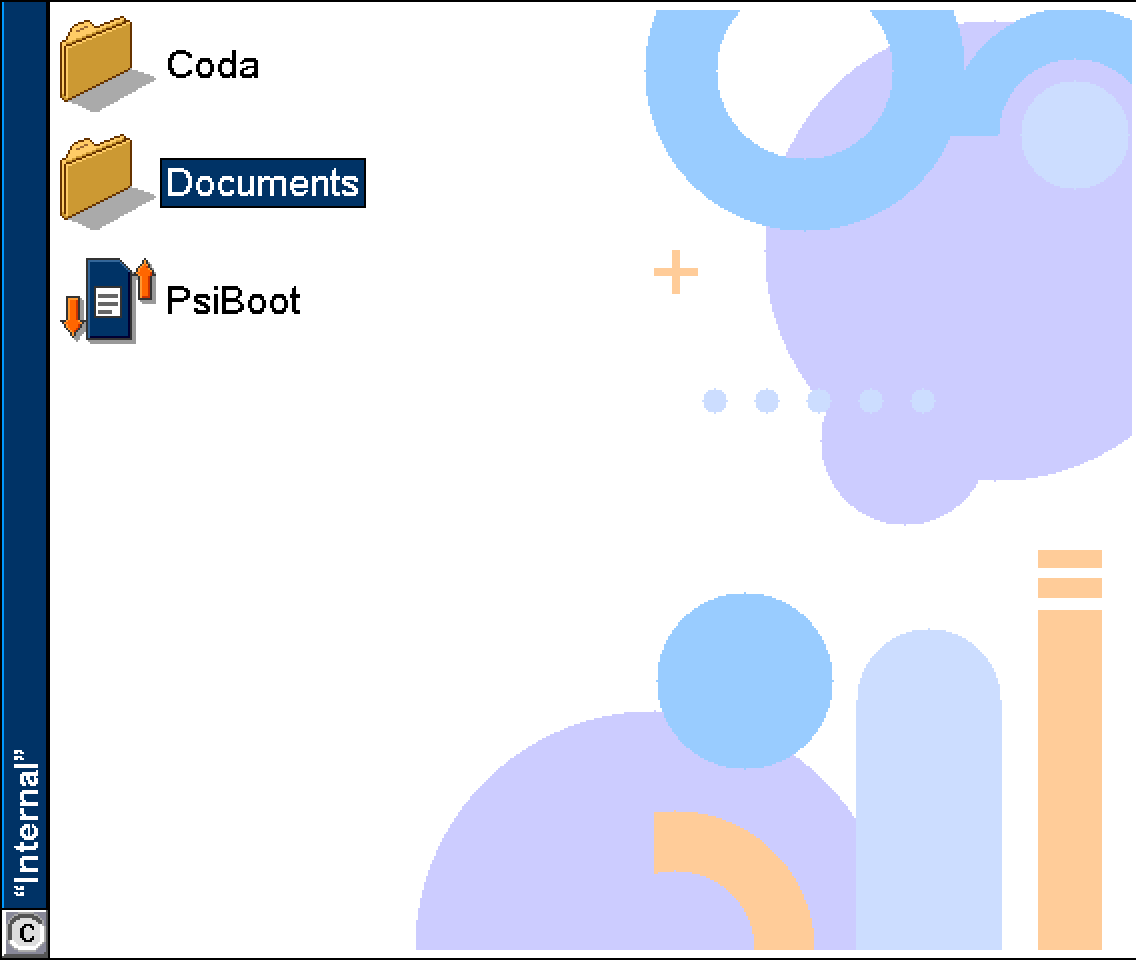
Coda's wallpaper is Shapes: flat discs, arches, dots and a plus in pale blue, lavender and one peach accent, kept clear of your files and drawn in the theme's own colours: teal on Teal, greys on Graphite, deep blues on Dark. Change theme and it's repainted at the next start. Psion's logo is still there as Psion EPOC.
Chosen the usual way, in the System screen's Preferences, and shown in every folder and on every disk, not only in Documents.

The toolbar
The battery, free memory and whether you're online, on every program's toolbar, as large as the room allows, or the widgets you choose in their place.
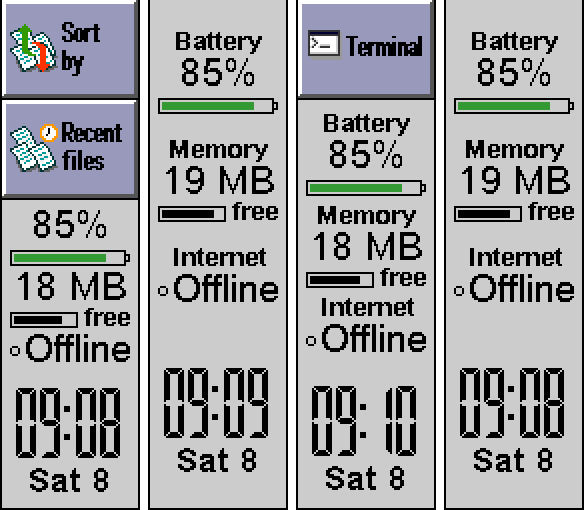
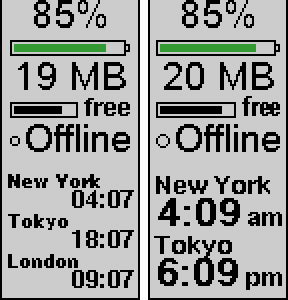
The block takes the room each toolbar leaves above the clock. With room to spare, the charge and the free memory get a meter each, and the lines are set in Psion's own Arial. With more, each line has its name over it, in Arial too, and the room left is shared evenly down to the clock. The clock faces grow with it. On a toolbar short of room, or with a longer stack, it steps back to the compact stack, and nothing is cut. PsiMail's box says Mail on or Mail off, for its own link to the server, beside the toolbar's Internet line.
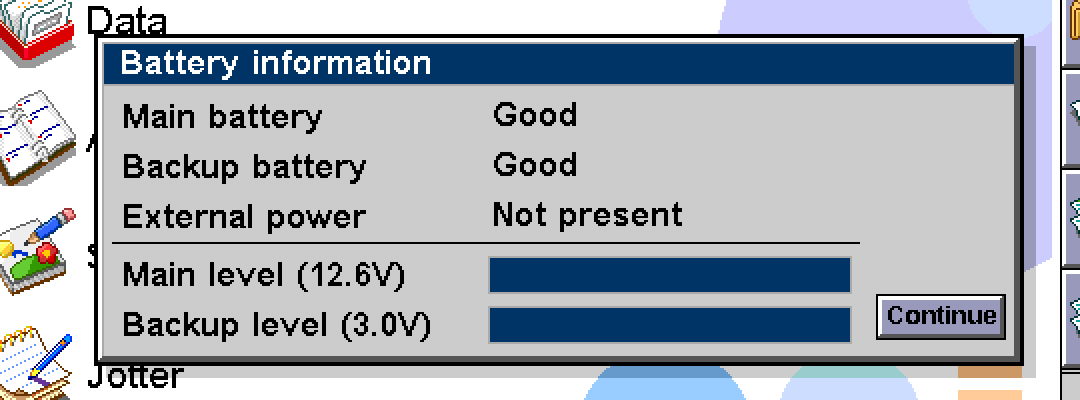
The charge comes from a model of the netBook's pack, not a raw voltage, so it doesn't jump when the backlight comes on and it says when the pack is full. The figure sits over a meter shaped like the battery, green, then amber at 20% and red at 10%; where room is short, it's a small battery beside the figure. On mains a flash shows before the figure while it charges, then a plug and Full. Type "battery" in PsiHub for the time left and the backup battery, or tap the battery line for its history: the last day and the last week.

Under the free memory, a dot and a word say whether the netBook is online: Online, Dialling… or Offline, whether it goes through the modem, a network card or the Atom modem helper. The dot reads in greys too: filled, half or empty.
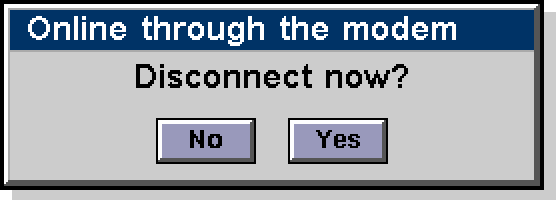
Tap Offline and it connects, the way Coda's programs do: Dialling… shows at once, then Online, and if it can't connect it says why. Tap Dialling… to stop. With nothing set up, it offers the settings. Tap it while you're online through the modem or a network card and it asks whether to hang up. Like every widget, it can come off in Control panel, Toolbar.

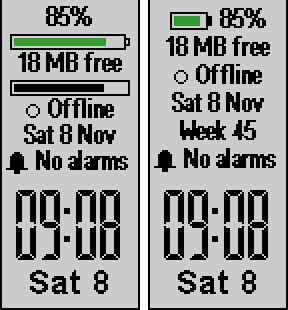
Above the clock goes a stack of up to six widgets, top first: the battery's charge or time left, free memory, the connection, free space on C: or D:, the date, the week number, the moon's phase, the next alarm, and brightness or contrast controls. Every program's toolbar shows the same stack, and a change shows on every open toolbar at once. The more widgets you choose, the smaller each is drawn, so they all fit.
What a tap does is yours to choose too: nothing, the widget's own action, or a program you pick. Tap the date and Agenda opens. Tap the next alarm and Time does.
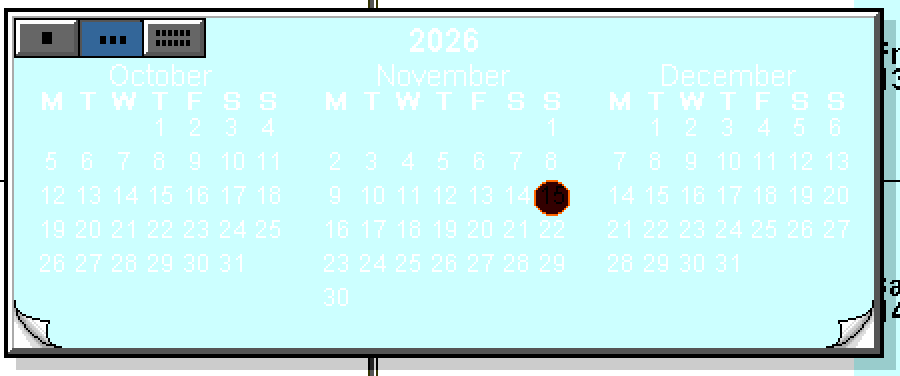
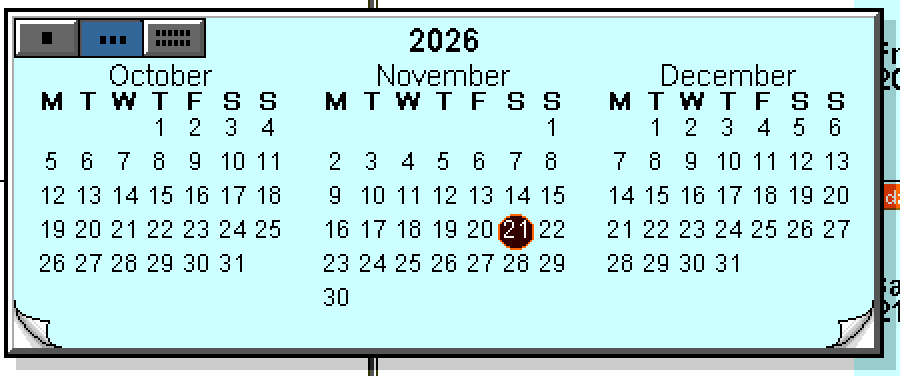
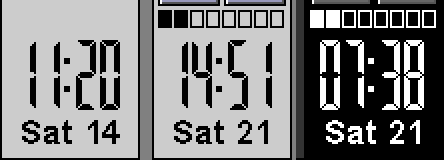
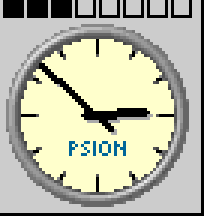
The toolbar's clock can have up to six faces, in the order you choose: analogue, digital, this month's calendar, the moon, sunrise and sunset, the date in large figures, the world clock, or a widget drawn large. Tap the clock for the next face, and every program shows the same one. Each face grows with the room: the moon to the face's full width, the date to its largest figures, and the calendar sits in the middle. Choose no faces and the clock is off, and the widgets have its room.
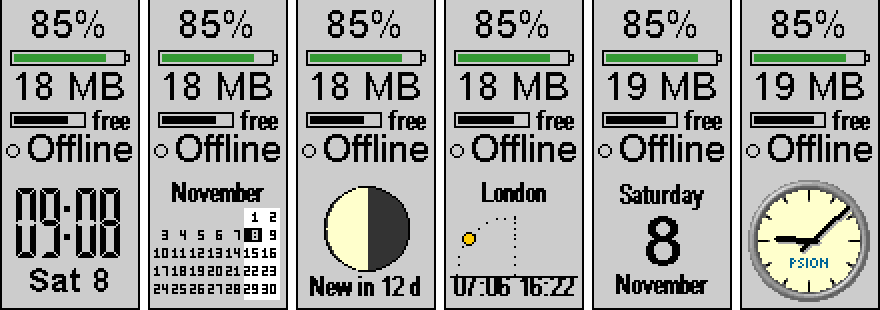
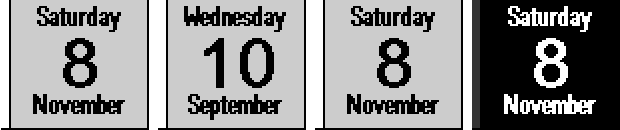
Psion's toolbar clock was bright yellow. Properly bright: you could read the time from across the room, and so could everyone else. It had a name printed on it too, which nobody ever made out.
Both faces are redrawn with solid greys, a lit bezel and hour marks that sit on whole pixels. Coda gives the analogue clock a pale cream face, the sort that doesn't announce itself. The digital face is in the theme's colours too. Classic keeps the yellow, for anyone who misses it.
 PsionCoda
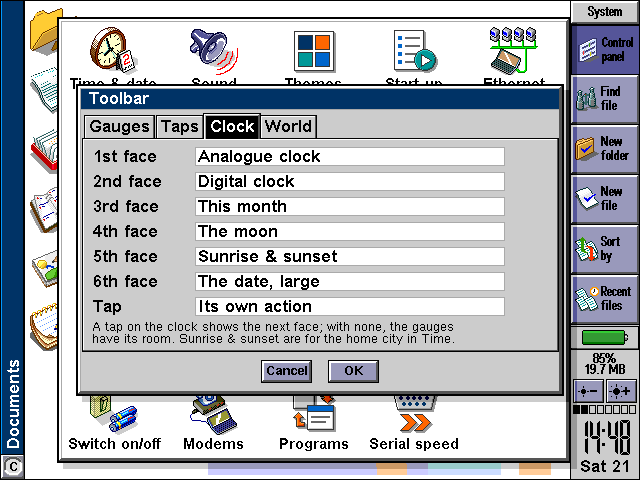
Control panel, Toolbar has three pages: Widgets, Taps and Clock. If the widgets you pick won't fit the room, it says so. Sunrise and sunset are for the home city set in Time.
Change the brightness or contrast from the keyboard and a panel shows the new level over whatever is on the screen, a bar for every step, in the theme's colours, for a moment and a half. For the level on the toolbar too, add the brightness controls in Control panel, Toolbar: tap the cells or drag along them to set the backlight.

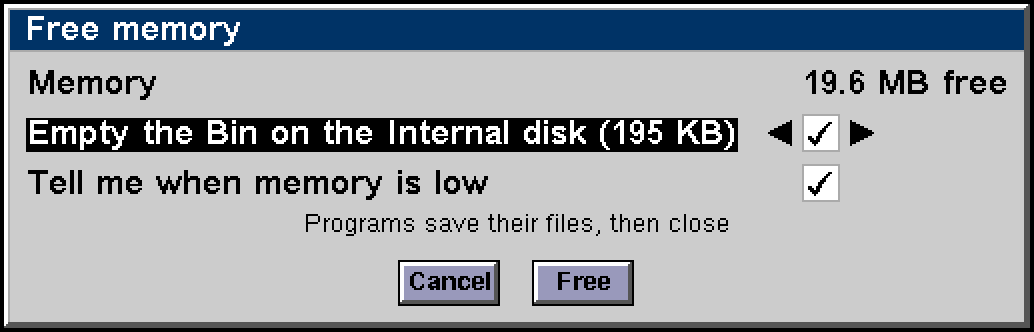
The free memory line puts the figure over a meter of how much is free, and changes as memory runs down: an amber band under 3 MB, and white on red with a warning sign under 1.5 MB. Each one reads in greys too. Tap it, at any level, for the Free memory dialog. It lists what you can do, biggest first: close a program, which saves first, put a program to sleep, empty the internal disk's Bin, or move the biggest files in Documents to the card. Press Free and it says how much came back.
Coda doesn't wait to be asked. Under 3 MB it asks the programs behind you to give back what they can spare, and under 1.5 MB it puts them to sleep, once a minute until there's room. Those are the standard levels: Control panel, Memory changes them. Under 750 KB the dialog comes up by itself, once. Untick "Tell me when memory is low" and it doesn't. Free memory learns what each program gives back when it closes, so its figures are closer every time.

Text and fonts
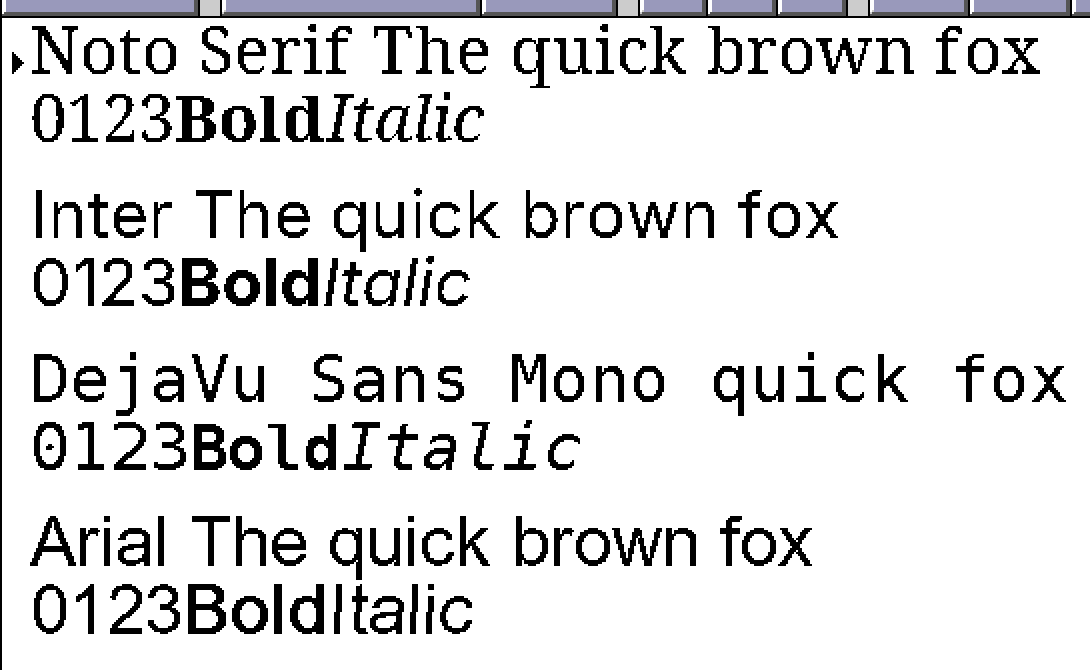
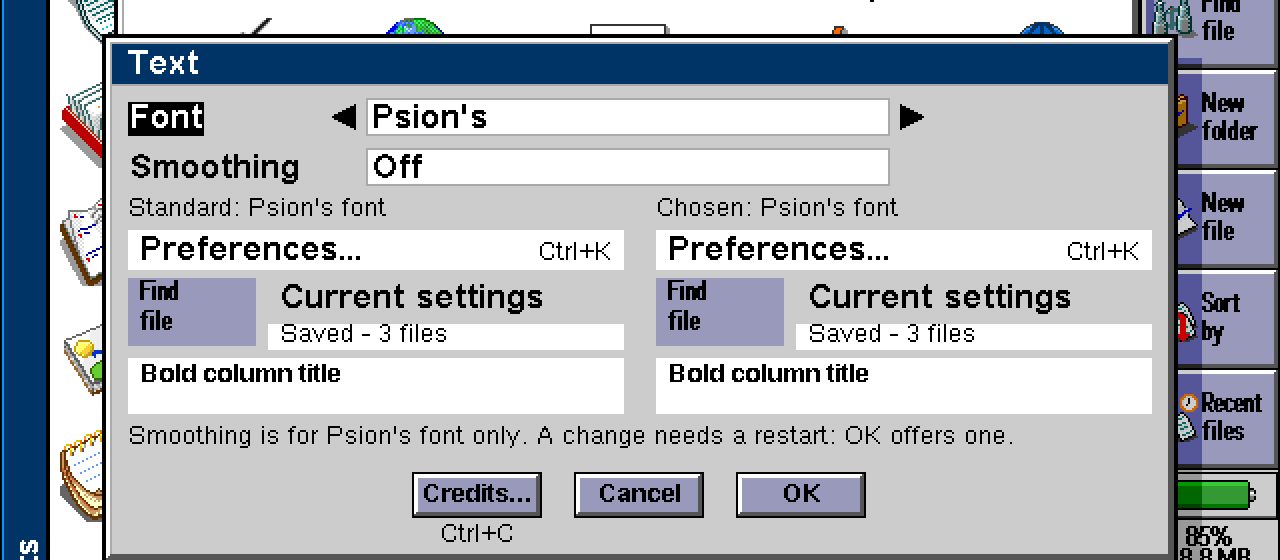
Control panel, Text offers Psion's own font, Inter, Noto Sans and DejaVu Sans. Each is redrawn at the exact pixel sizes EPOC uses and kept within 4% of Psion's widths, so every menu and dialog still fits. Psion's font can be smoothed, in a few styles. The dialog loads each style as you look at it and lets it all go when it closes.

Inter, Noto Serif and DejaVu Sans Mono sit beside Psion's Arial, Times New Roman and Courier, in regular, bold and italic, drawn for the netBook's screen at every size Word uses. Six more can go on the card. Office files asking for Calibri, Cambria or Consolas open in the nearest face.
Pictures and icons
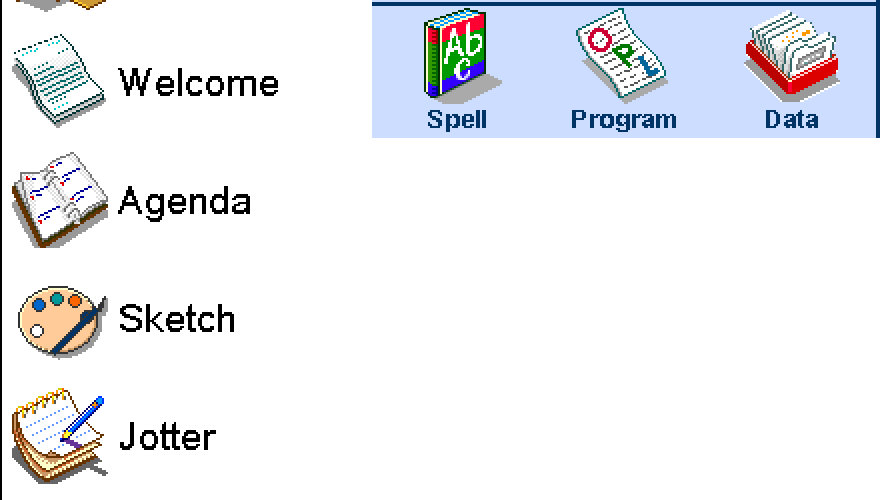
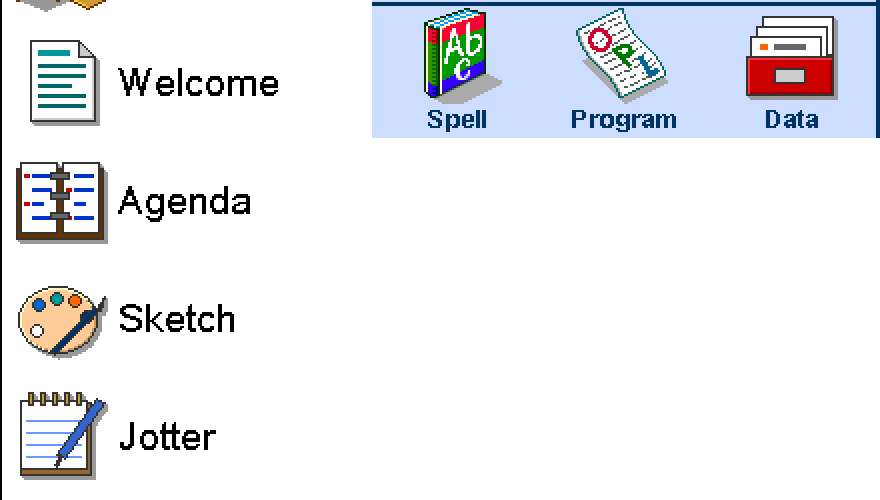
The netBook's pictures were made for smaller, greyscale screens: grey, dithered, sometimes blurry. Coda cleans up 80 of them, redraws the clock faces, and gives Sketch a new high resolution icon. Files draws every icon at the size it was made for.
Psion's own Word, Sheet, Agenda, Data, Contacts and Jotter icons were drawn with near-white greys and fine dot patterns that the netBook's colour screen shows as white or as scattered dots. They are redrawn in Coda's flat style, the same objects in solid colours with crisp outlines, each size drawn for itself. Control panel, Themes, Program icons brings Psion's originals back, and choosing the Psion original theme does too. Sketch and Record files show the icon of the program that opens them: the paint palette for a drawing.
 PsionCoda

 PsionCoda
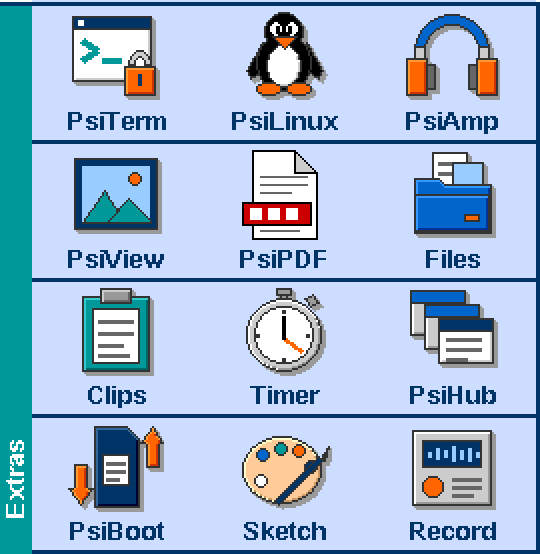
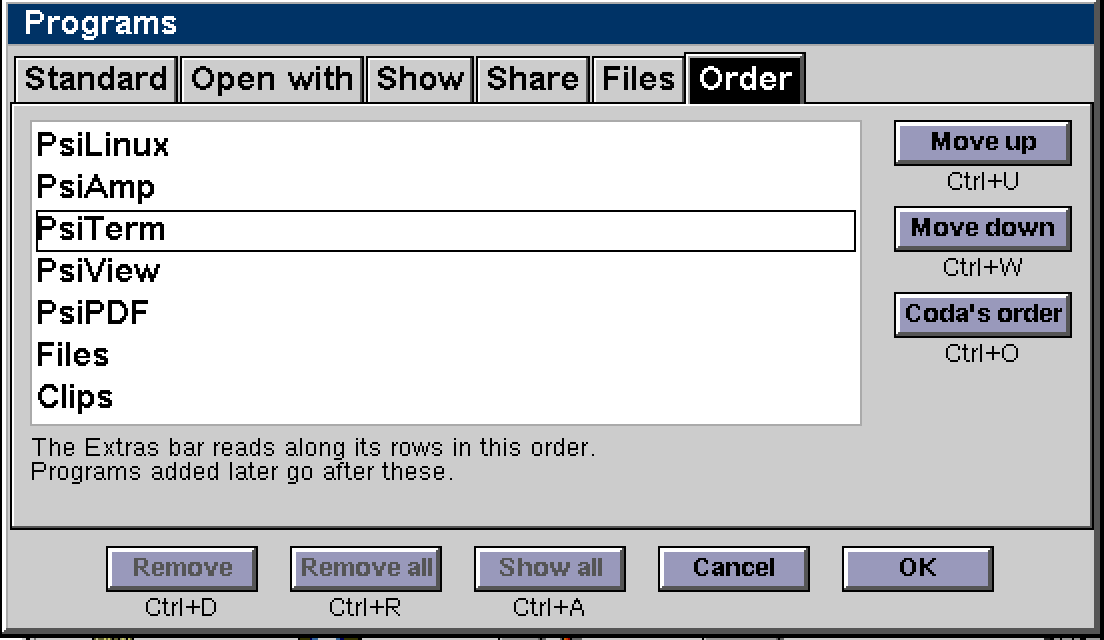
Control panel, Programs, Order lists the bar's programs in the order they sit, read along the rows. Move up (Ctrl+U) and Move down (Ctrl+W) put them where you want them, Coda's order (Ctrl+O) puts them back, and the bar follows within two seconds of OK. Programs added later go after these. Psion's own Icon position, Extras bar column and Preferred program lines in Control panel, Extras bar are dimmed, with a note pointing to the Order page.
Programs, Show chooses which programs are on the bar. Those on a silkscreen button are listed "on a button", unticked; tick one and it goes on the Extras bar as well.
Psion's programs, refreshed
Every built in program was checked for the places where the jump to a bigger colour screen shows. Pick one and drag.
 PsionCoda
PsiHub
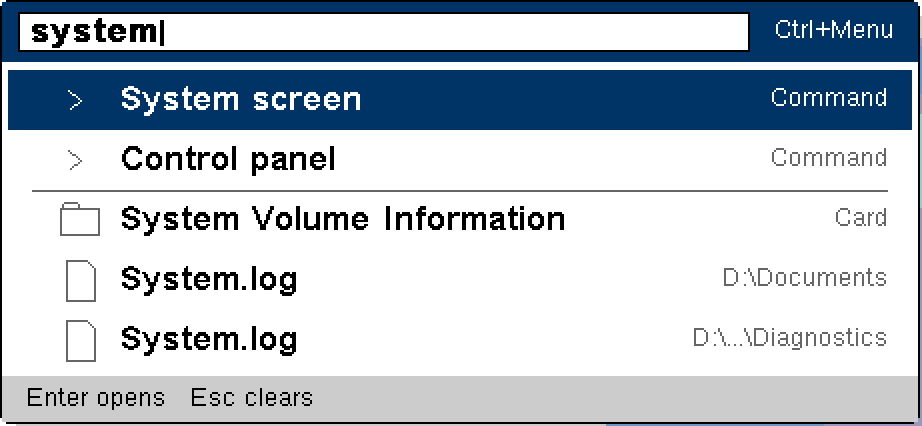
A launcher over whatever you're doing. Open programs come first, most recent at the top. Start typing and it searches programs, settings, files, Agenda and commands at once, and learns what you use. It knows other words for things, so wifi finds the network settings, and it forgives a letter typed wrong.
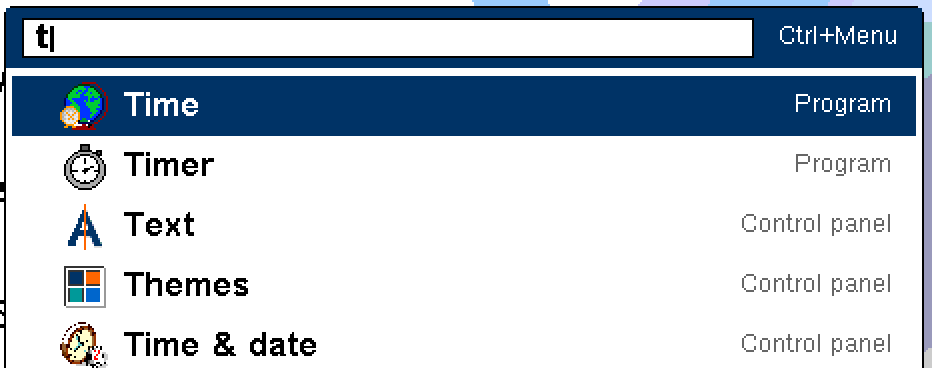
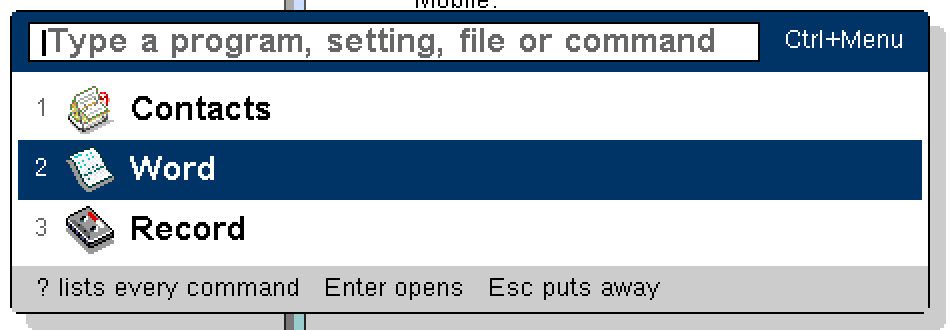
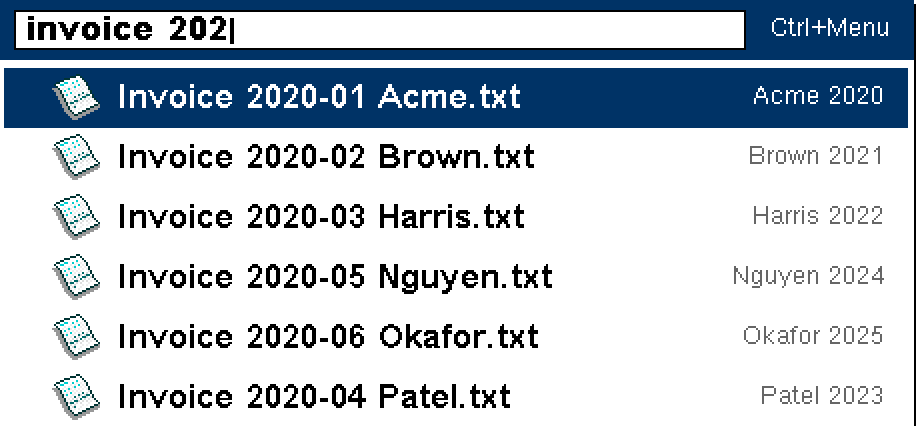

Type system and the System screen comes first, then the Control panel. Each file shows its disk and folder, and a long name ends in "…". Agenda's entries are found by the words in them. Type machine, owner, disk, battery or about for the System screen's Information commands. With PsiHub open, Shift+Ctrl+D closes every program, each saving its files first. A program that's busy, connected or online stays open, and the question says which.
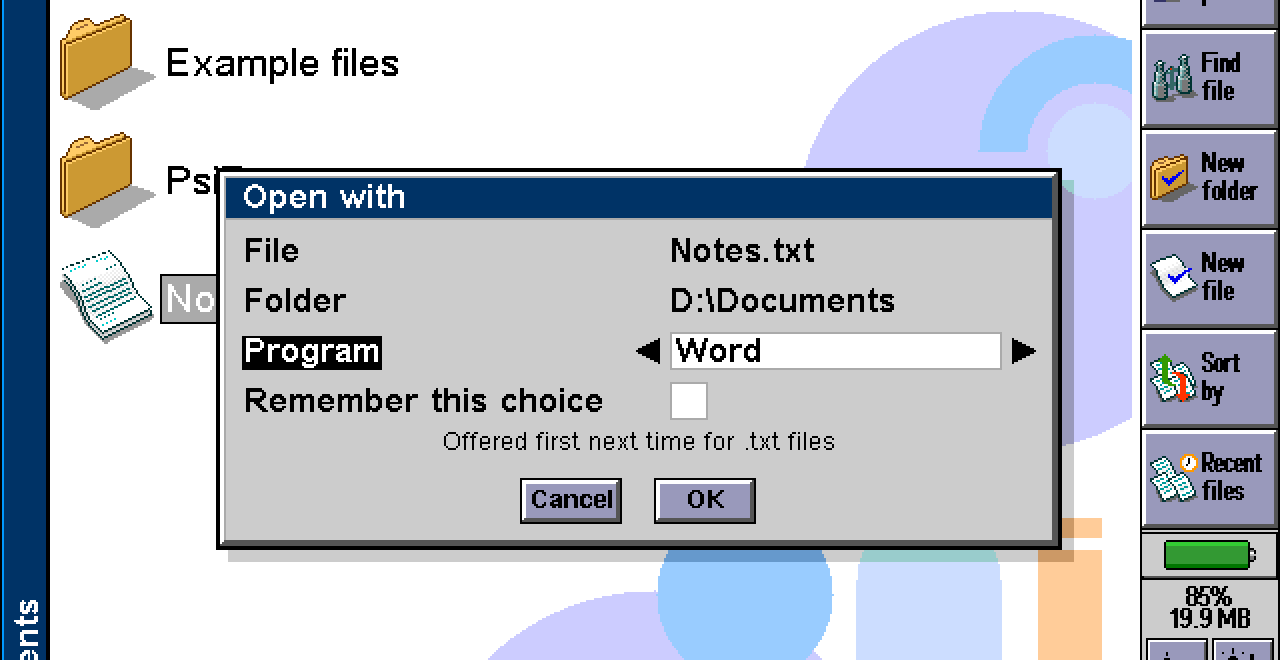
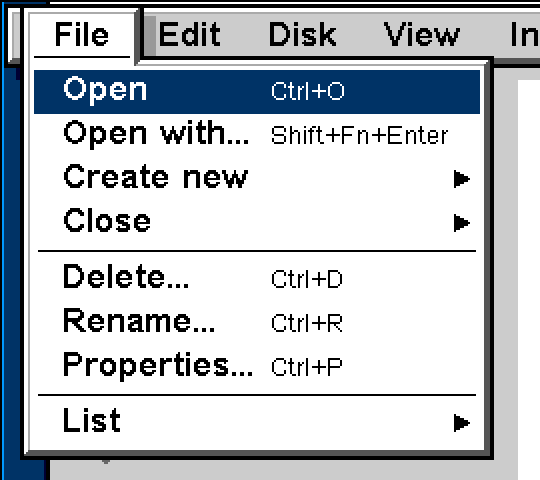
File, Open with… on the System screen, second in the menu, or Fn+Shift+Enter on a file, on the System screen or in PsiHub, asks which program to open it in. Browse folders… is in the Disk menu now, so File keeps to eight items. Tick Remember and that program comes first next time for that type of file. Enter still opens the usual one.
PsiFiles
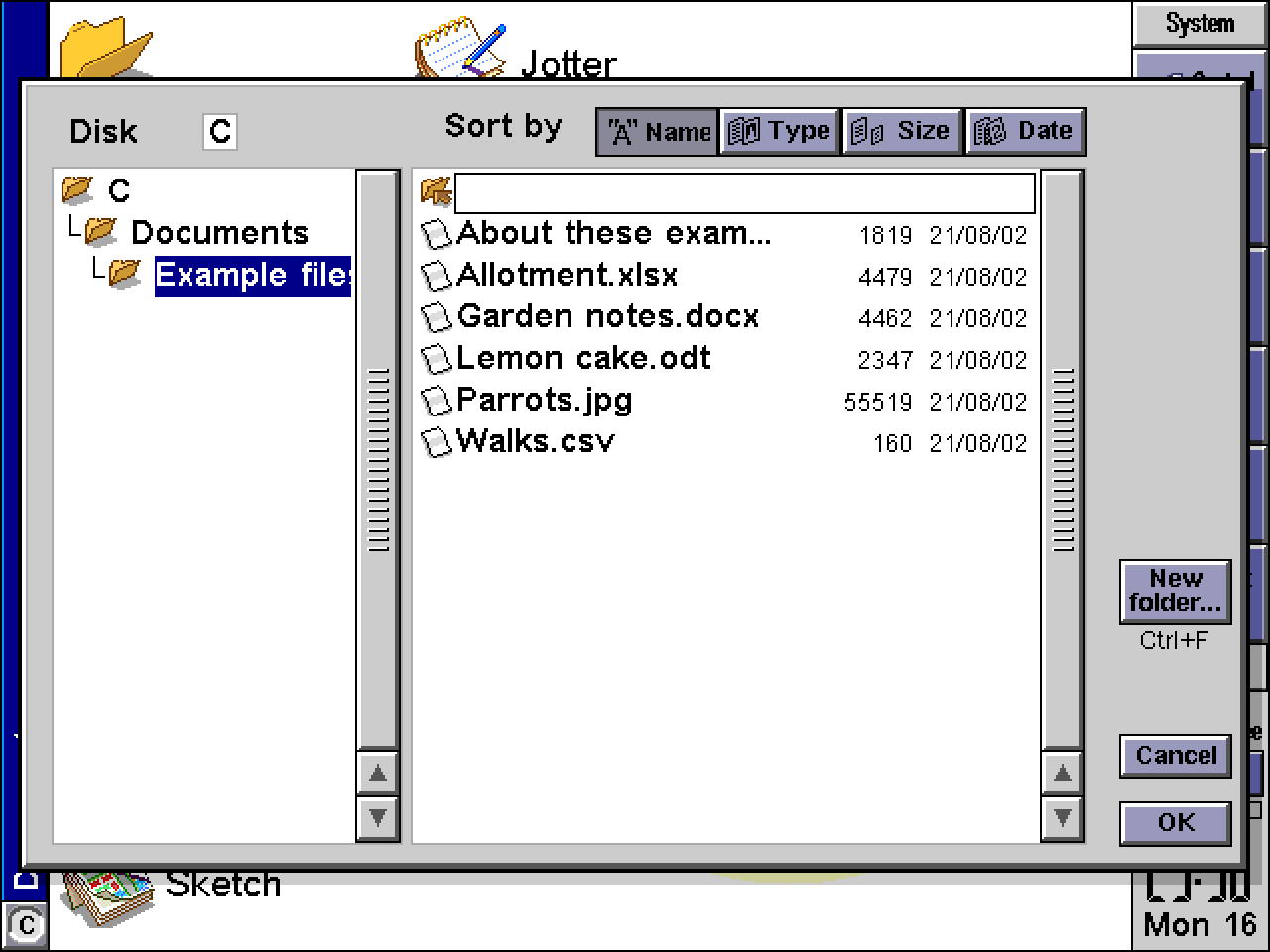
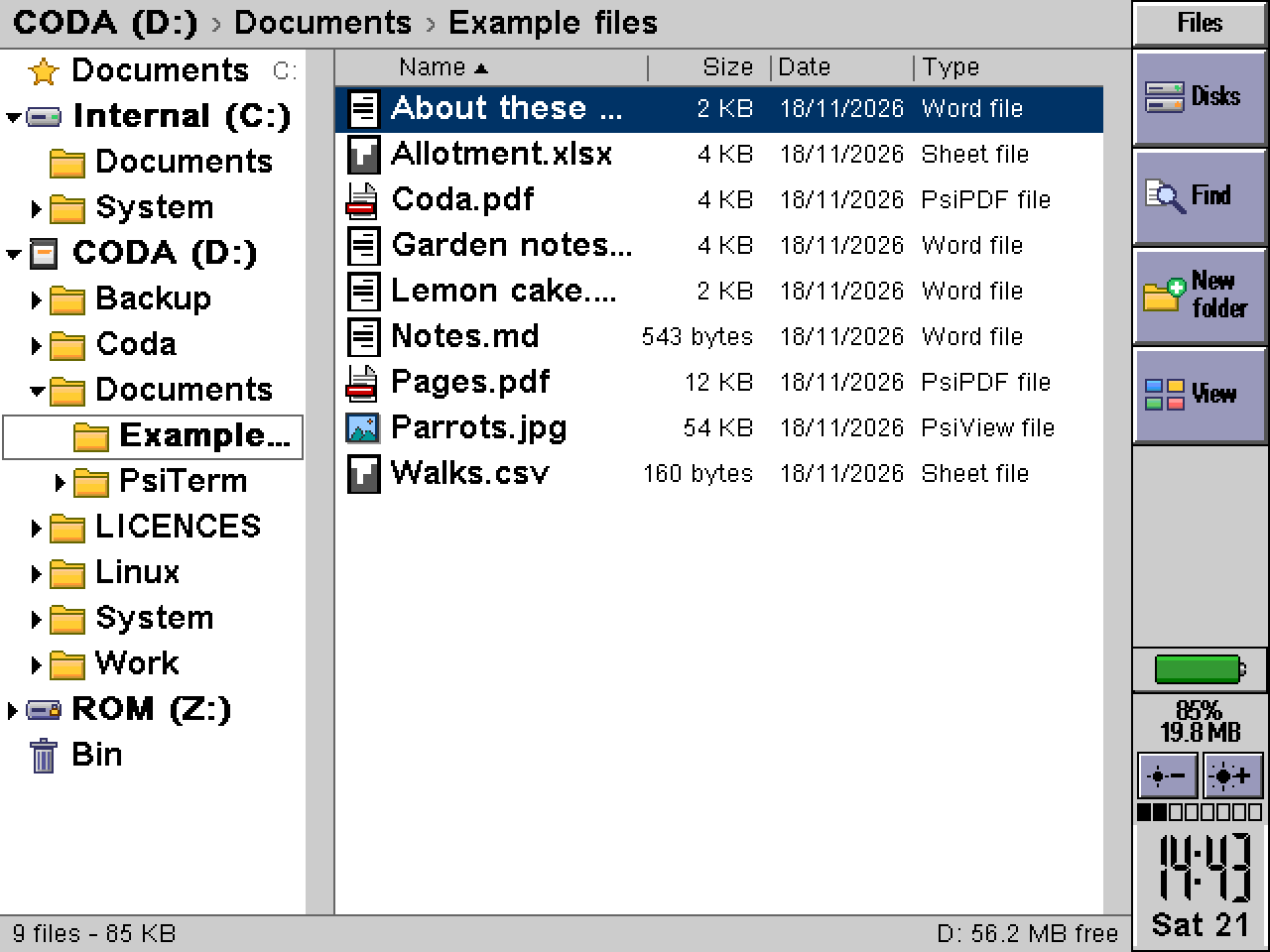
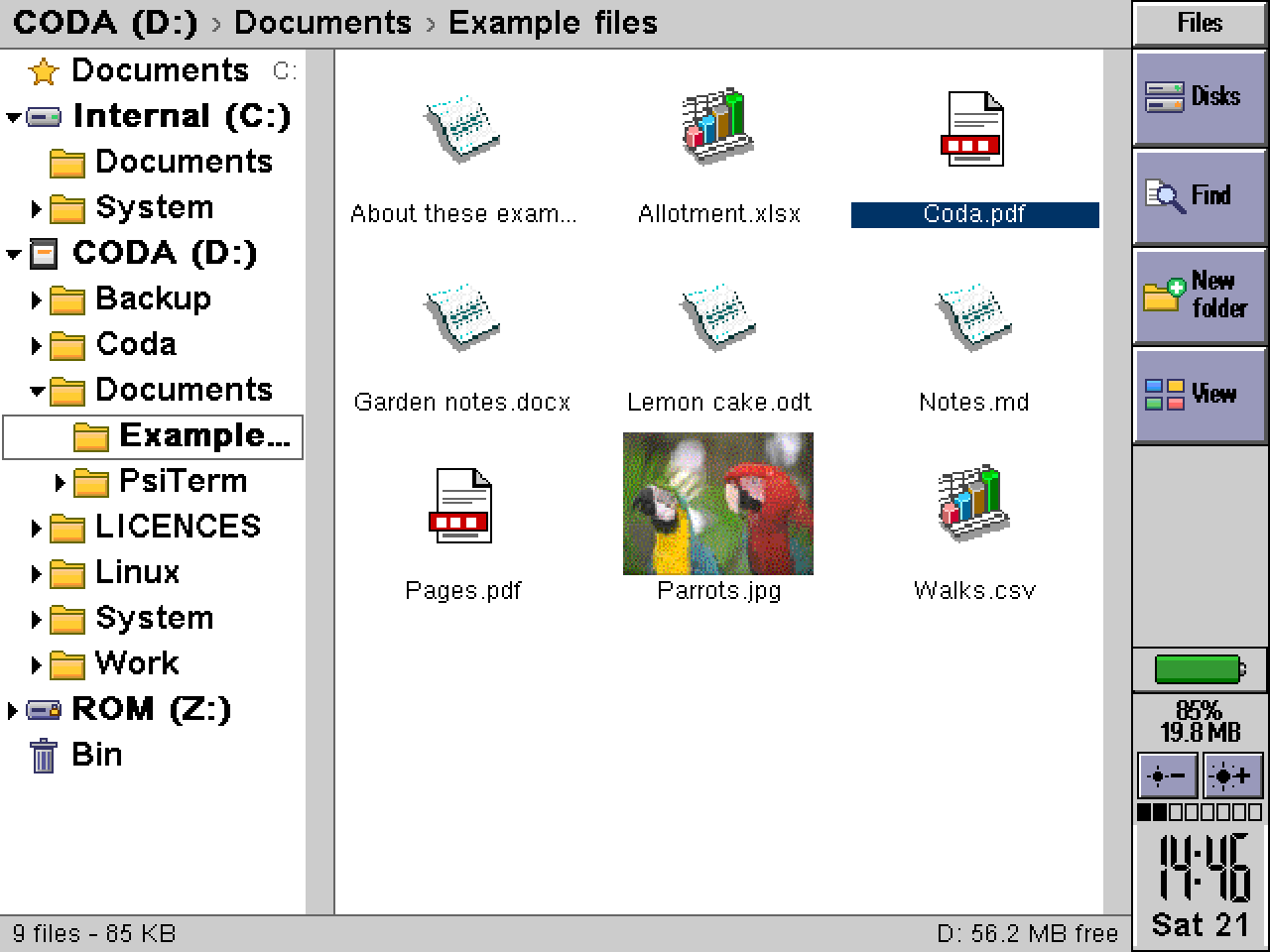
Tab on the System screen opened a folder browser sized for a smaller screen. Now Tab opens PsiFiles at the folder you're in, and Ctrl+Q at a page of your disks. A tree on the left, your files on the right, with each program's icon, size, date and type. Esc closes it and takes you back to the System screen, once it has cancelled whatever is in progress, as Psion's Browse dialog did.
 PsionPsiFiles
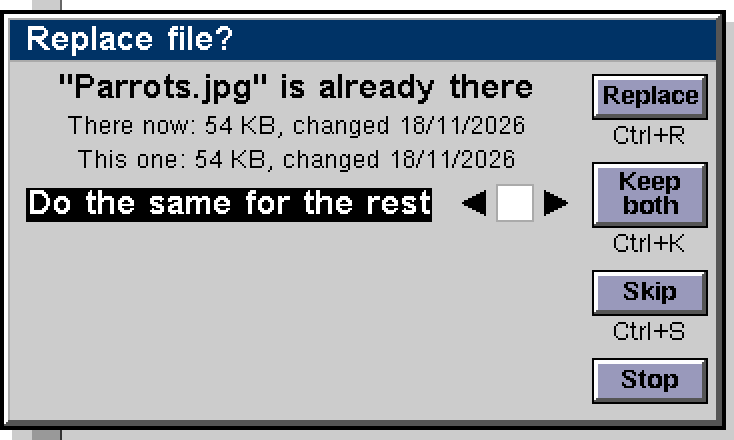
Each copy is written under another name, read back and checked, and only then given its name. A full disk or a card pulled out never leaves half a file. If the name is already there, you choose: Replace, Keep both or Skip.
Delete goes to the Bin, and Ctrl+Z undoes the last rename, move, copy or delete. Copies queue up behind each other, so you can keep working.
Details, Compact or Pictures, with thumbnails of your photos. Space shows a preview. Draw the pen down the list to mark several files. Favourite folders sit at the top of the tree. Find, Properties, cut, copy and paste are all there. Hidden files are shown, but not the folders a computer leaves on the card, such as .Trashes, unless you ask for them.
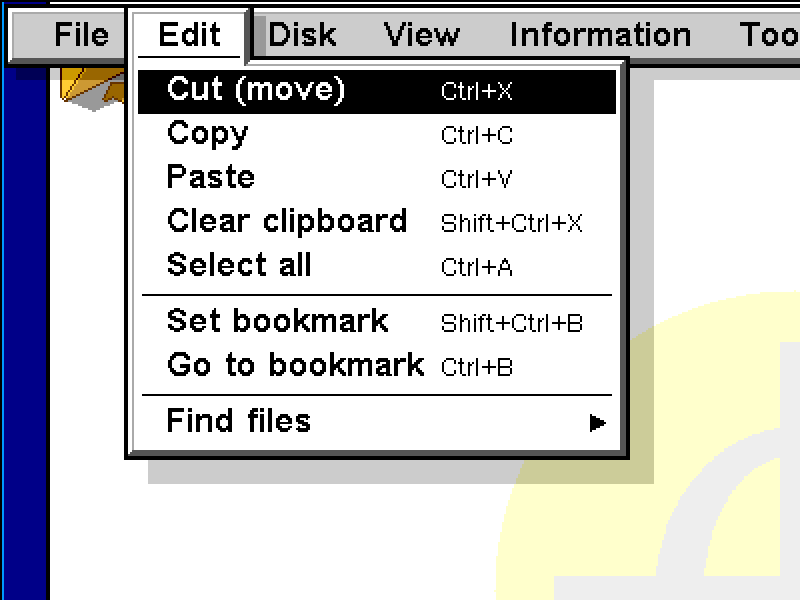
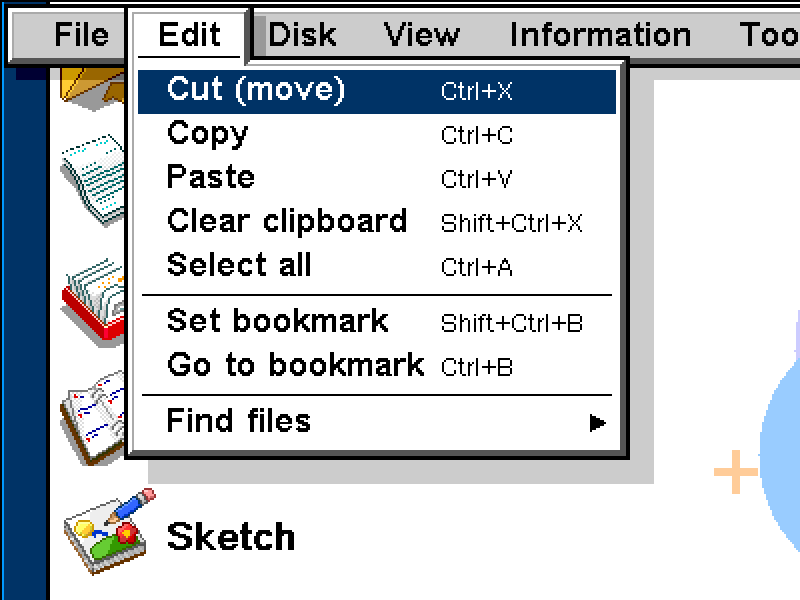
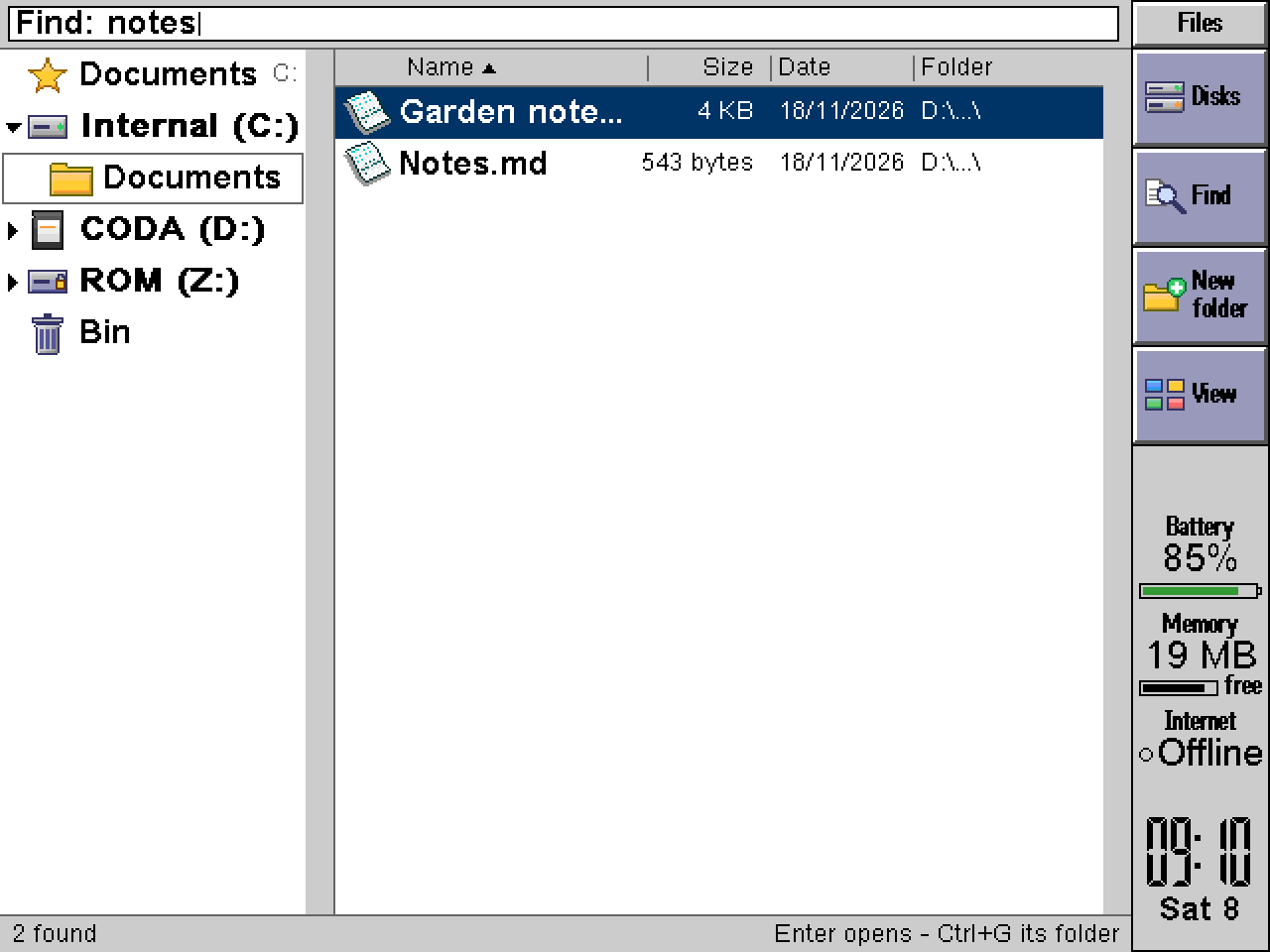
Find file on the System screen, from Ctrl+F, the toolbar's button or Edit, Find files, opens Files' Find in the folder you're in. Type any part of a name, or use * and ? as Psion's Find did: *.md finds every Markdown file. Enter opens what it finds, and Ctrl+G shows it in its folder.
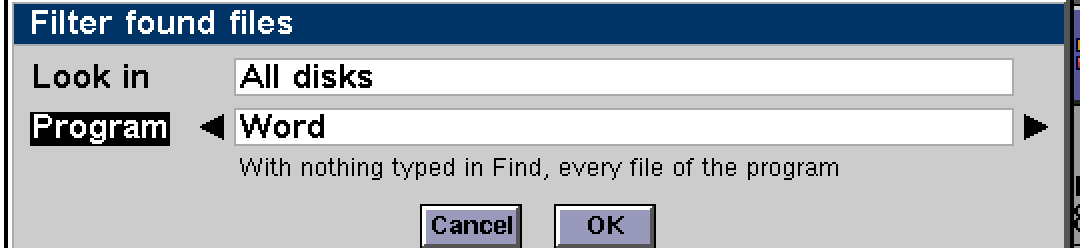
View, Filter (Shift+Ctrl+L) chooses where to look, every disk, the disk you started from or the folder and the folders in it, and which program's files. With nothing typed, it lists every file of that program. Psion's own Find files is still on Find again (Shift+Ctrl+F).
Delete on the System screen asks Psion's own question, then puts the file in Files' Bin rather than out of reach. In Files, Undo brings back the last one and Restore any of them. The internal disk's Bin keeps 256 KB for a week; anything bigger asks first.
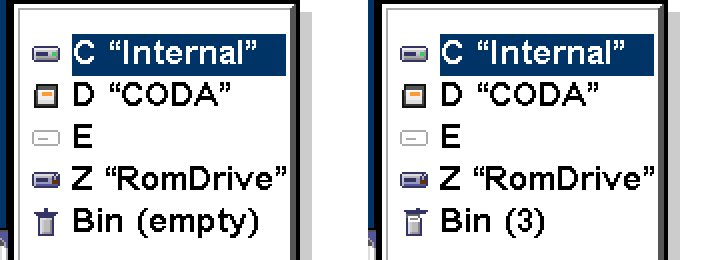
The disk list at the foot of the Documents bar shows each disk with Files' own picture: the internal disk, the card and the ROM. A card named on a computer shows its name as it is, without the padding. Bin ends the list, its can showing paper when something's in it, and says "Bin (empty)" or how many things it holds. Disk, Current disk says "Bin (empty)" too. Choose it and Files opens on the Bin.

Share
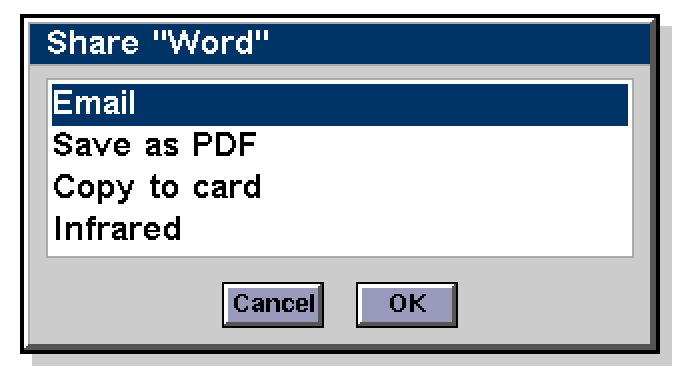
The Infrared icon down the left of the screen is now Share. It offers what fits the file in front of you: Email, Save as PDF, Copy to card, and Infrared, Psion's own as before.
Email opens a new PsiMail message with the file attached. Nothing is ever replaced: a second PDF is "Report (2).pdf". In PsiFiles it shares the files you've chosen. Control panel, Programs can make the icon go straight to one of the four.
Clips
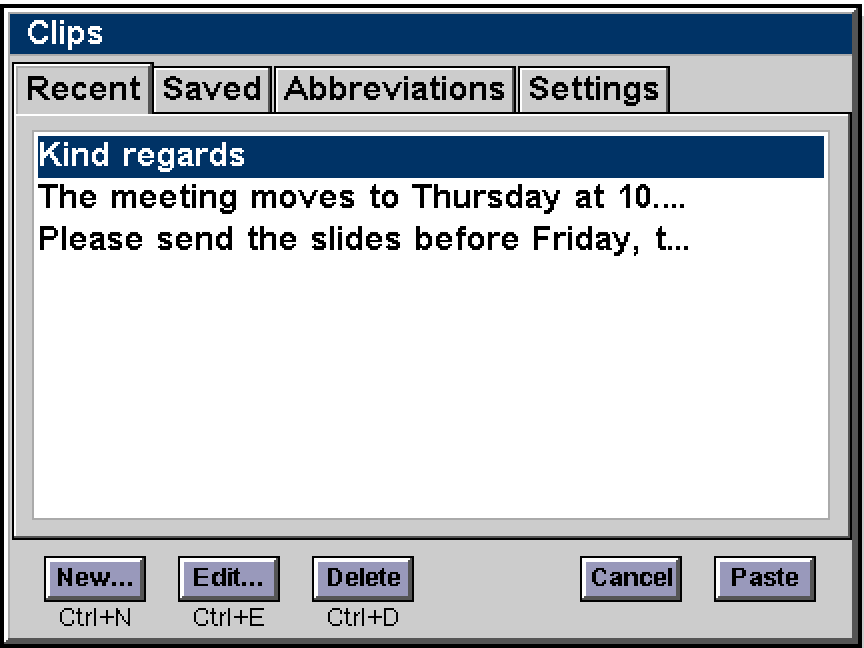
EPOC keeps one thing on the clipboard. Clips keeps the last twenty, or ten, or fifty. Press Ctrl+Fn+V in any program, pick one and press Enter, and it goes in at the cursor.
Saved texts are for the lines you type again and again. Put %date% or %time% in one and it's filled in when you paste. The idea came from the Psion community's own add-ons, written again for Coda.
Office files
Word and Sheet open and save Microsoft's formats and others on the netBook itself. It's built into the ROM. No PC needed.
Tap a .docx or .xlsx on the System screen and it opens straight in Word or Sheet. The formats are there in Save as, too. Pictures in a document come in as Sketch objects.
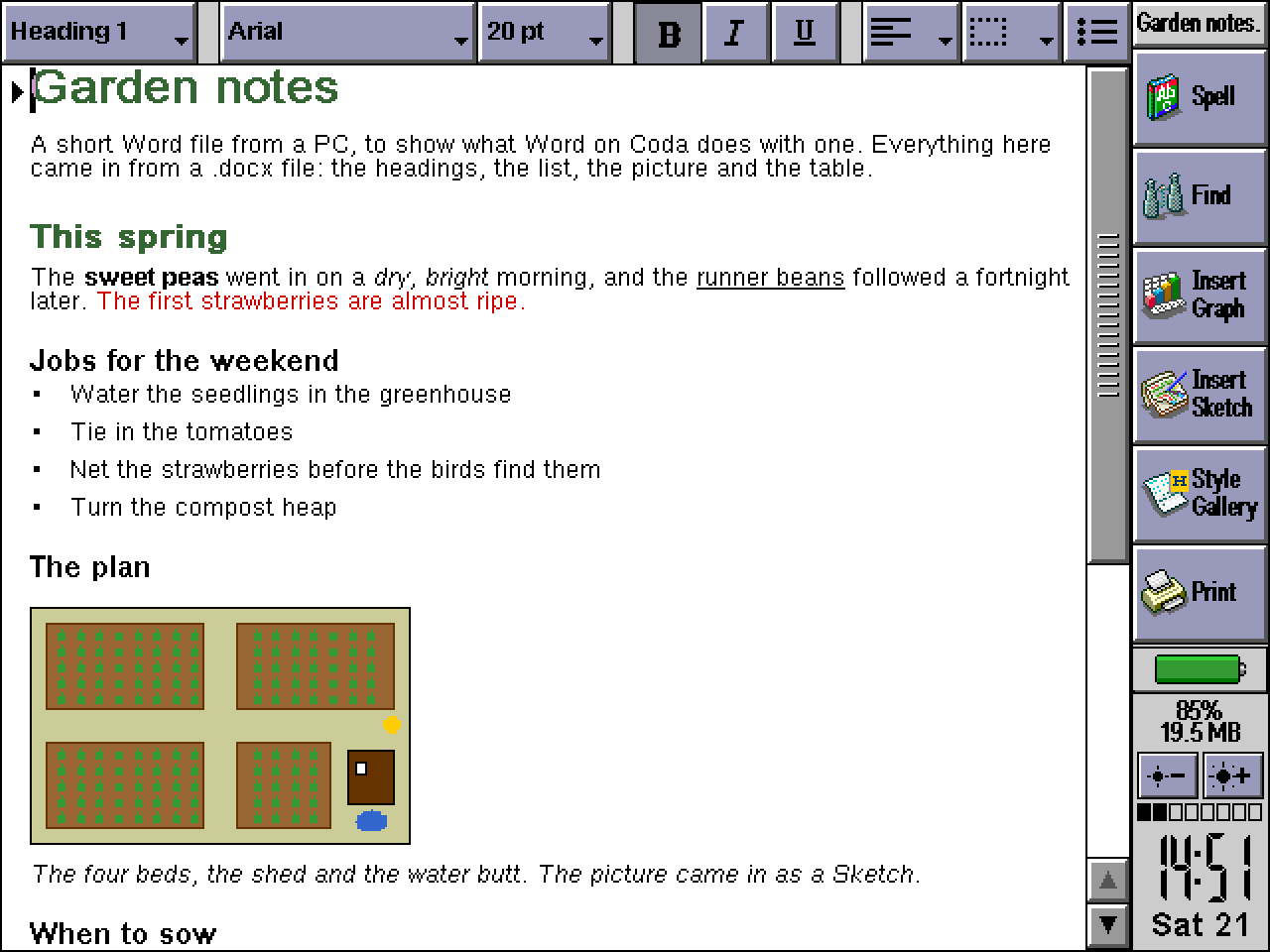
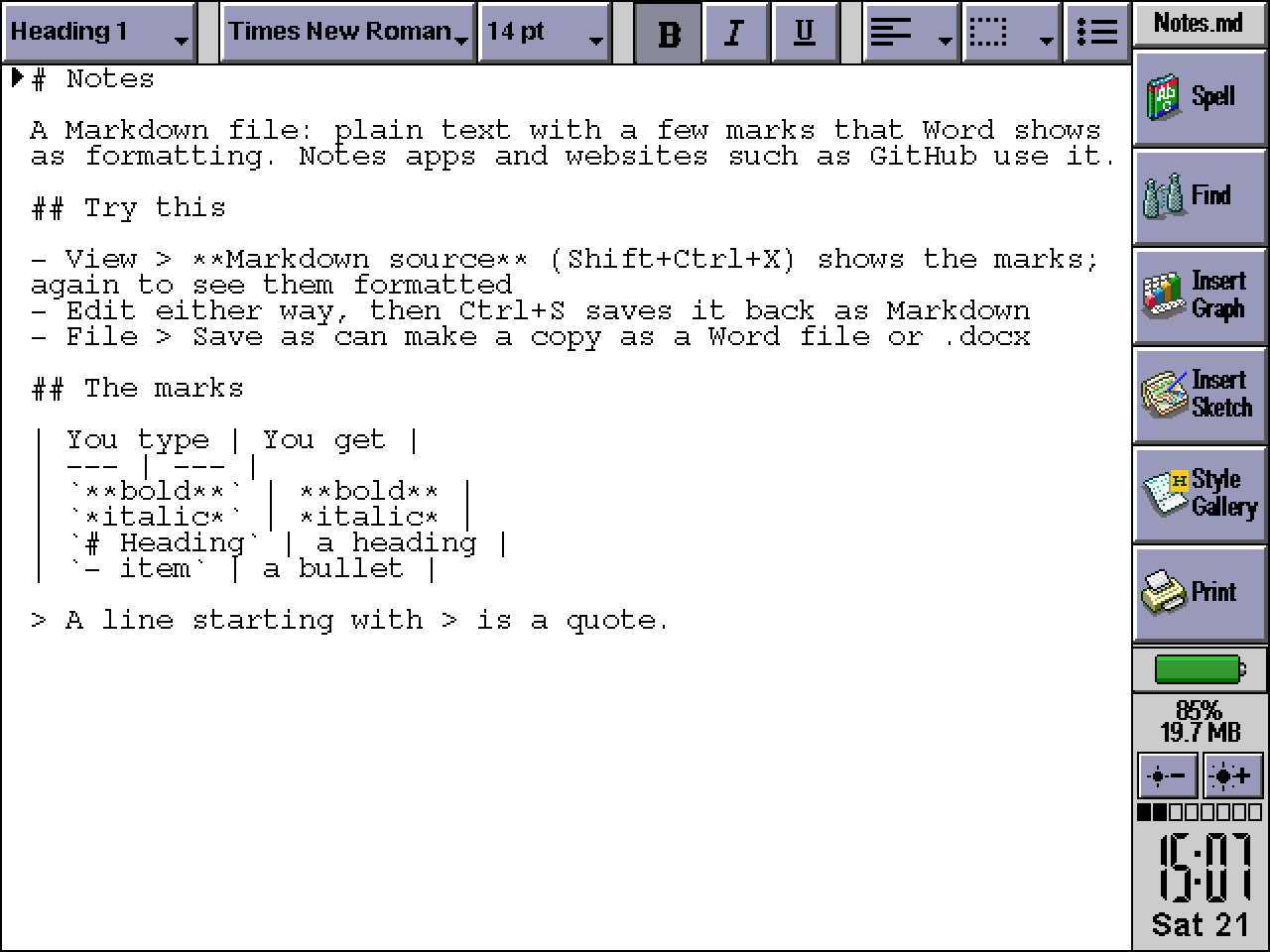
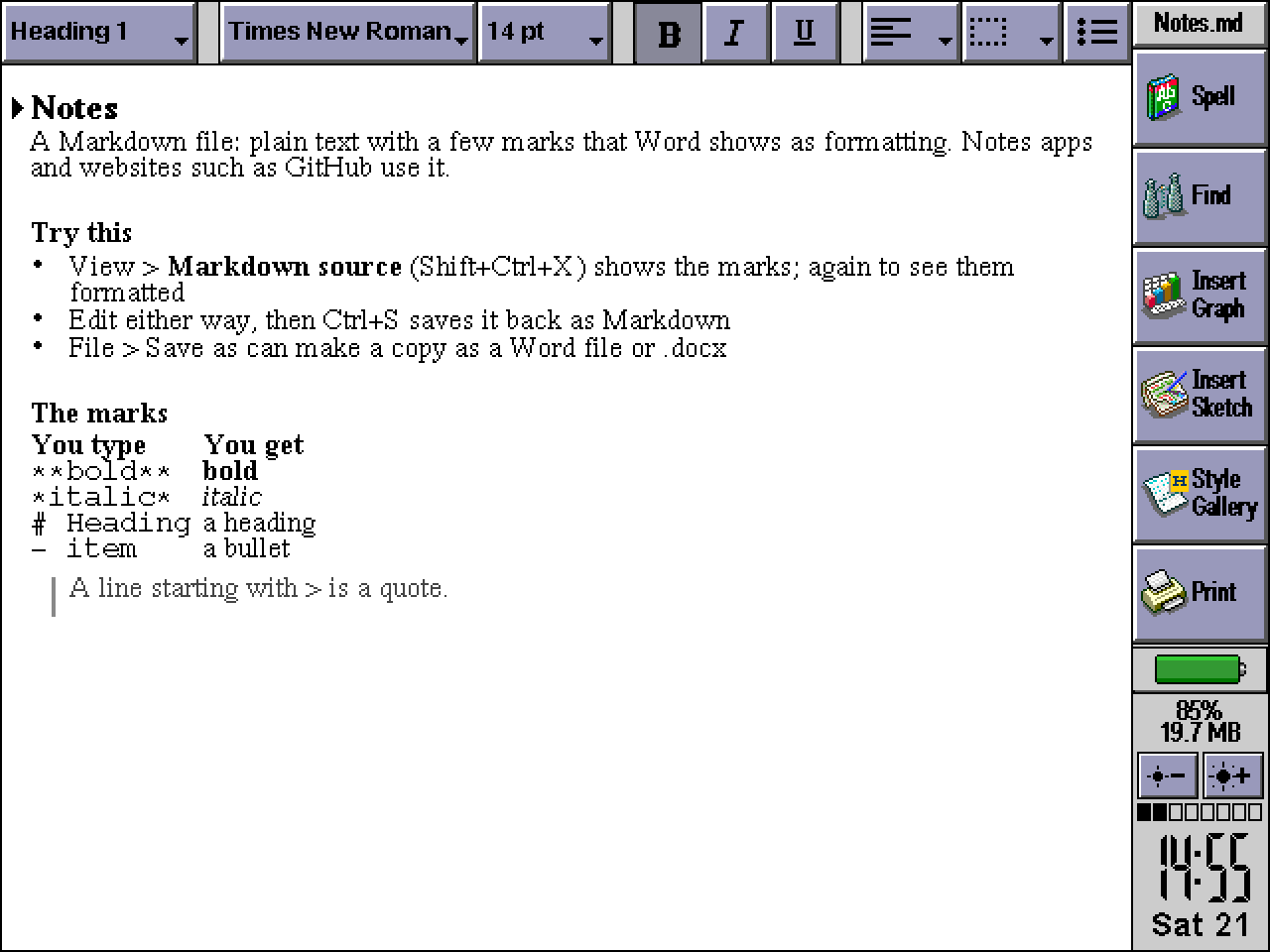
A Markdown file opens in Word formatted: headings, bold and italic, lists, quotes, code and tables. Save it and it goes back as clean Markdown. View, Markdown source (Shift+Ctrl+X) shows the plain text with its marks.
 SourceFormatted
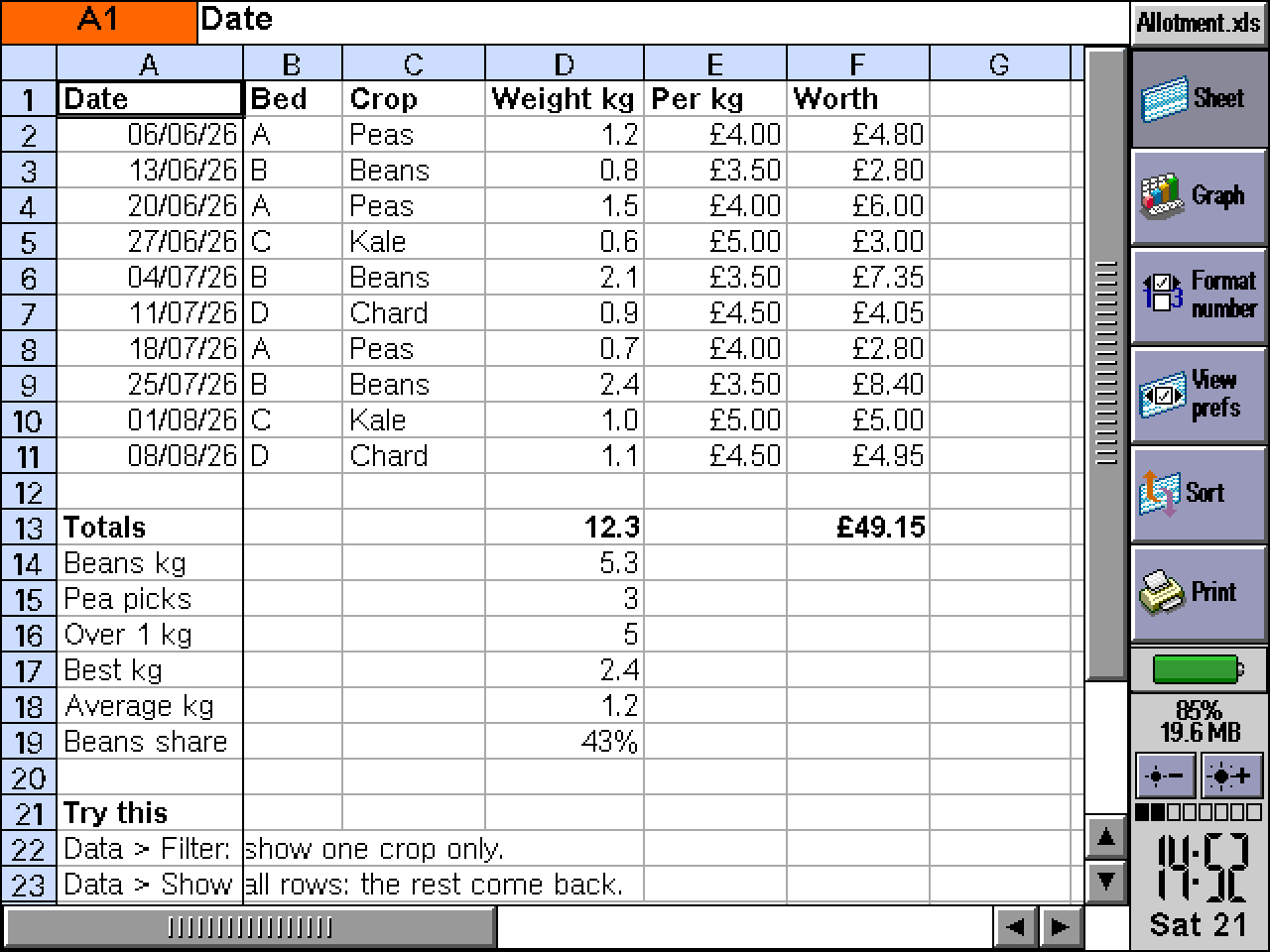
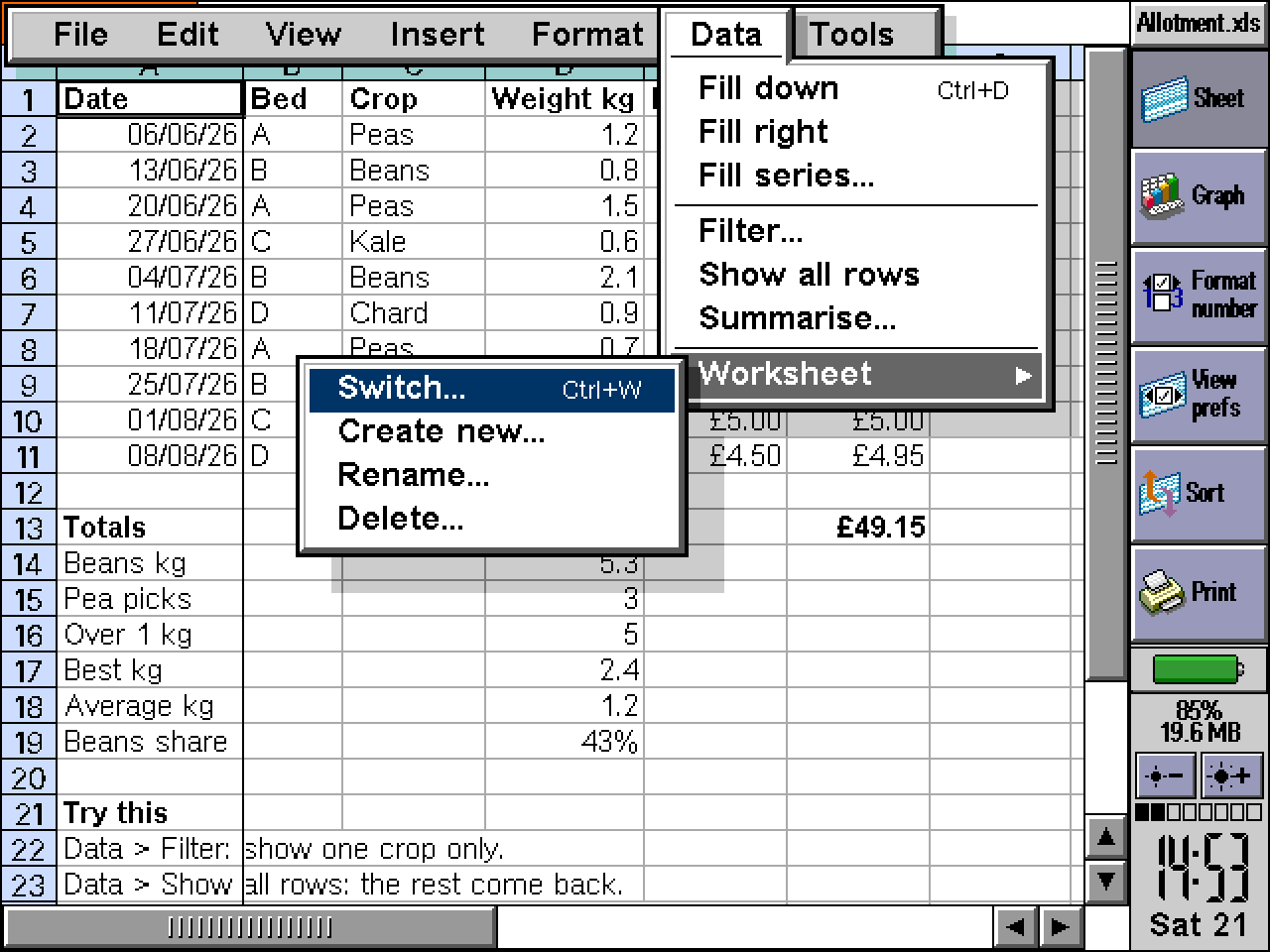
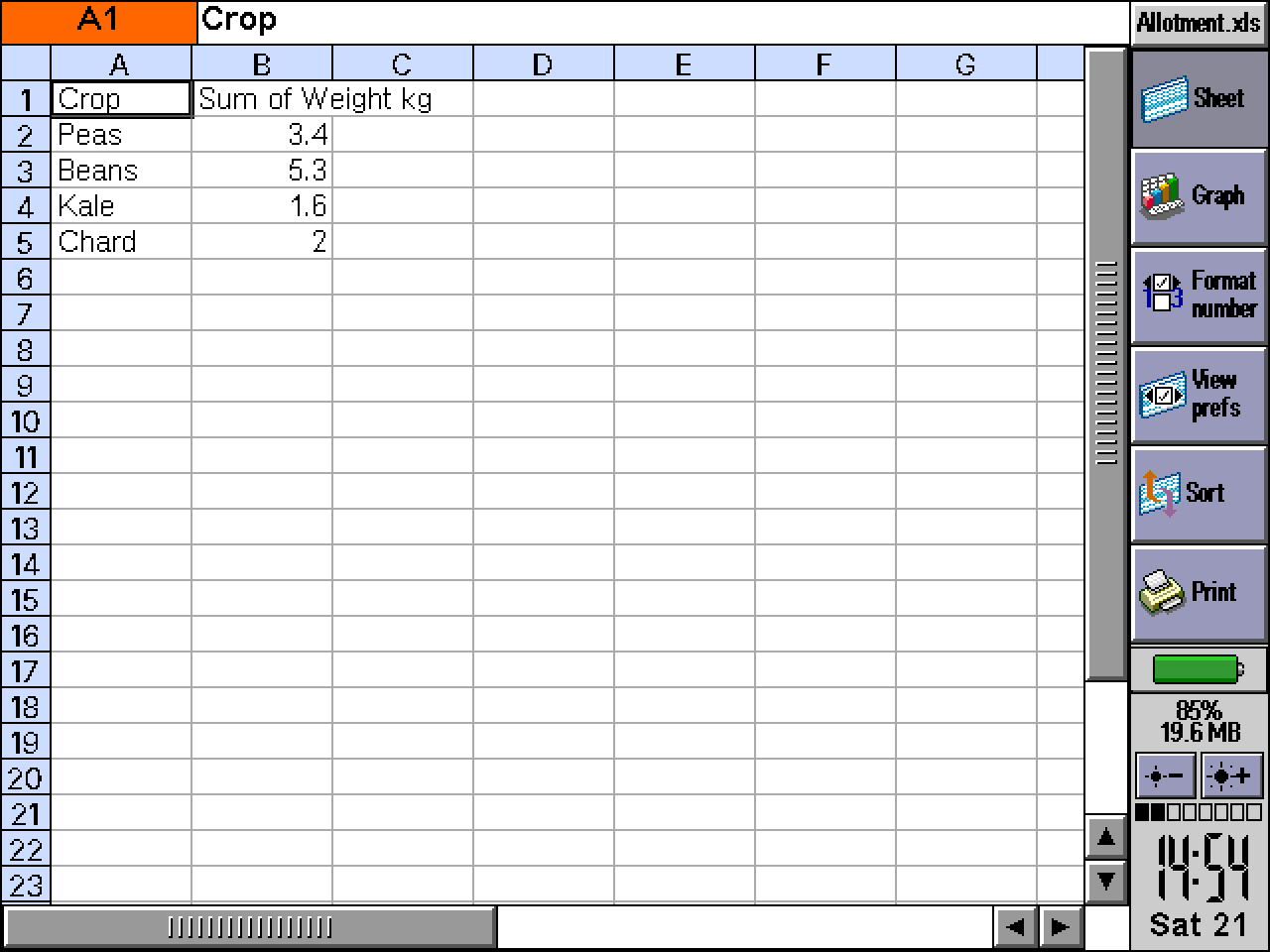
A new Data menu. Fill down with Ctrl+D, fill right, or fill a series of numbers, dates or months. Filter the rows by a column. Summarise one column by another into a new worksheet. SUMIF and COUNTIF in an Excel file come in as working formulas.
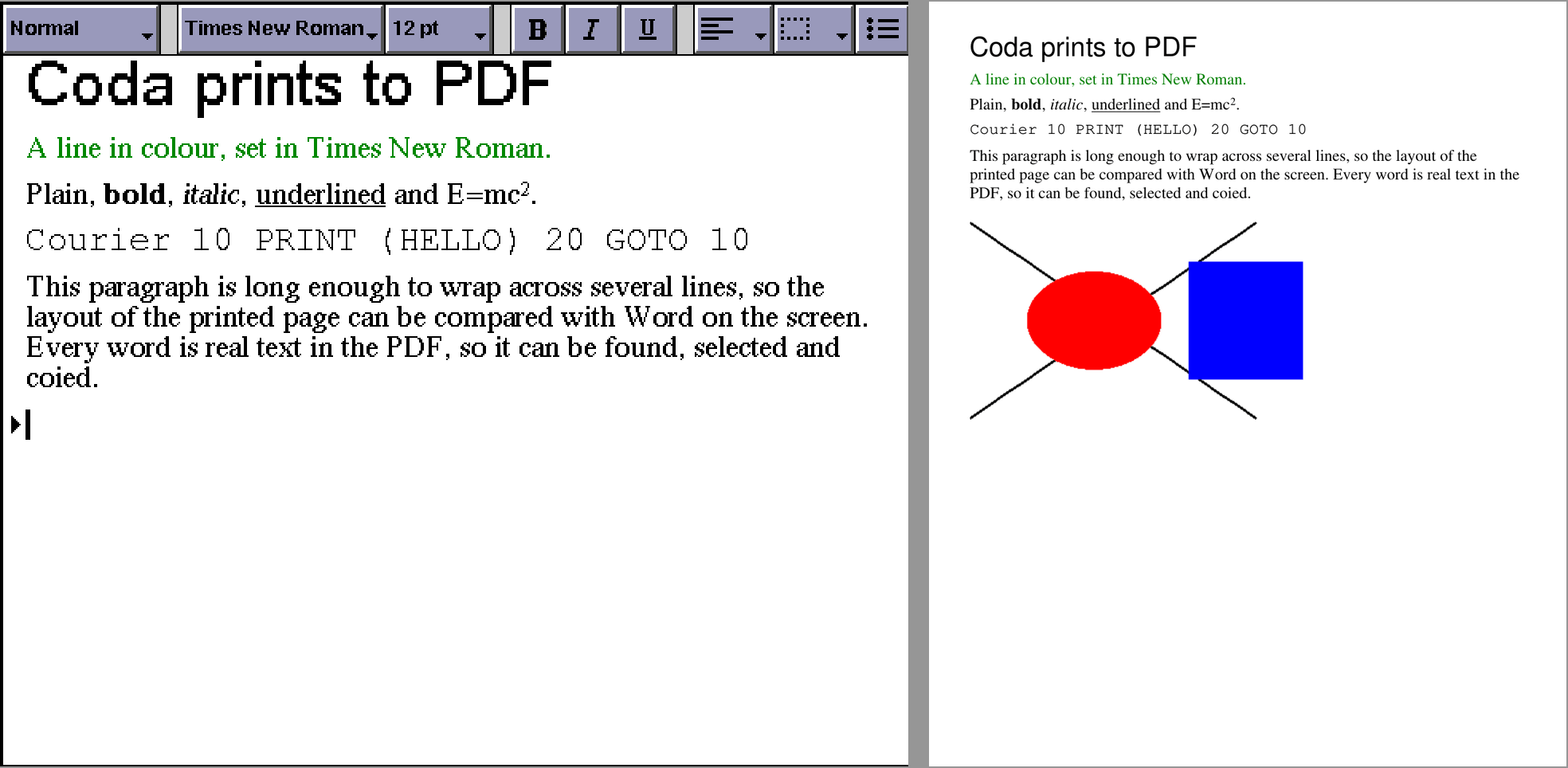
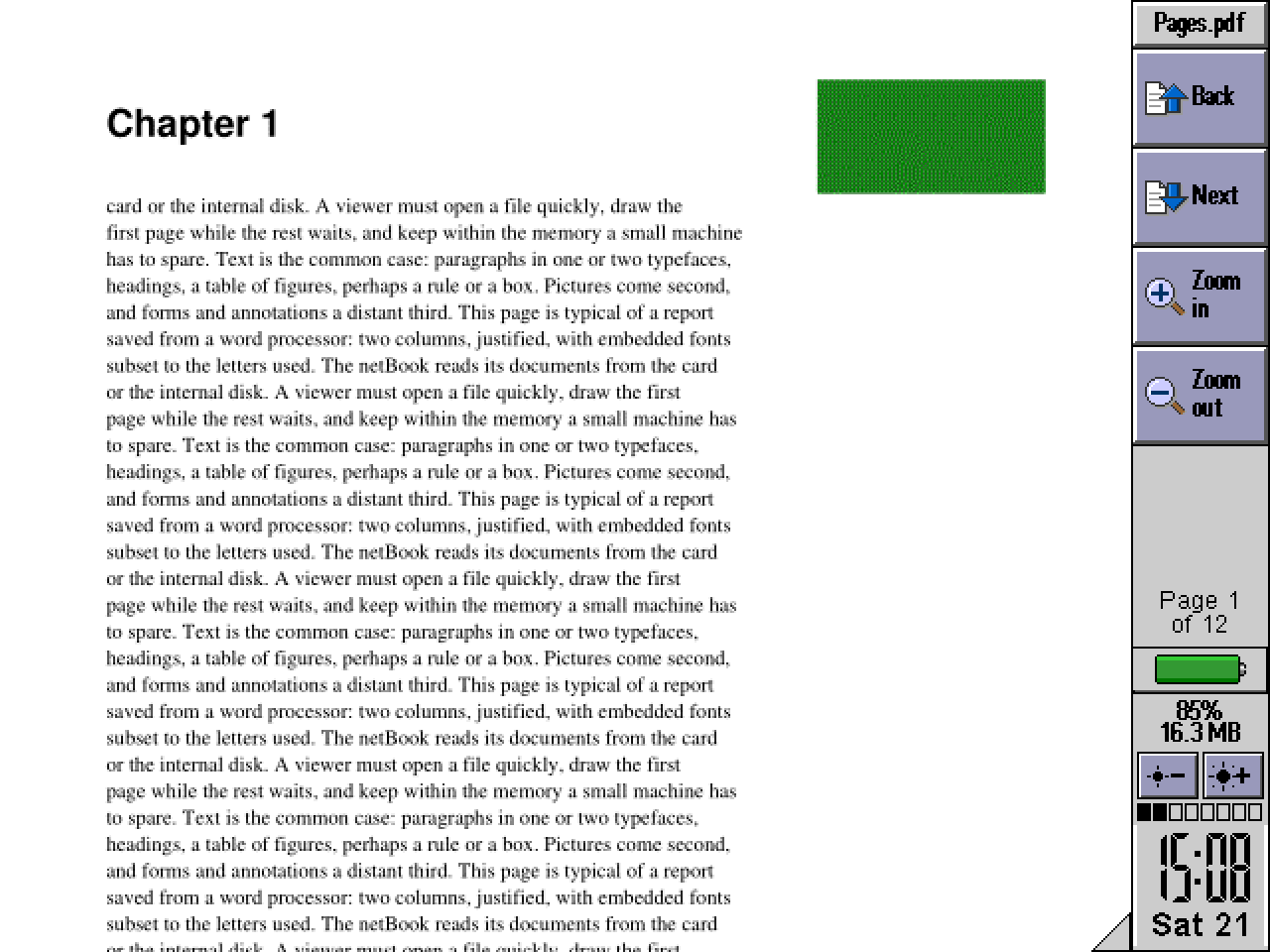
"PDF file" is in every program's printer list, and the PDF is saved next to your file, with real text you can search. On the card, PsiPDF opens a PDF tapped on the System screen, fitted to the width. It zooms, goes to a page, finds text and opens files with a password. While it draws a page it says so, steadily, bottom left. Short of memory, it says so with a Free memory… button, and shows the page by itself once the memory is back.
Agenda
Psion's Agenda stays the program you know. Coda gives it the things a diary needs today.
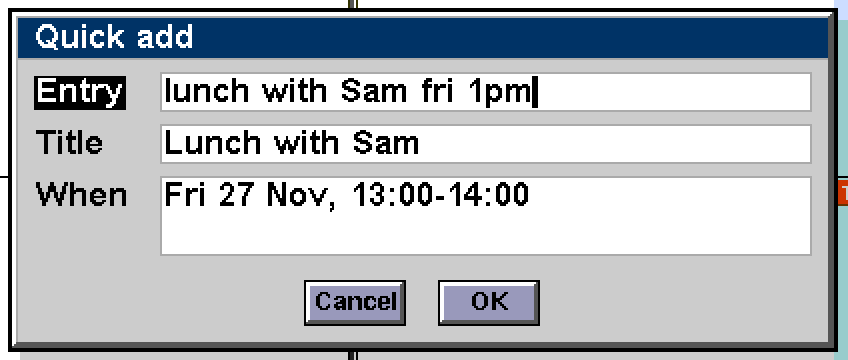
Ctrl+Y and type "lunch with Sam fri 1pm". Repeats, alarms and birthdays work too, and "#work" puts it in your Work calendar. PsiHub can add entries and find them.
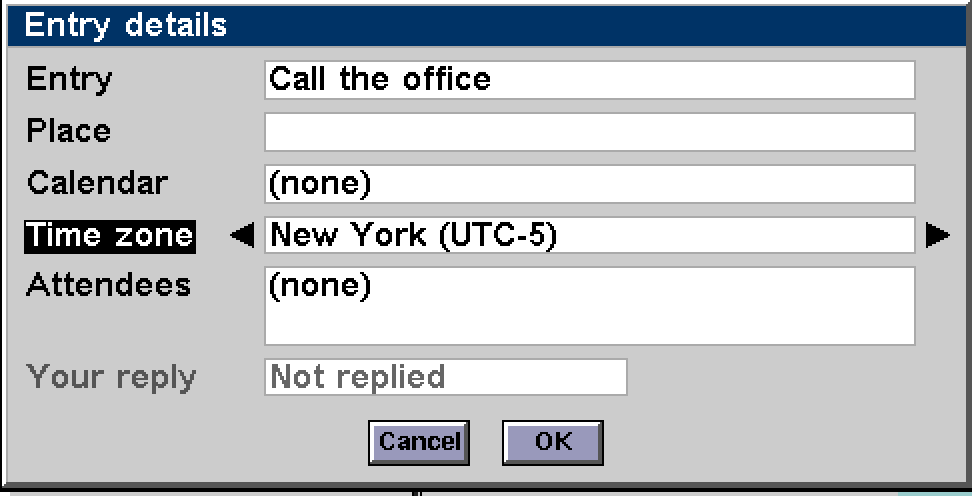
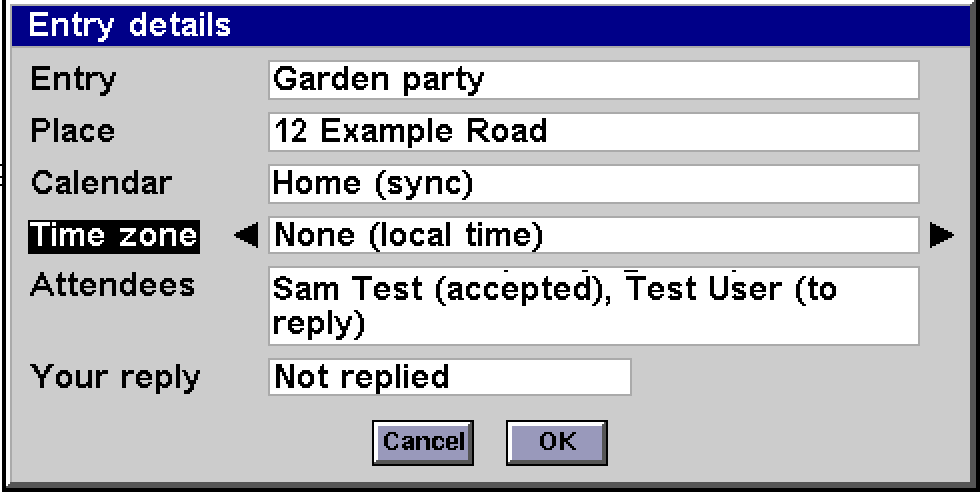
Edit, Entry details shows the place, calendar, time zone, attendees and your reply. Give an entry a time zone and it follows that place's summer time and yours.
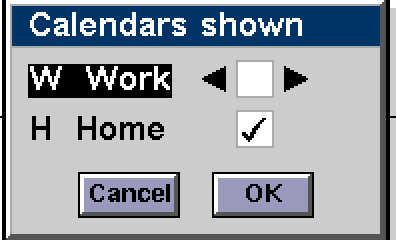
Agenda's entry symbols get names, so W is Work and H is Home, in Agenda's own colours. View, Calendars shown hides one in every view.
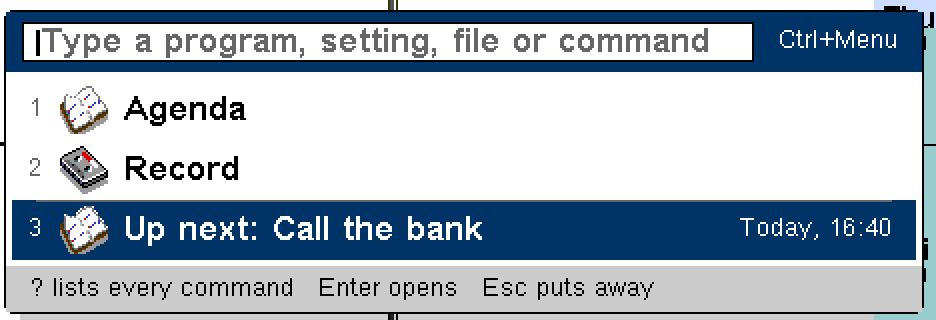
Each press of Snooze puts an alarm off for longer: 5 minutes, 15, an hour, a day. Open PsiHub with nothing typed and your next entry is the last row.
Sync
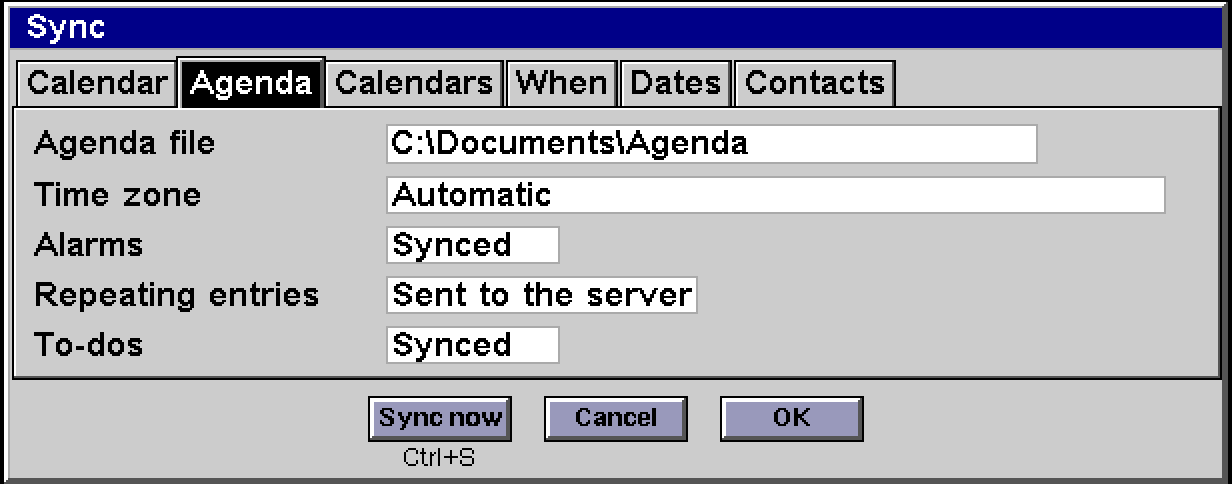
Sync in the Control panel keeps Agenda in step with an online calendar, and Contacts with an online address book. It speaks CalDAV and CardDAV, as most calendar services do. It syncs at the times you set, when a connection comes up, or on Sync now, and never dials on its own unless you let it.
Alarms
An alarm used to ring until somebody cleared it. Time's Preferences now have Ringing and Chime pages beside Psion's own. The idea comes from Alarm+, by Robin Hood.
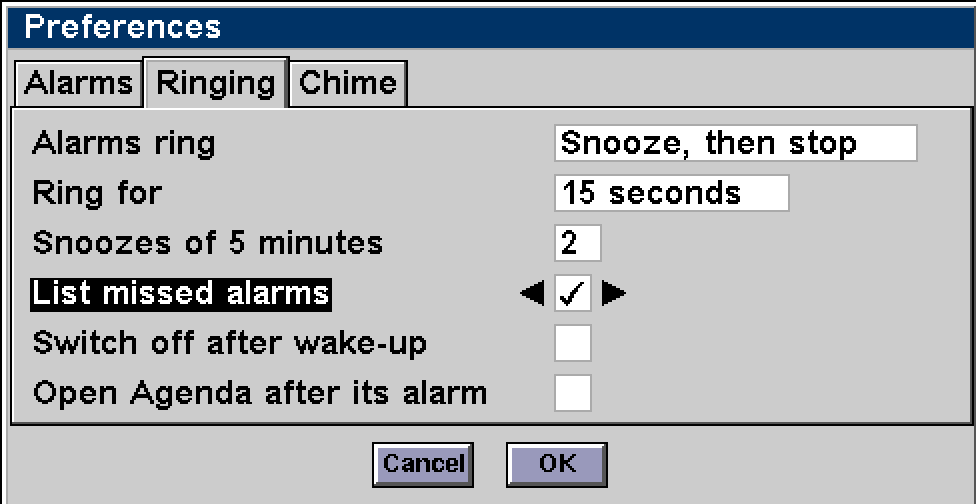
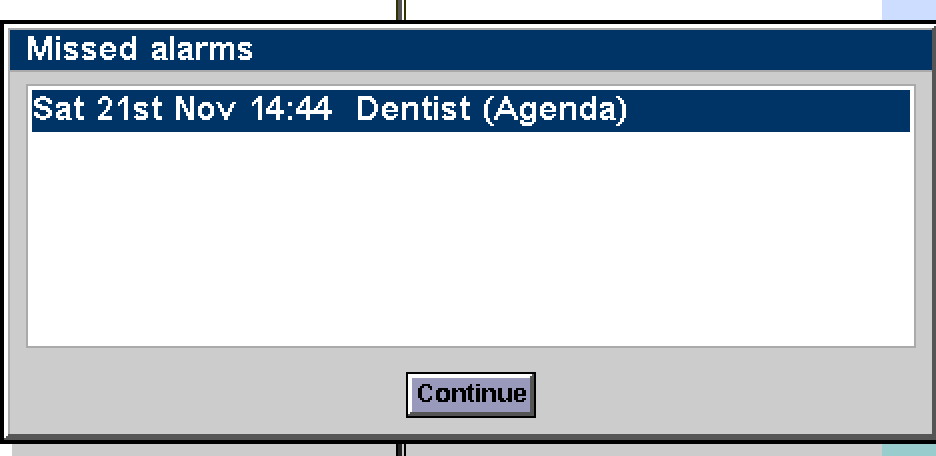
The netBook can switch itself off again after an alarm woke it, and open Agenda after one of its alarms. The chime beeps every 15, 30 or 60 minutes, with quiet hours. Ringing until cancelled is still the standard.
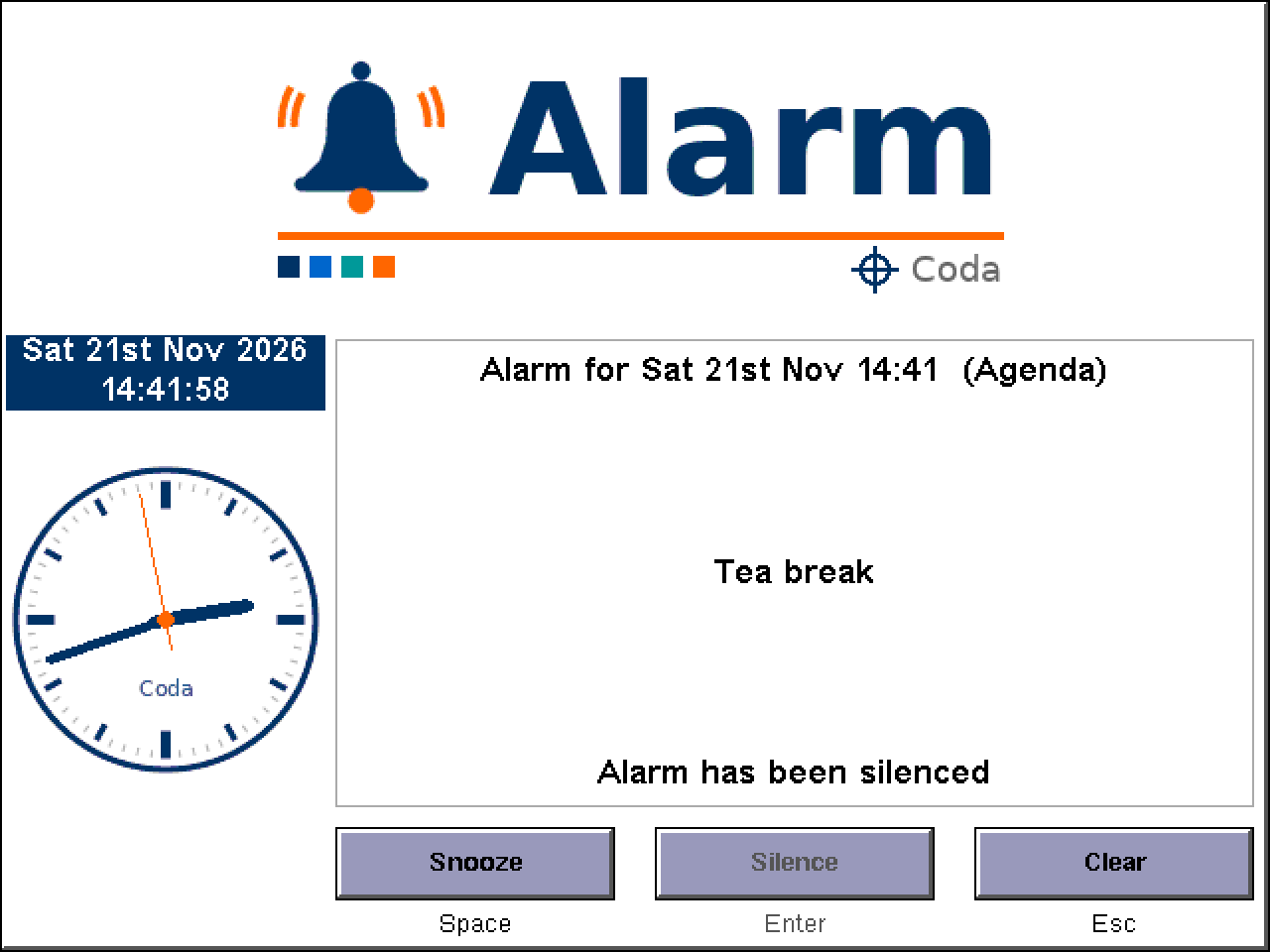
An alarm showed the start-up banner, so it looked like an About box. Now it has its own: a bell and "Alarm" in navy and orange. Psion's photo-style clock on its grey square is gone too. In its place is a white face with a slim navy ring, navy hands, an orange second hand, and the date and time on navy.
New programs
Psion's own programs, rebuilt for the netBook's whole screen, with the same menus, keys and files.
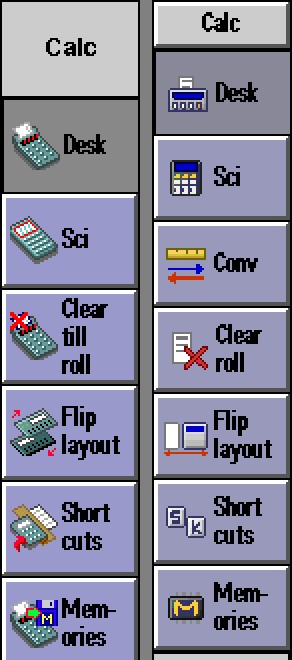
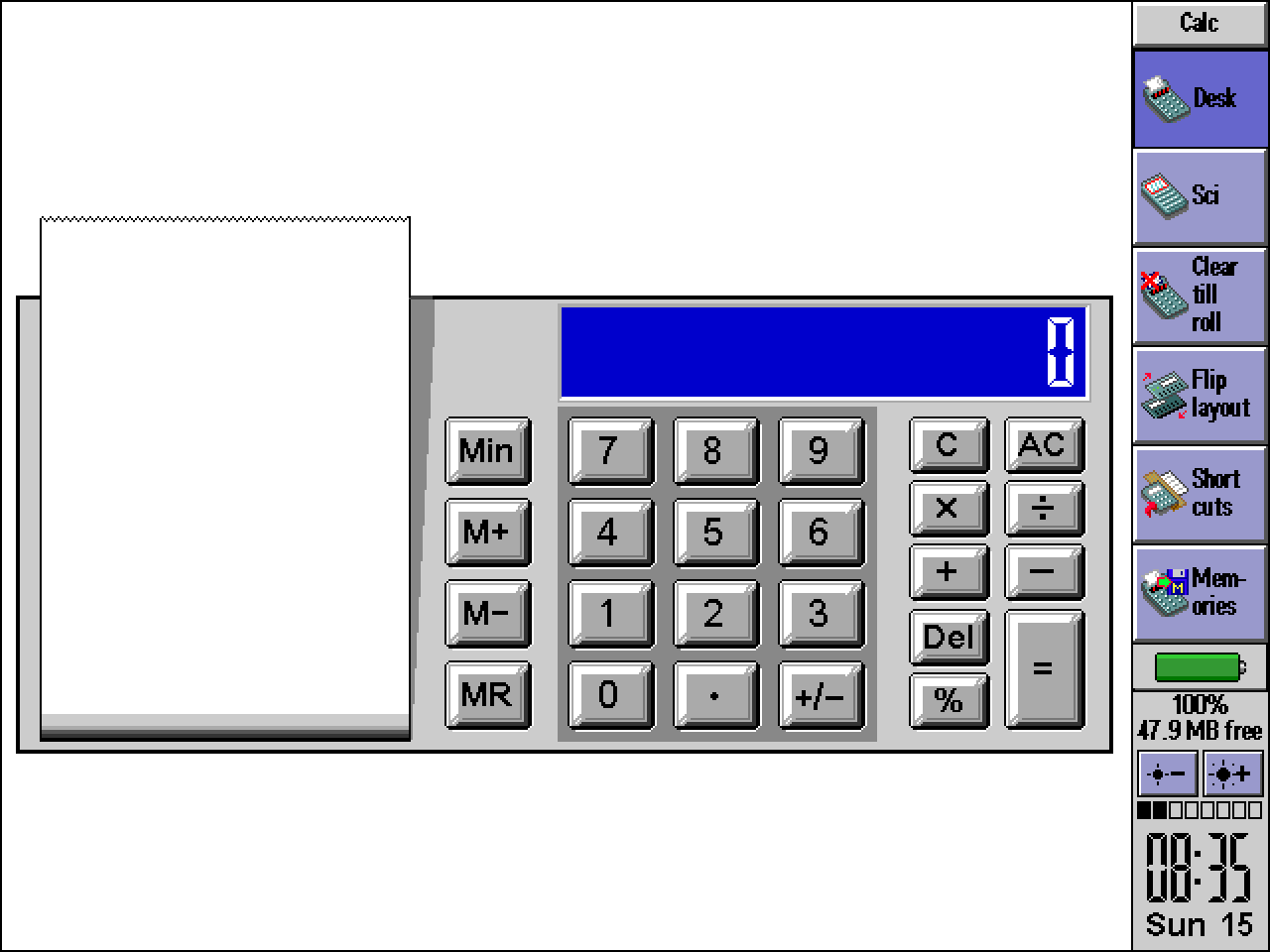
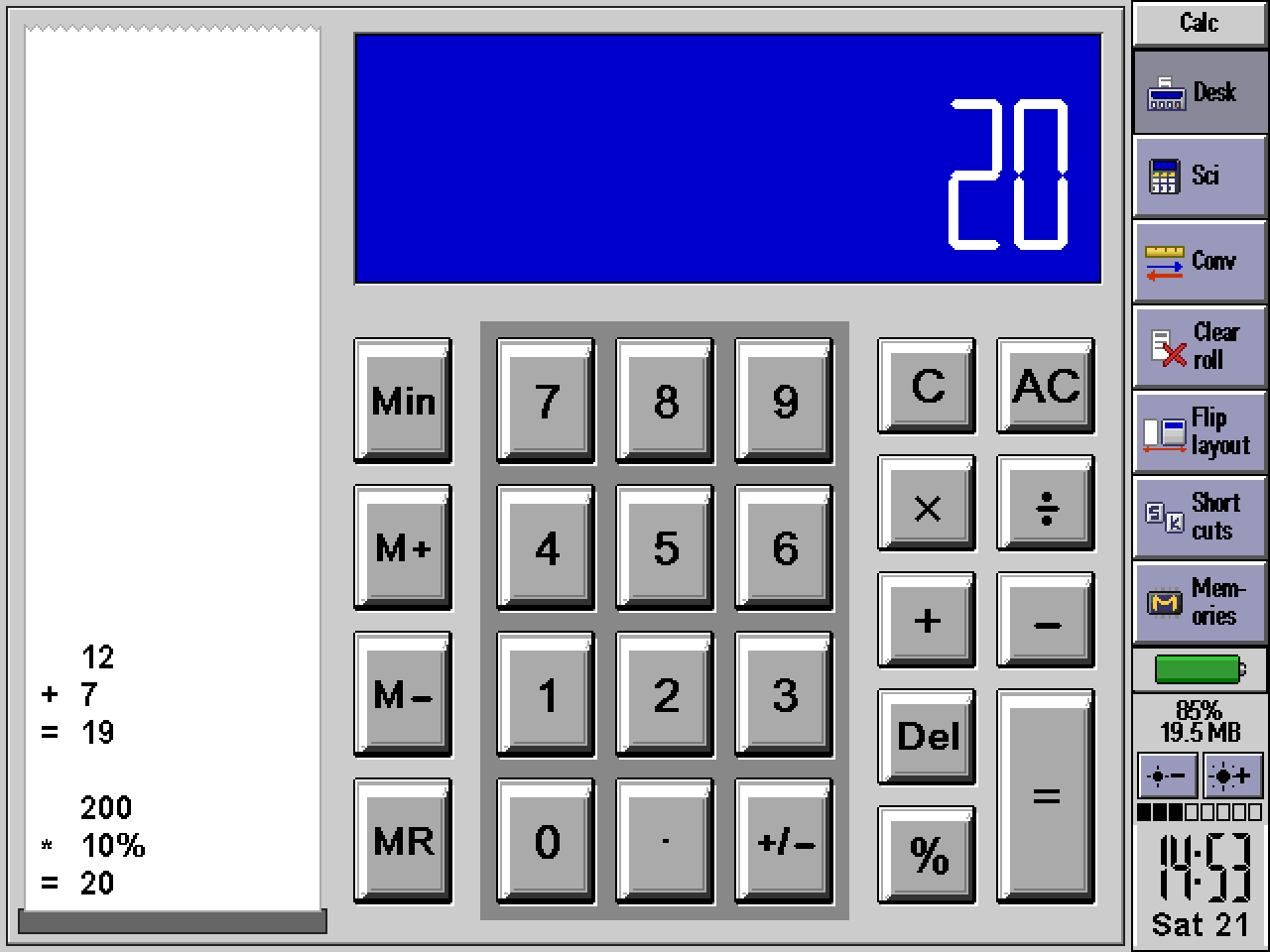
Calc drew a small calculator in the middle of the screen, like it had come through the letterbox. The new Calc is the same calculator laid out again for 640 by 480: the till roll, the memories, the Scientific view, every key Calc's own raised keycap, drawn larger with crisp edges.
 PsionCoda
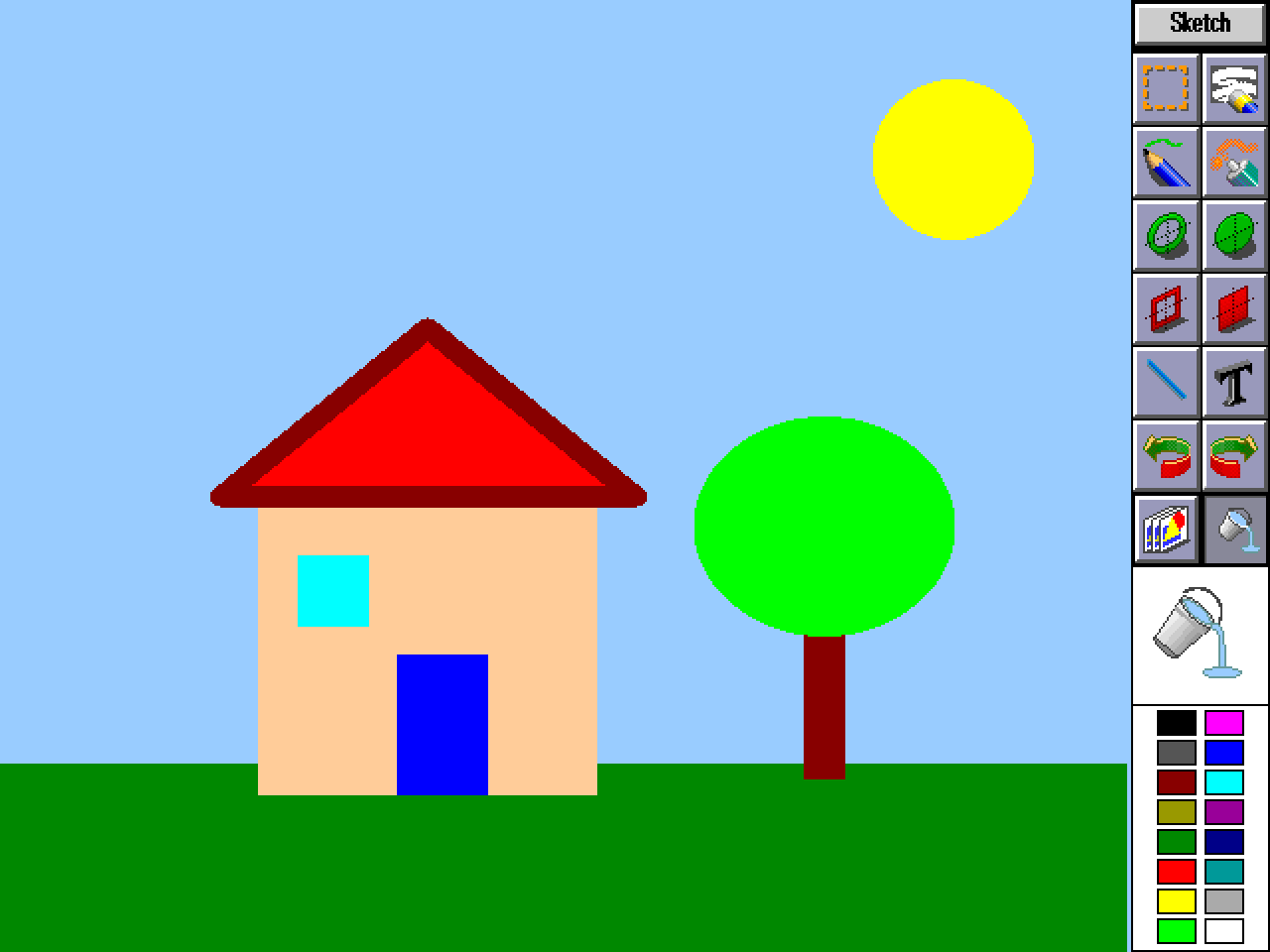
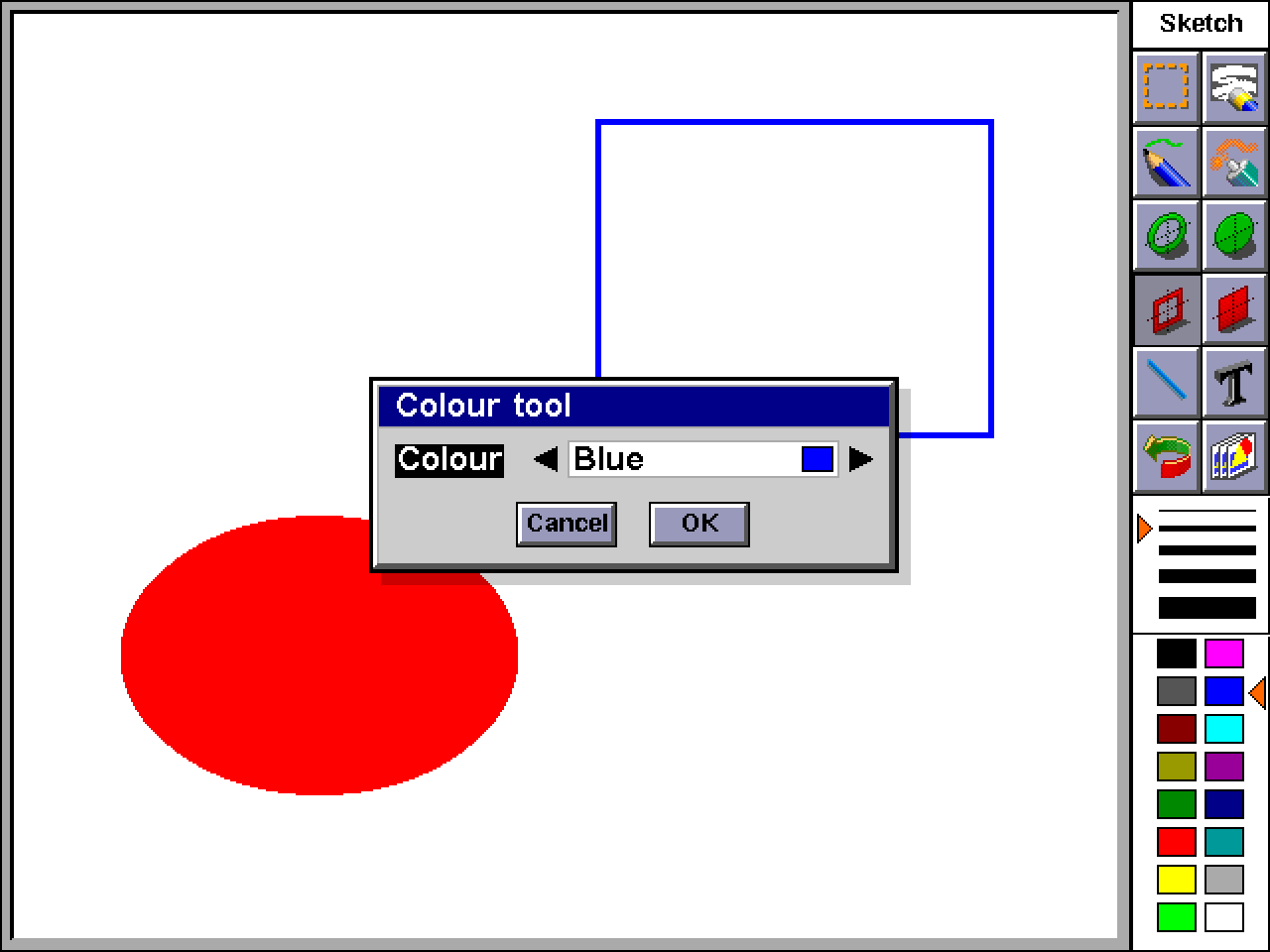
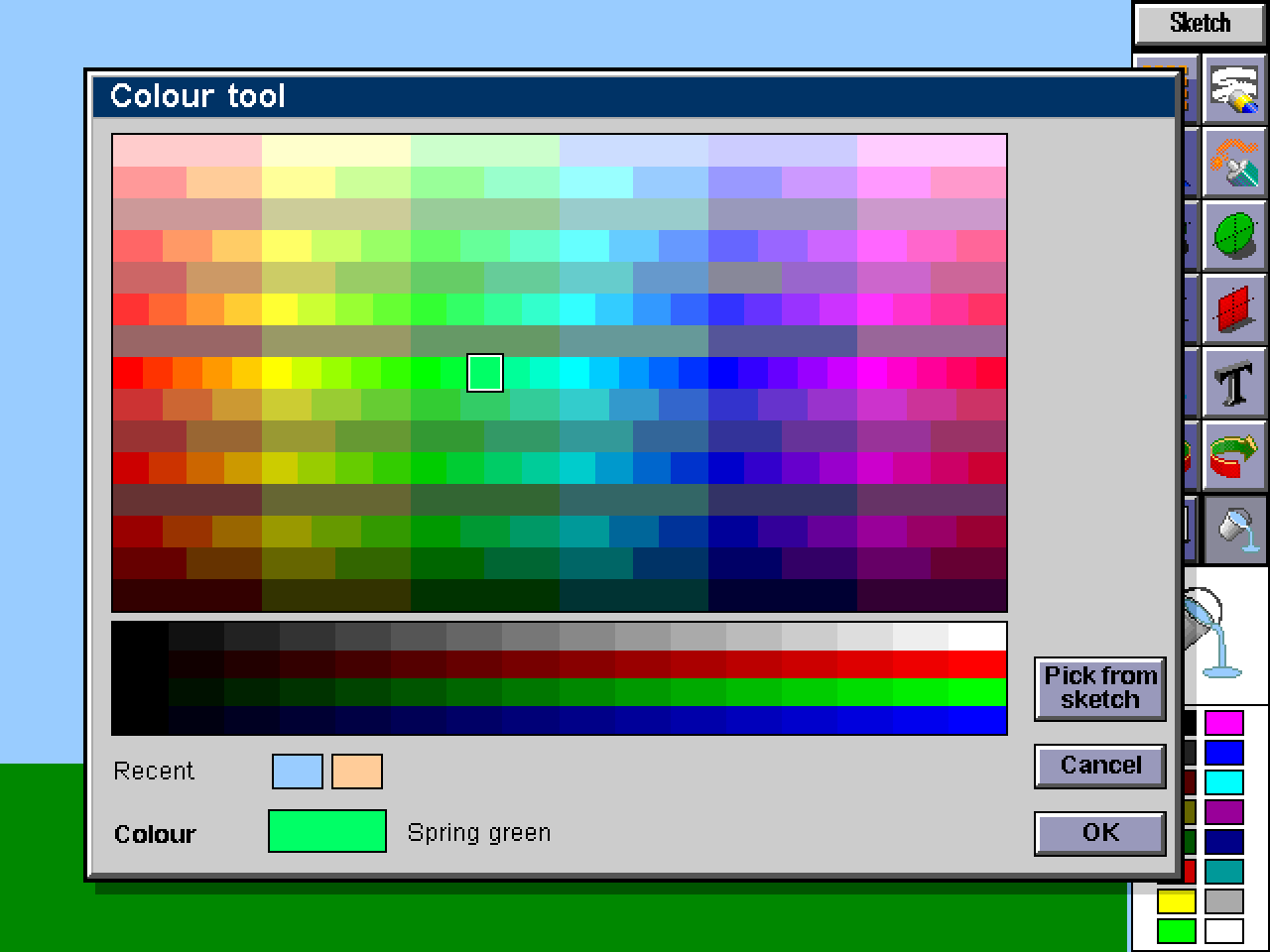
The screen shows 256 colours. Psion's Sketch let you pick 16. The new Sketch opens all of them, laid out like the colour wheel unrolled, with your recent colours and a picker that takes a colour off your drawing. It uses the whole screen, zooms to eight times, undoes 16 steps and exports to PNG. And it has the one tool Psion's never had: Fill, on Ctrl+G. Redo sits beside Undo, Clipart and Fill have a button each, and a tap outside Insert clipart closes it. The fill picture under the toolbar is drawn at its own size, so it stays crisp.
 PsionCoda
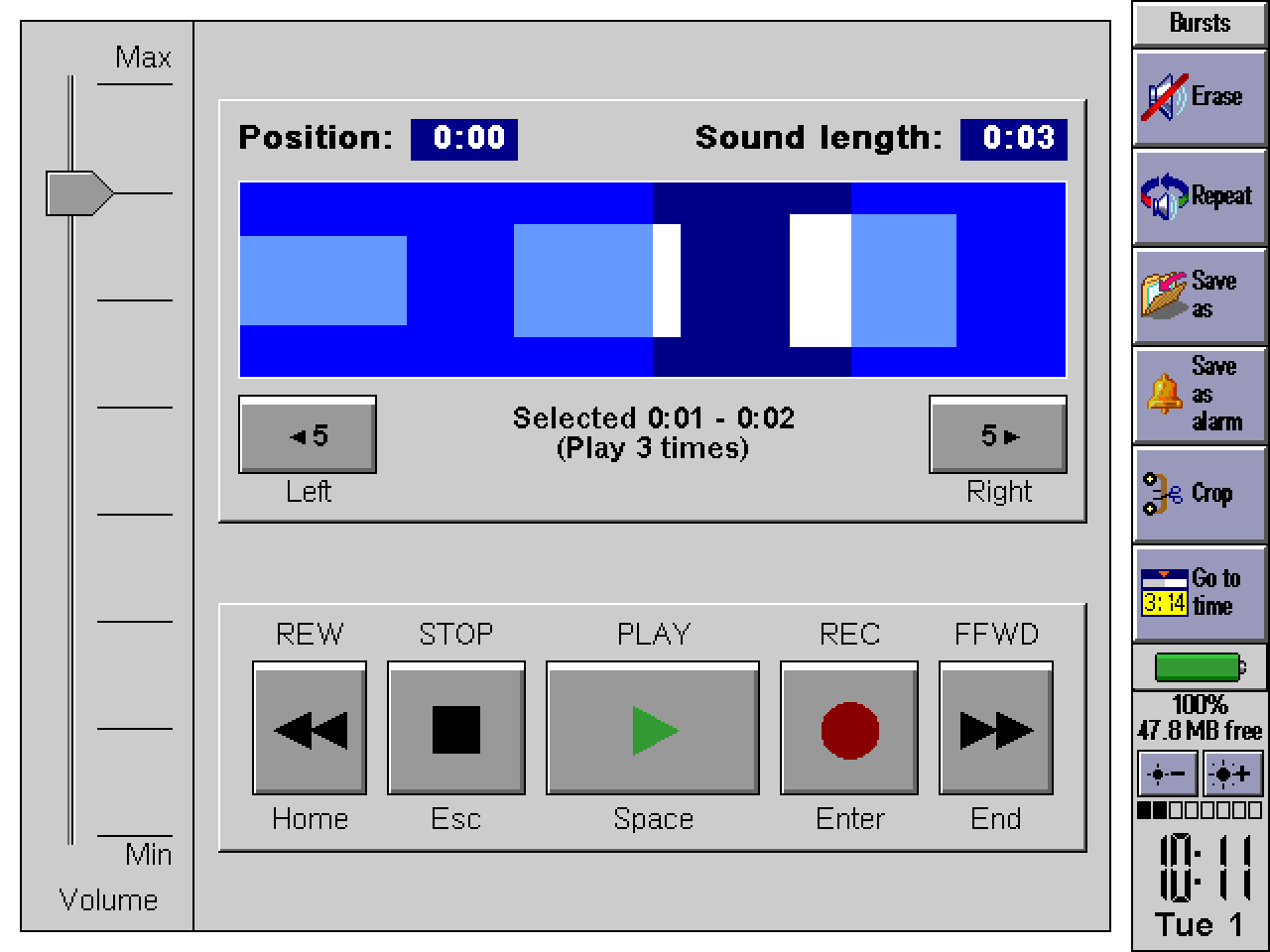
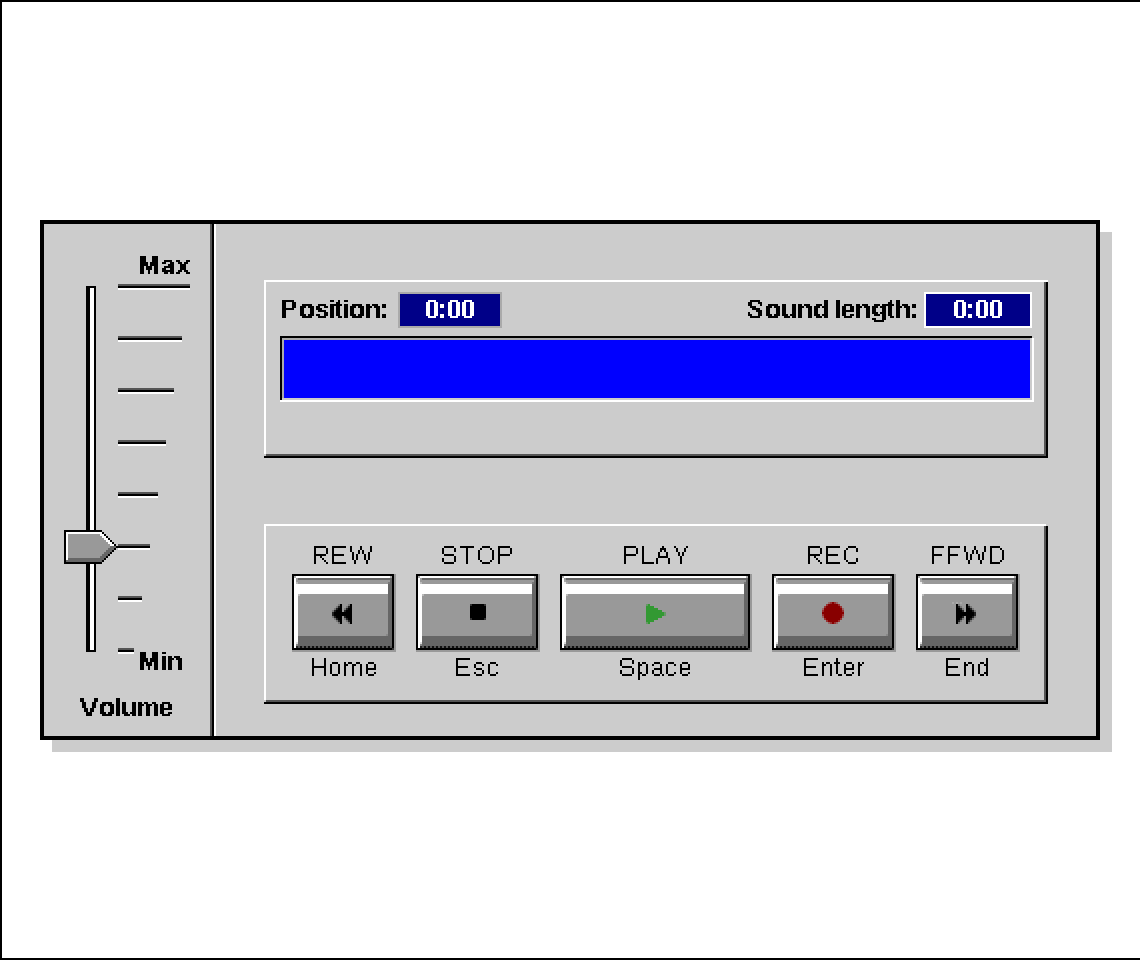
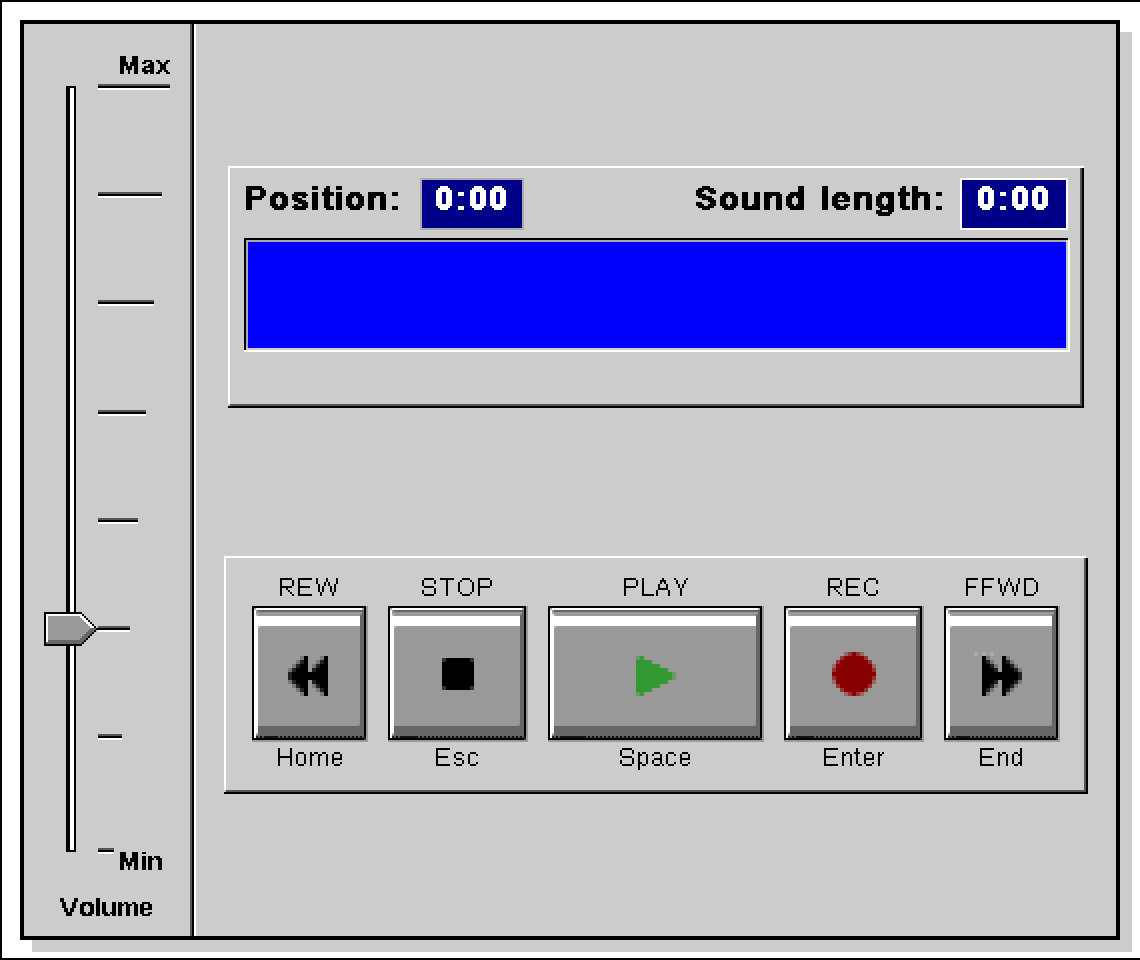
The sound drawn as a waveform, so you can see the gaps. Select part of it to play, erase or crop to, skip 5 or 30 seconds at a time, and bring WAV files in and out.

 Fixed paletteIts own
Tap a PNG, JPEG, GIF or BMP and it opens fitted to the screen, ready to zoom, pan and step through the folder. Each photo gets its own 256 colours.
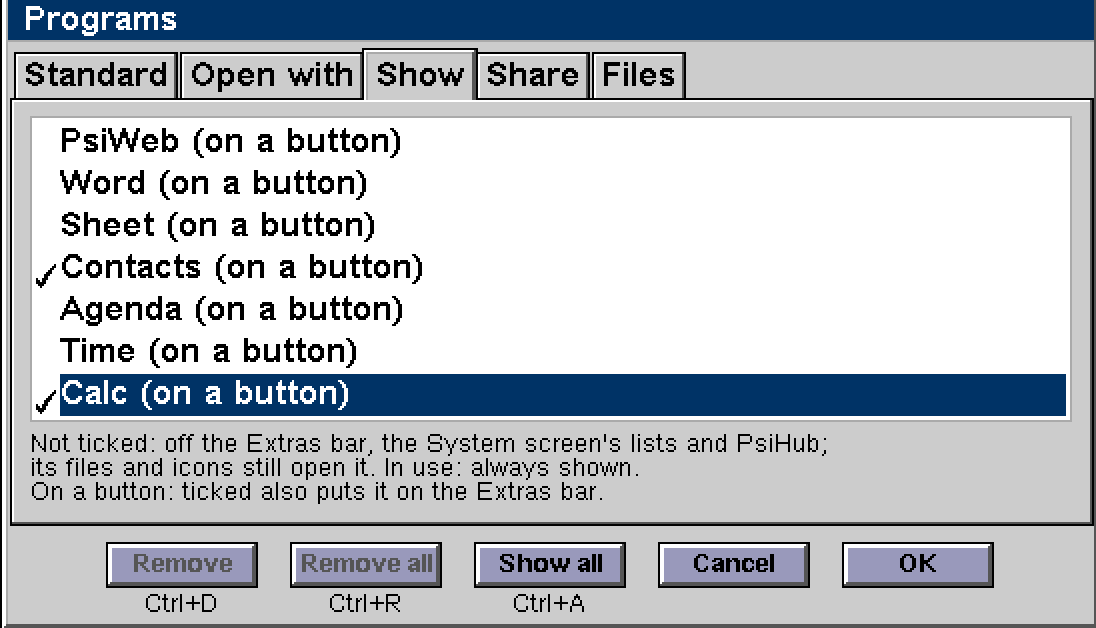
Prefer Psion's originals? Control panel, Programs puts them back on the icons. Its Show page leaves any program you don't use off the Extras bar and PsiHub, and puts a program that's on a silkscreen button on the bar too, if you tick it. Psion's Sketch and Record start hidden, since Coda's take their place.
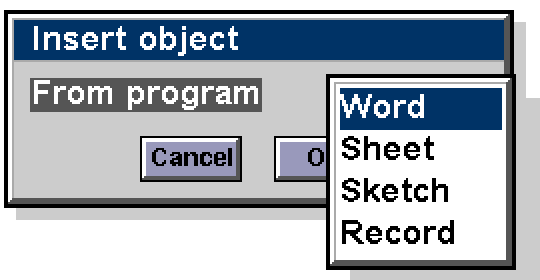
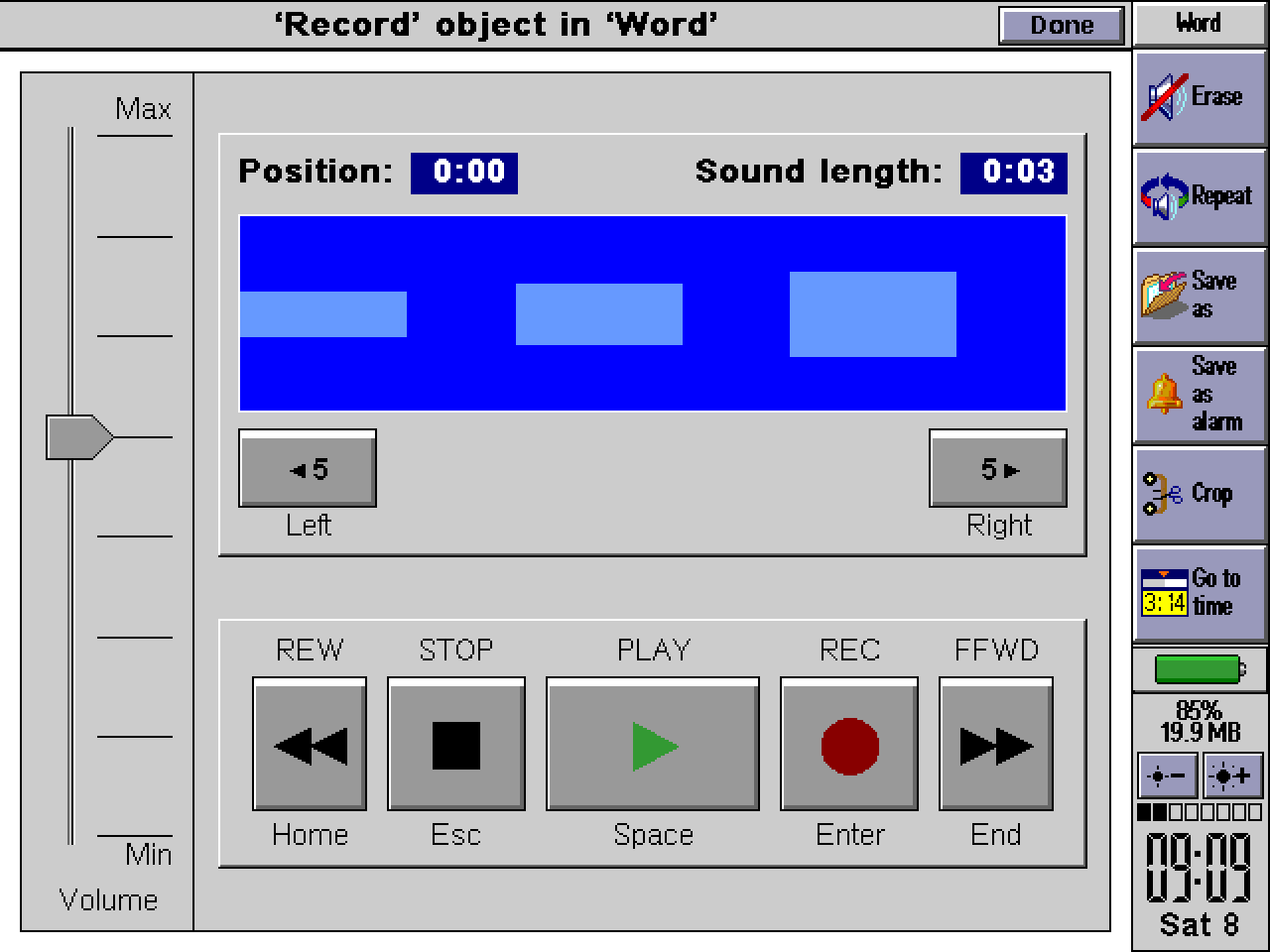
Insert, Object in Word lists Coda's Sketch and Record. Psion's two start hidden: a sound recorded with Psion's Record still opens and plays, and Control panel, Programs, Show brings them back. Insert sketch in Word, Jotter and Agenda opens Coda's Sketch, or the one you choose in Control panel, Programs. The band at the top names the program and the document, as Psion's own programs do, and Done puts it in the page. A sound is kept in the same format as Psion's Record keeps it.
Record plays smoothly, with the position moving as it goes. Select part of the sound and Play plays just that.
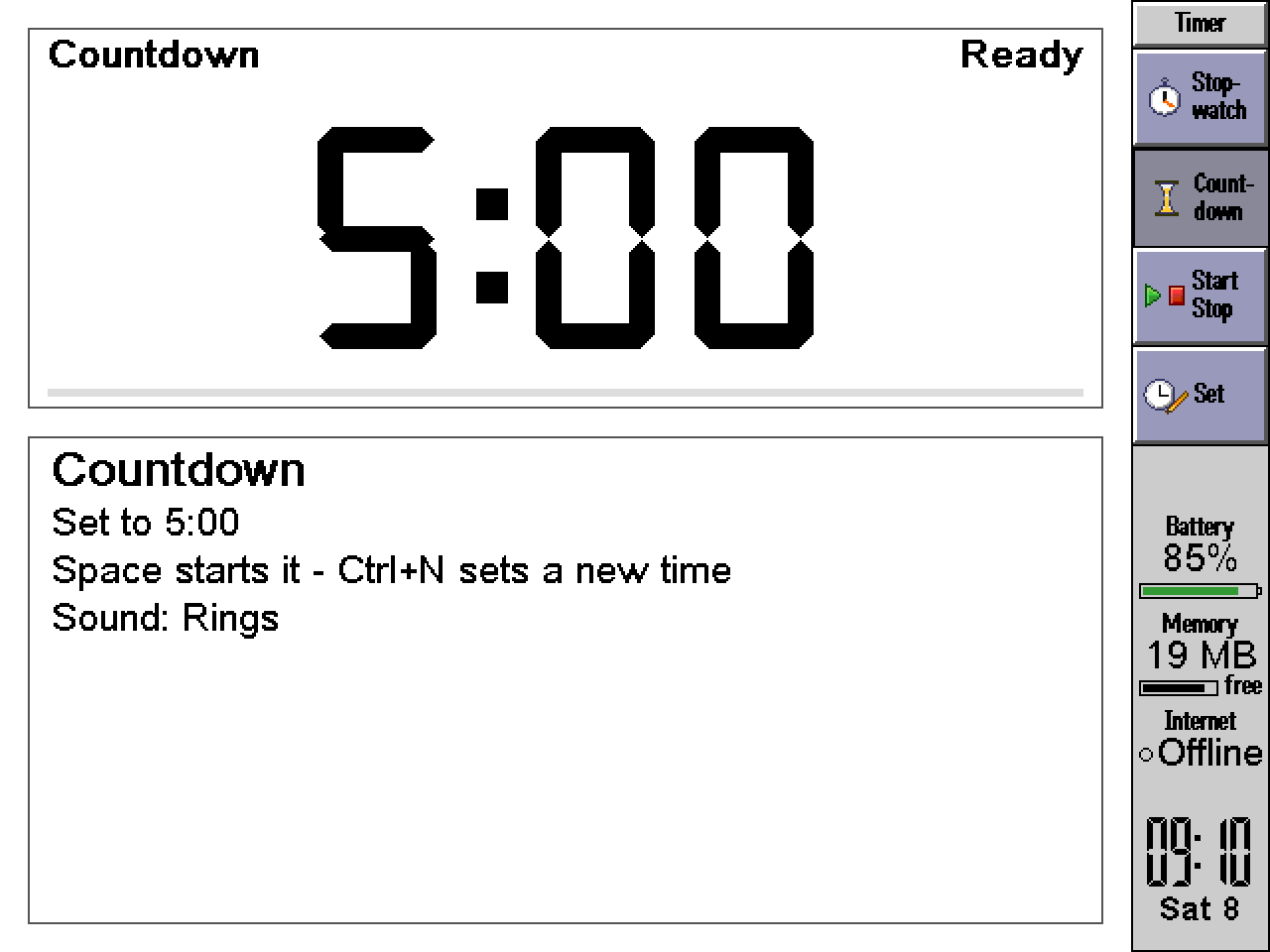
A stopwatch and a countdown, on the Extras bar, with a picture on every button. A countdown rings the second it ends, on Psion's alarm screen and with your alarm settings. Choose Silent and it shows without a sound.
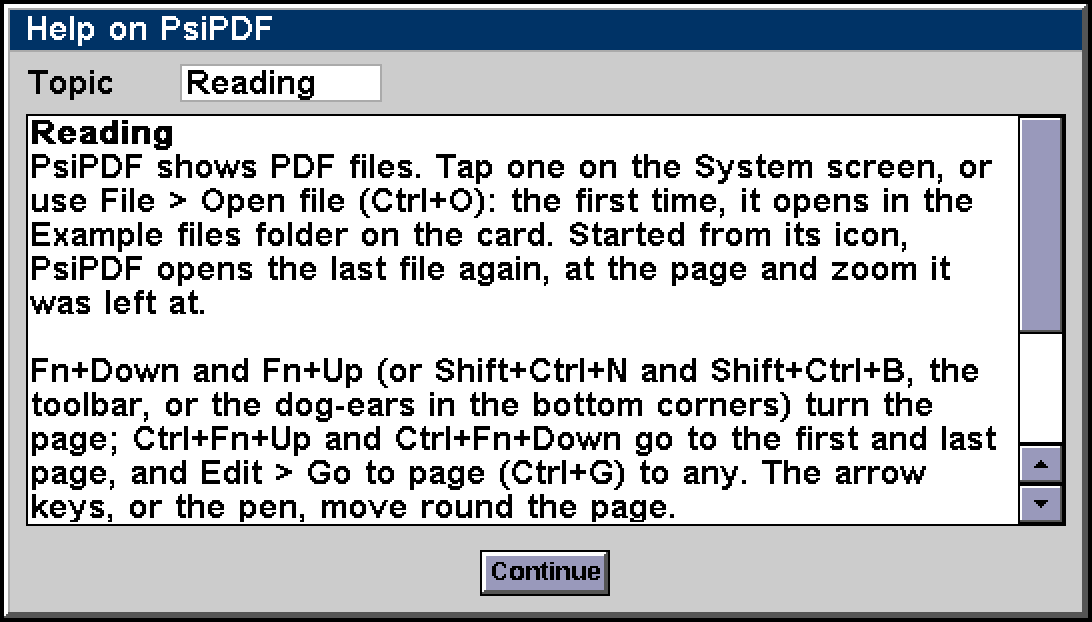
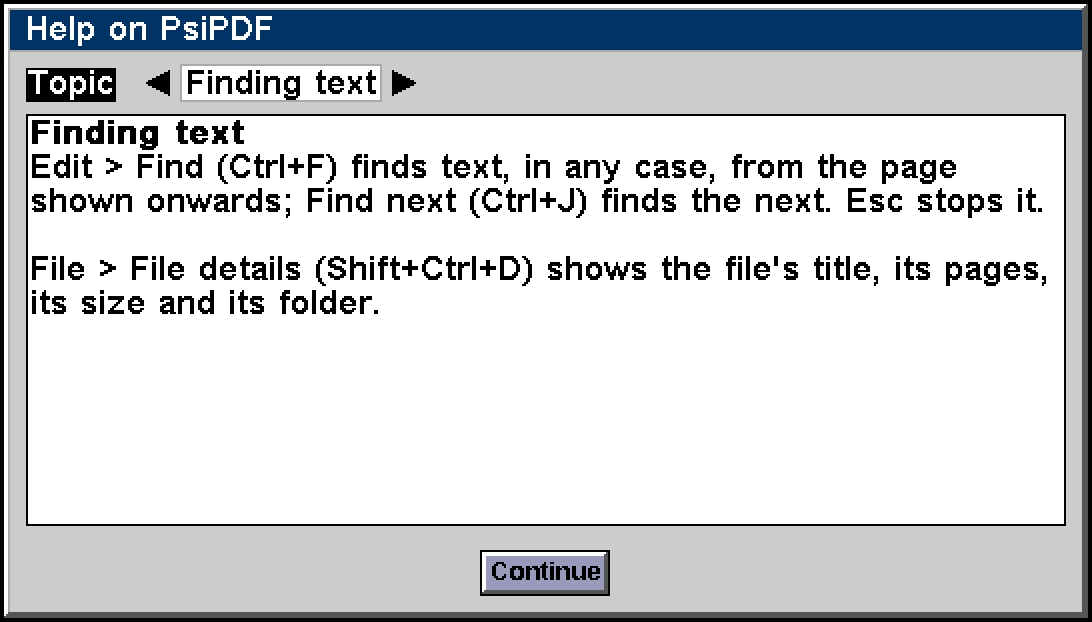
Coda's programs have Help on their Tools menu: a few short topics, kept in the program so they work with no card in. One Help box serves every program, PsiMail, PsiWeb and PsiTerm included: whole lines, twelve to a box, moved a line at a time, and a scroll bar only when the topic is longer than the box.
Spelling
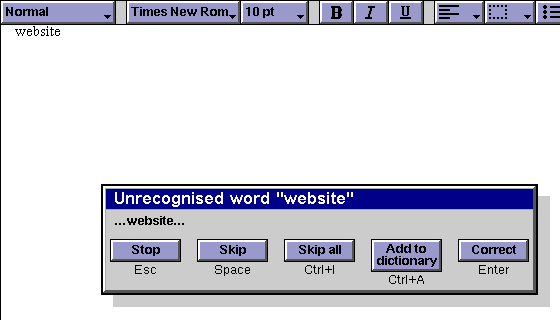
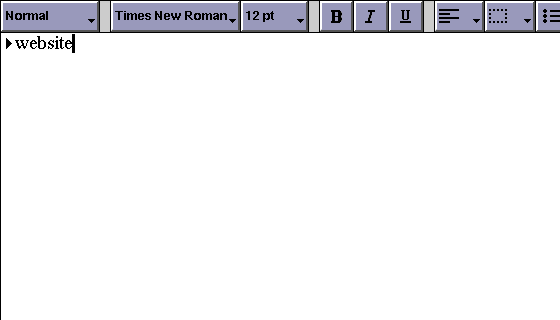
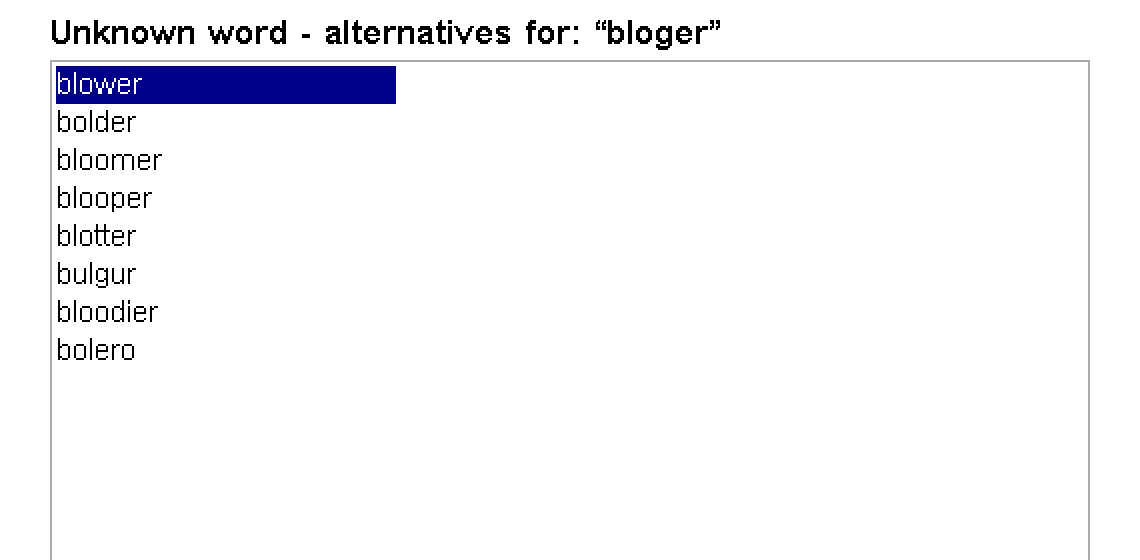
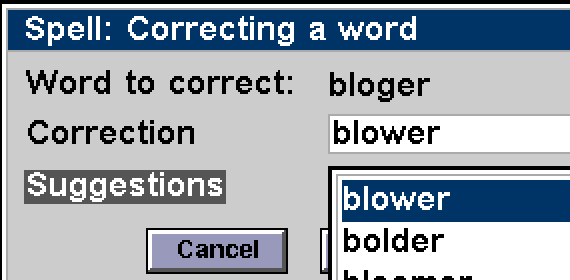
Psion's dictionary is from 1995. It had never heard of email, website or broadband. Coda adds about 123,000 British English words, with -ise spellings, beside Psion's own. Spell uses them for suggestions, anagrams and crossword answers too.
 PsionCoda
 PsionCoda
PsiAmp
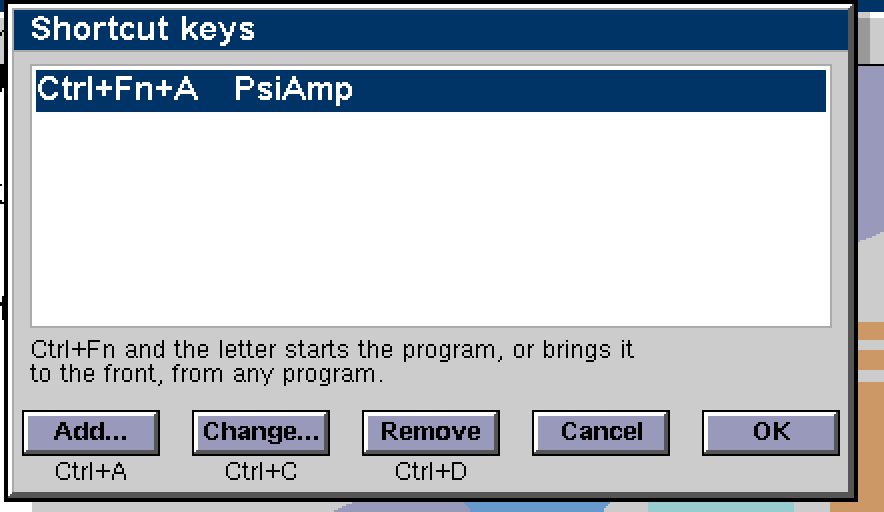
An MP3 and WAV player in the look of the classic skinned players. Green LED digits, a scrolling title, a visualiser and a playlist, floating over whatever you're doing. Press Esc and it gets out of the way, still playing.
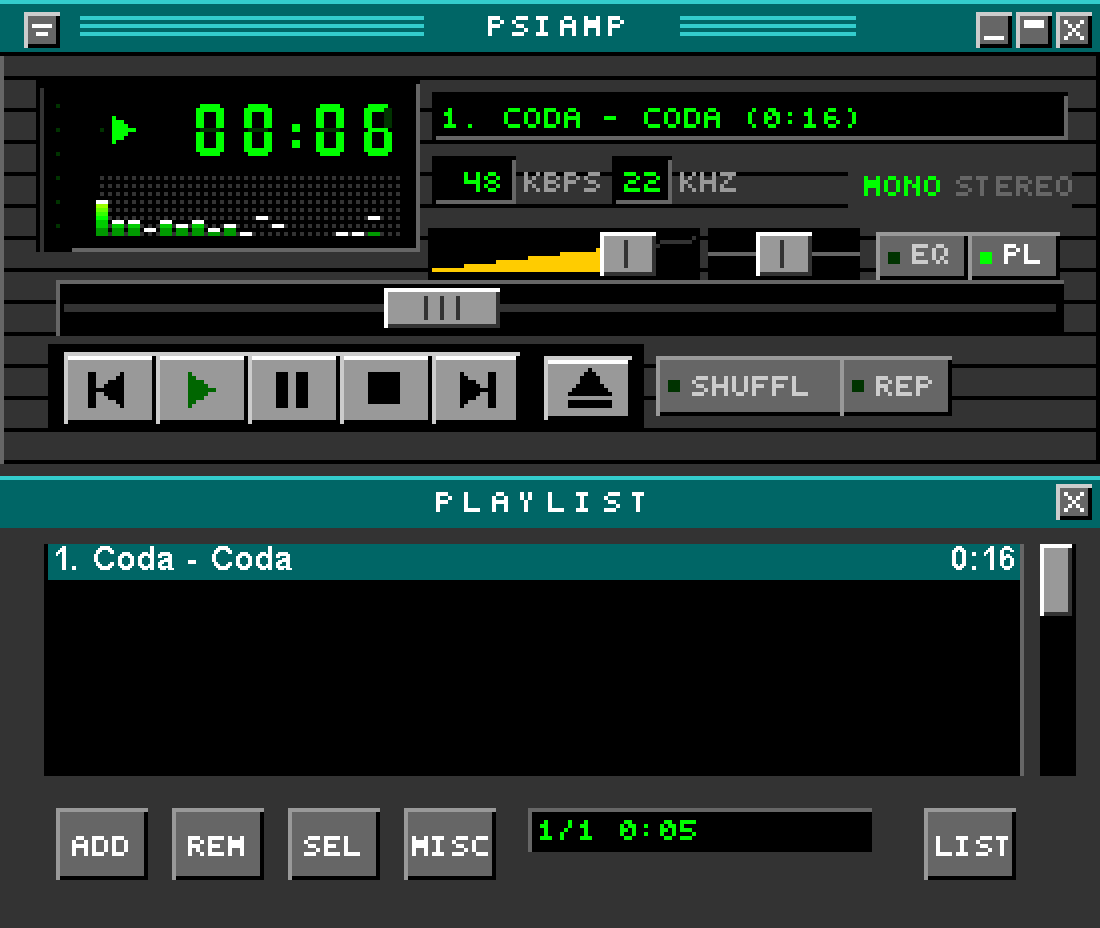
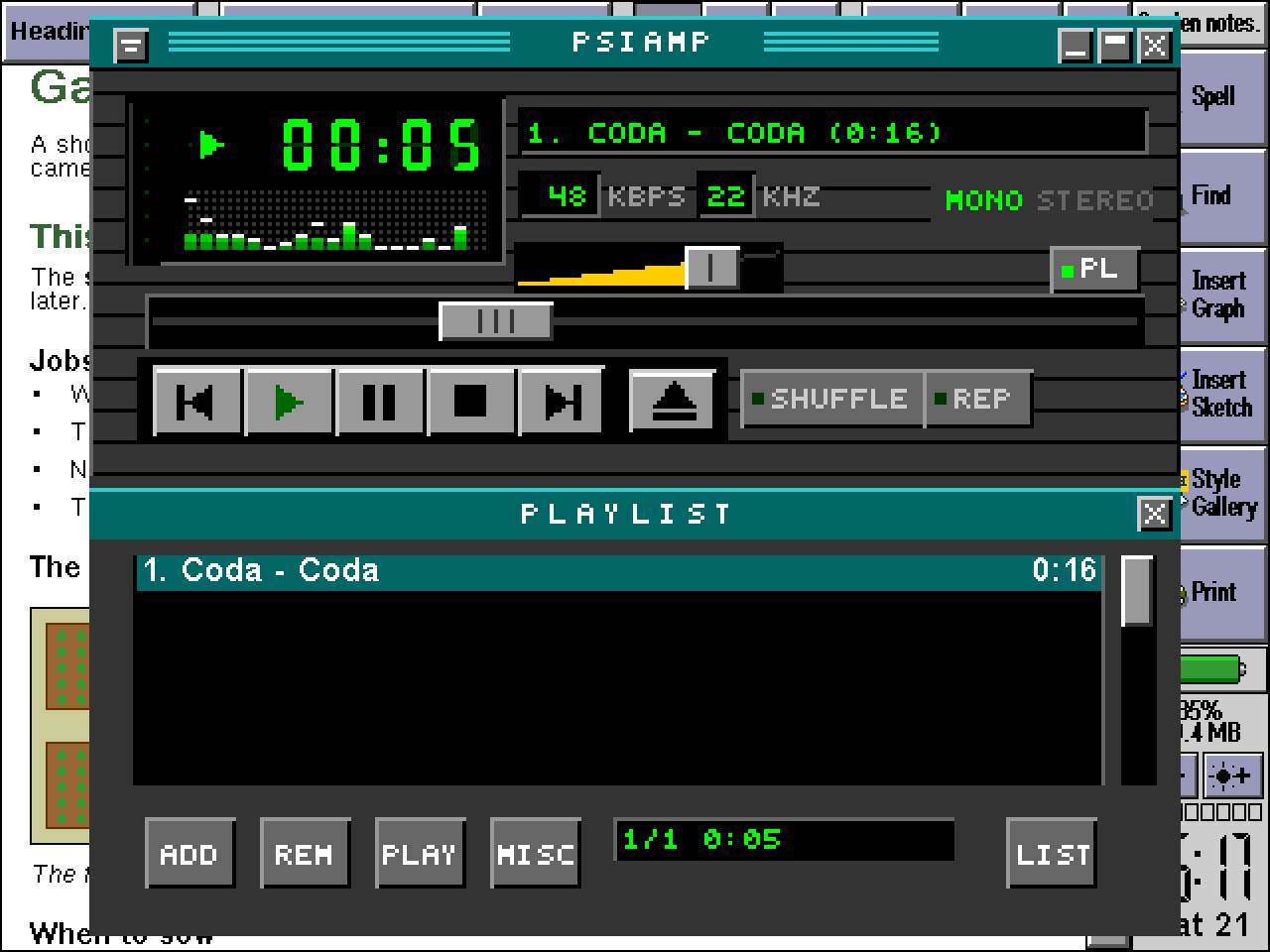
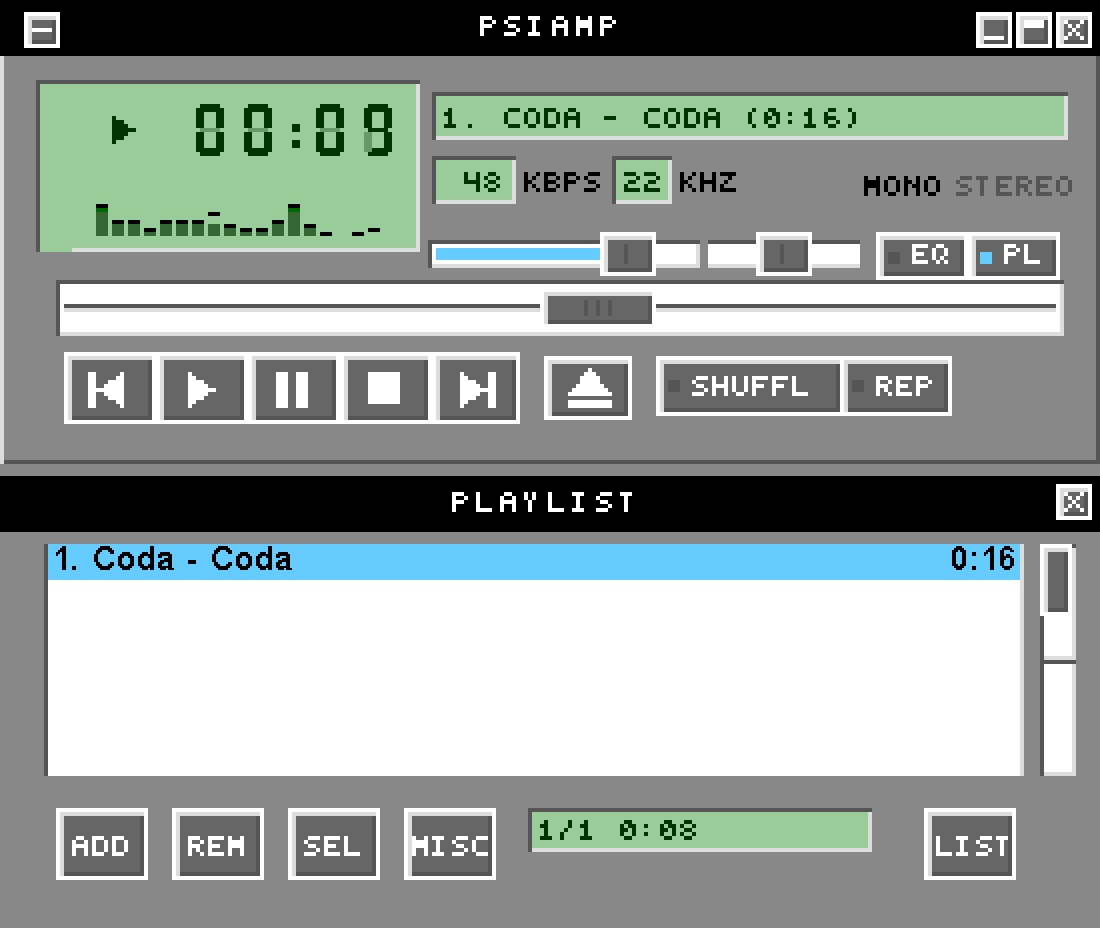
Tap an MP3, a WAV or an .m3u playlist on the System screen and it plays. Add whole folders, shuffle and repeat. Bring your own classic .wsz skins too.
Mail, the web and SSH that work with today's internet, and a real Linux one word away.
Internet and connectivity
Psion's Email, Opera and Comms terminal couldn't cope with the modern internet. Coda replaces them with programs that can, and the toolbar's Email and web icons open them.
All three call the ways a Psion gets online by the same plain names: Direct, on the network card or a dial up; the Atom modem helper; or PsiProxy on a computer. The first time PsiMail or PsiWeb starts, it asks which is yours and sets itself up. Cancel changes nothing.
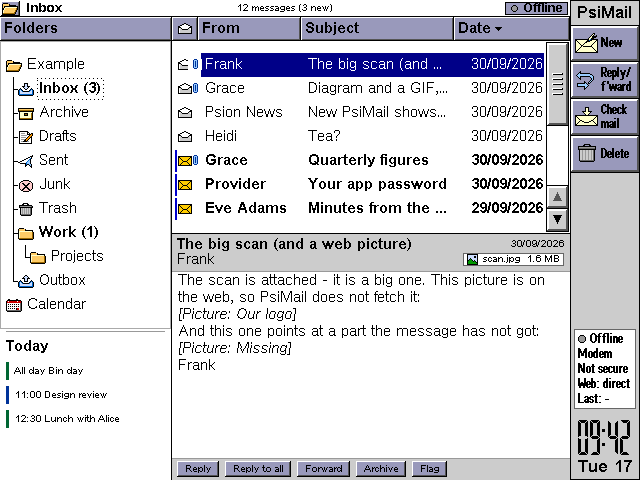
IMAP and SMTP over TLS, with the server's certificate checked, Gmail's included. On the netBook, in colour, with a preview under the list and today's events under the folders.
PsiMail on GitHub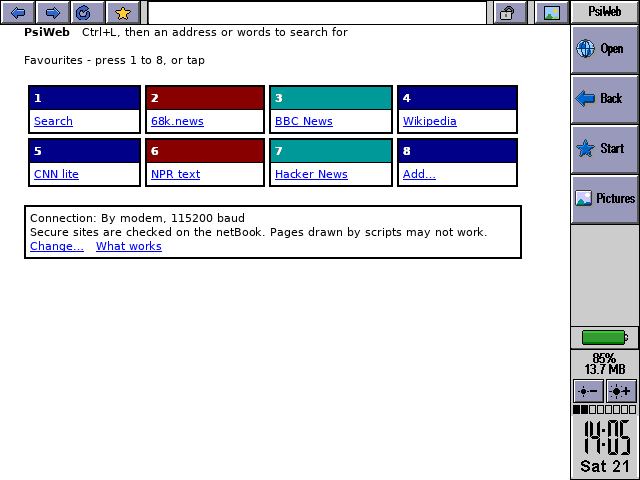
A browser built on Links 2, in colour across the whole screen. It opens on a speed dial, and a light by the address says how the page came.
PsiWeb on GitHub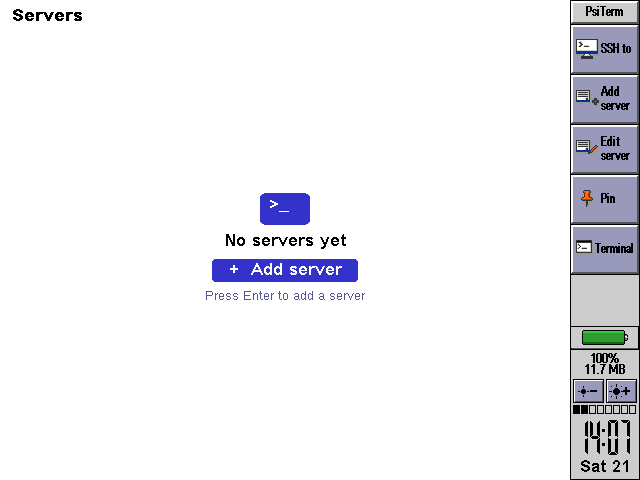
SSH with SFTP and tmux support, in place of a dial up terminal and an FTP client that sent passwords in clear. It names the connection as PsiMail and PsiWeb do, and takes about 1.2 MB less than before while it's open.
PsiTerm on GitHub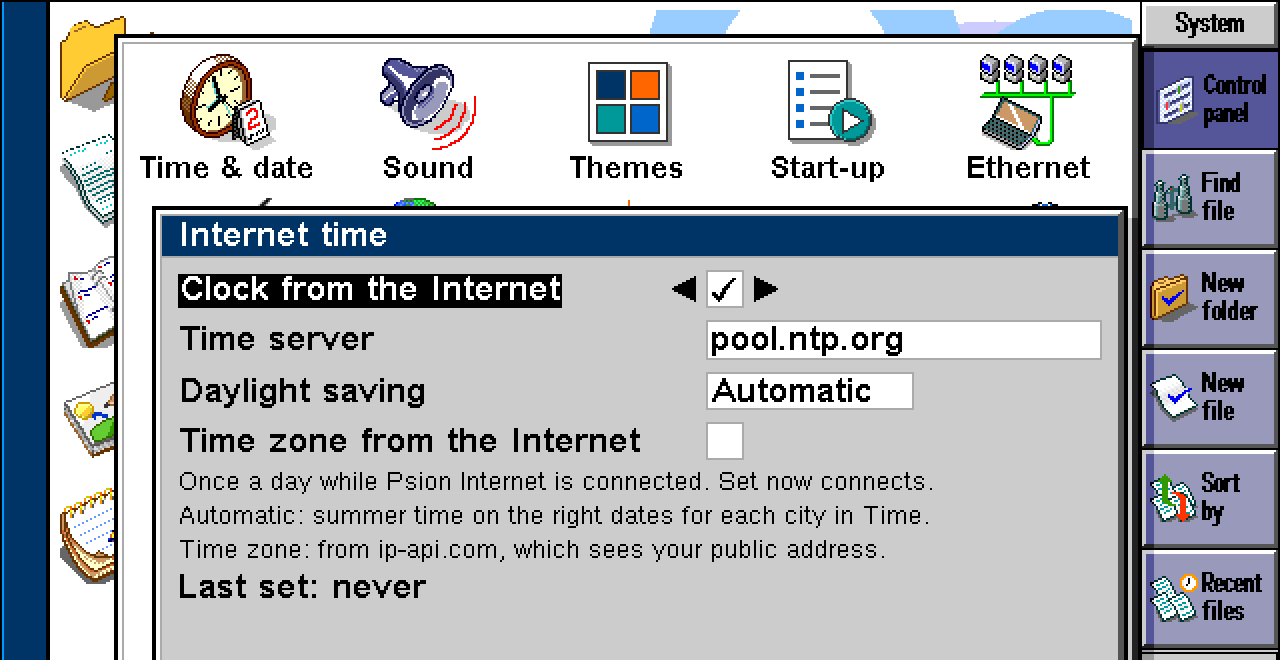
The clock set from a time server once a day, and summer time switched on the right dates for every city in Time, now on today's time zones.
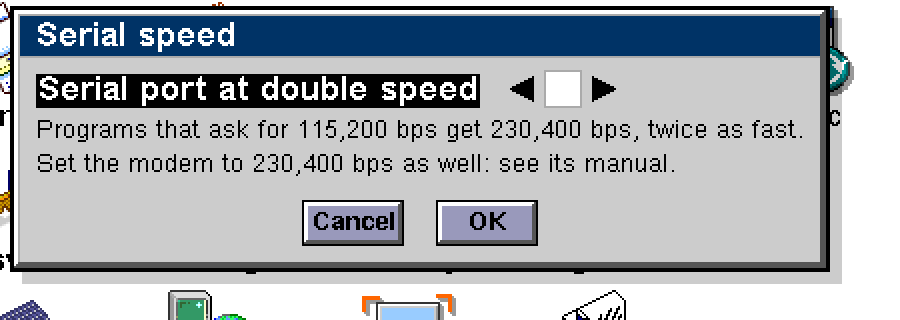
Psion stopped the serial port at 115,200 bps. The chip can do 230,400. Turn it on in the Control panel and any program that asks for the old top speed gets double. It's the netBook version of PsiBoost.
PsiWeb
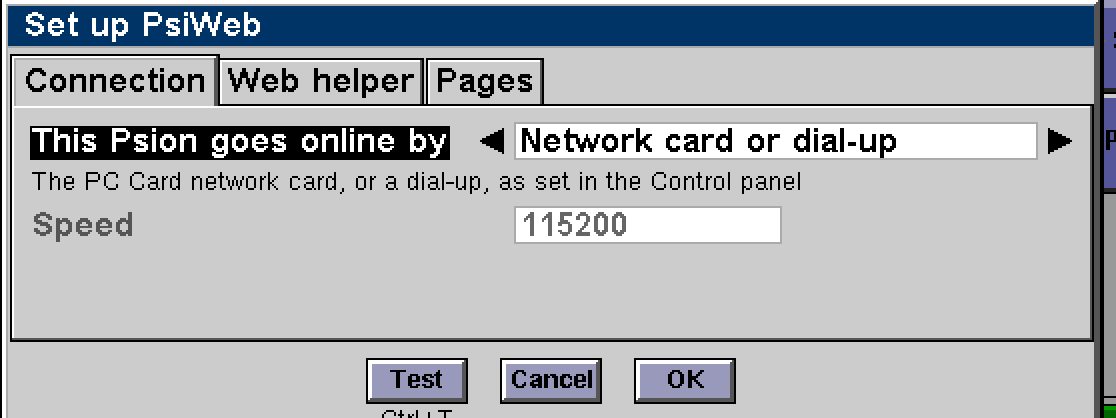
Set up PsiWeb asks how this Psion gets online, where pictures come from and how to search. Going direct, PsiWeb checks each secure site's certificate on the Psion itself, RSA and ECDSA alike, and speaks AES-GCM as well, so sites like eBay open without a helper.
The light by the address says the route, with a padlock once a secure page has been checked. On a netBook going direct, pictures are on as standard, big photos included. When memory runs short, Coda can take a page's pictures back, and PsiWeb draws them again when you return. An update it downloads to the card waits there until you install it.

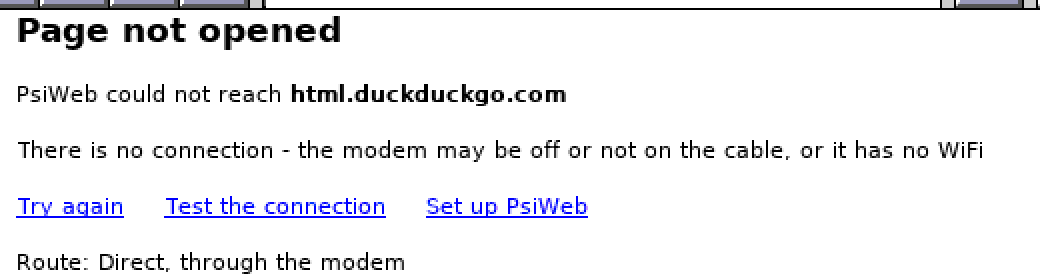

Without PsiProxy, a big site starts with a screen of menus. So with no helper, or through the Atom modem helper, pages start as Text only; with PsiProxy they start Full, as PsiProxy lightens them itself. A style you choose in View, Page style or Set up stays on every route, and if you choose Full or Lighter without PsiProxy, PsiWeb asks once, on a big page, whether Text only would suit better. Text only leaves out the words sites hide for screen readers. Lighter puts a site's menus and footer on a line each. Reader on a front page lists its headlines. If the web helper doesn't answer, PsiWeb says so and offers to open the page directly this time.
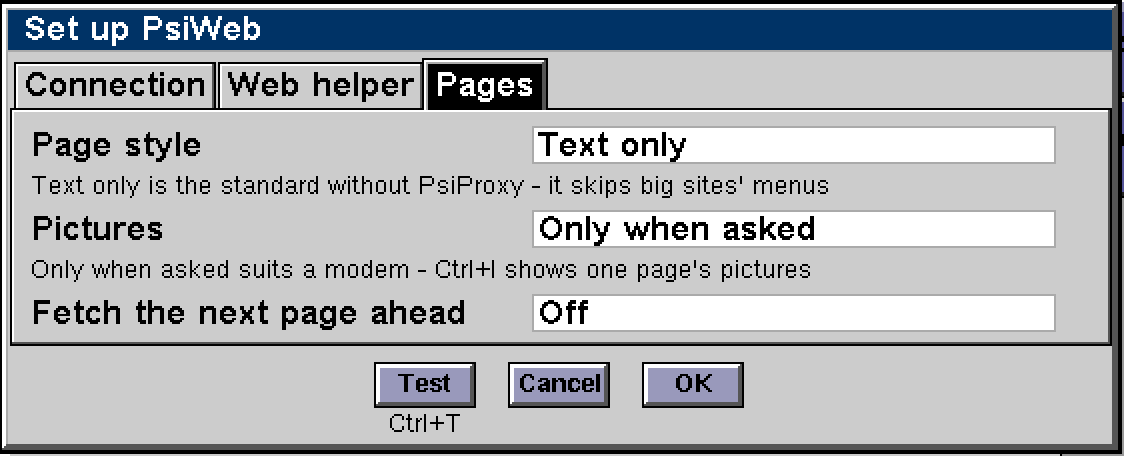
Set up PsiWeb's Pages tab has Fetch the next page ahead. While you read, PsiWeb quietly fetches an article's next page, the first headlines of a front page and the link you've rested on, so they open at once. It starts on when PsiProxy on a computer is the route over the network, and off on a modem or going direct. It holds back when memory is short or the line is slow, and never shows as busy.
Test in Connection settings opens a page and says how it came: "through the Atom modem helper in 1.5 s", say.
PsiProxy runs on a computer at home. It fetches each page for PsiWeb, takes out what a Psion can't use and sends the rest small: the BBC News front page comes to 18 KB instead of 970 KB. Sites that build their pages with scripts open too, drawn first in a browser of its own. While you read, it keeps the next articles ready, so they come at once. Its own page, at psiproxy in PsiWeb or from any browser at home, has its switches and a guide. An installer sets it up on Linux or a Mac as a service that starts with the computer.
Type words where the address goes and they're searched for, with DuckDuckGo's page without scripts or FrogFind, no helper needed. Addresses complete from your favourites and history. Cookies can be kept for next time. Big sites such as Wikipedia, Reddit and CNN get a line at the top offering their own lighter edition. A page saves as big as the disk will take.
For a page that needs a modern browser, File, Open in full browser hands it to PsiTerm, which runs Carbonyl (Chrome in a terminal) or w3m on a computer you've saved there.
PsiMail
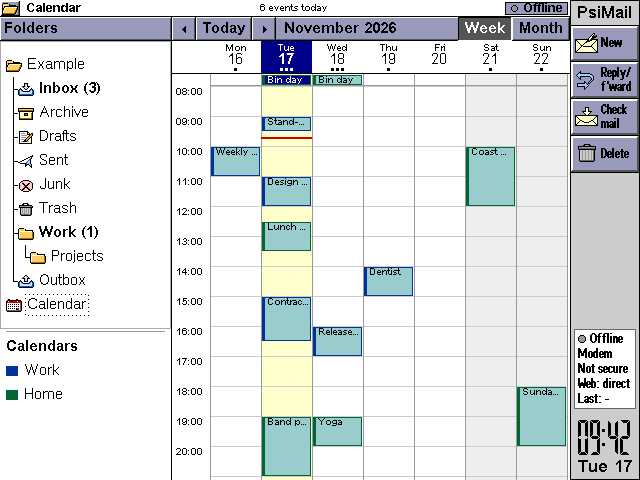
On the netBook PsiMail uses the whole screen. Manila folders, yellow envelopes for unread mail, red flags. Under the folders, the rest of today's events. Under the preview, its pictures, and Reply, Forward, Archive and Flag for the pen.
With the network card or a dial up connection open, new mail appears at once. Through the Atom modem helper it checks every ten minutes. The box in the title band says the route and who does the encryption, with a light. Tap it for Status information. Behind other programs, with nothing to fetch, its engine rests and hands its memory back, and starts again quietly when it's needed.
Set up asks about PsiProxy once, when it's new, in a question of its own. Disconnect, then Check mail, and it dials again through the modem straight away. The box says Mail on or Mail off, for its own link to the server, beside the toolbar's Internet line.
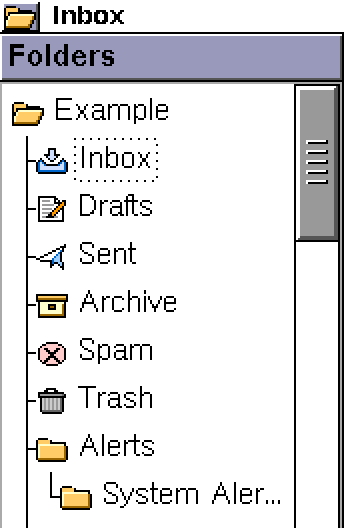
PsiMail lists every folder on the server, Inbox, Drafts, Sent, Archive, Spam and Trash first, as mail programs show them, then the rest in the server's order. A folder that holds others stays above them. On an account with hundreds, it keeps 300 and the standard ones always, and says how many it left out.
Find works offline, through the mail already on this Psion. Up to eight rules move new mail to a folder, flag it or mark it read as it arrives. Replies can have a signature of their own.
New in PsiWeb 0.85 to 0.88 and PsiMail 1.00 to 1.03.
The Linux terminal
PsiLinux runs real, unmodified Alpine Linux 3.24 programs on the netBook. It boots with BusyBox init and OpenRC, or goes straight to bash. Alpine's own apk installs Alpine's signed packages, from a catalogue of about 25,000.
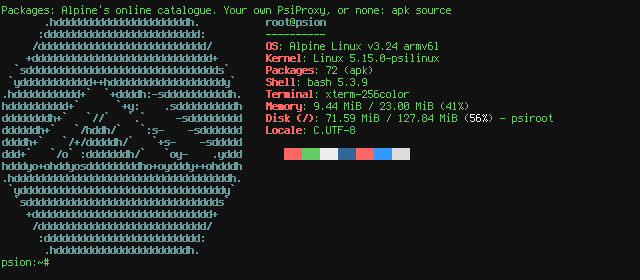
PsiLinux brings its own small kernel layer on top of EPOC, much as WSL1 does on Windows. Linux programs get Linux's system calls, built on the Psion's own files, sockets and memory.
Linux sees the Psion's disks, and its epoc command opens a file in its program, lists the tasks and uses the clipboard. exit closes PsiLinux.
Type term, linux or shell into PsiHub and press Enter. The terminal is PsiTerm's, in colour on the netBook.
Idle, Linux gives its caches back to the Psion. Behind another program with only a shell at its prompt, it goes to sleep: its memory is written to the card and handed back, and Linux carries on where it was when you switch to it. A shell at its prompt holds about 4.7 MB awake and 2 MB asleep. Preferences sets when it sleeps: after 1, 5 or 15 minutes, or never. After 5 minutes is the standard, and Linux never sleeps by itself while a background job is running. A choice you've made is kept.
When memory runs down, Coda asks Linux too. It gives back what its programs have finished with, and a big block goes back to the Psion as soon as a program frees it. Asked to sleep, it sleeps if Preferences allow, and when memory is very low it sleeps even if they say never, as long as it's idle at its prompt behind another program. Free memory's Put PsiLinux to sleep sends it at once. While a program runs or a connection is open, Linux is left alone.
ls /psion/c/Documents           # Psion's disks under /psion
cd /psion/c/Documents
epoc open "Garden notes.docx"   # opens it in Word, as a tap would
epoc run Agenda                 # starts Agenda and waits until it's up
epoc ps                         # programs and processes, with memory
epoc close Word                 # asks Word to save and close
epoc clip get | wc -w           # count the words on the Psion's clipboard
epoc note "Backup done"         # a message on the Psion's screen
epoc shot                       # a screenshot, as a PNG
epoc info                       # machine, Coda's edition, battery, memory
epoc run and epoc open come back once the program is up, so time epoc run Calc times the start; --no-wait comes back at once. Lists come out tab separated, or as JSON, with exit codes for scripts. This one backs up Documents to the card, in a folder named by the date.
#!/bin/sh
to=/psion/d/Backup/$(date +%Y-%m-%d)
mkdir -p "$to" && cp -rp /psion/c/Documents/. "$to"
epoc note "Documents backed up"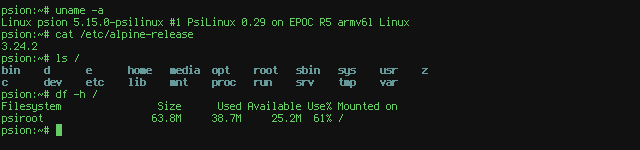
ls / shows the Psion's disks beside Linux's own folders. X, Links in graphics mode and Doom are optional installs.How Coda starts, what your memory is doing, where its settings live, and why Psion's own image is never more than a step away.
Start up
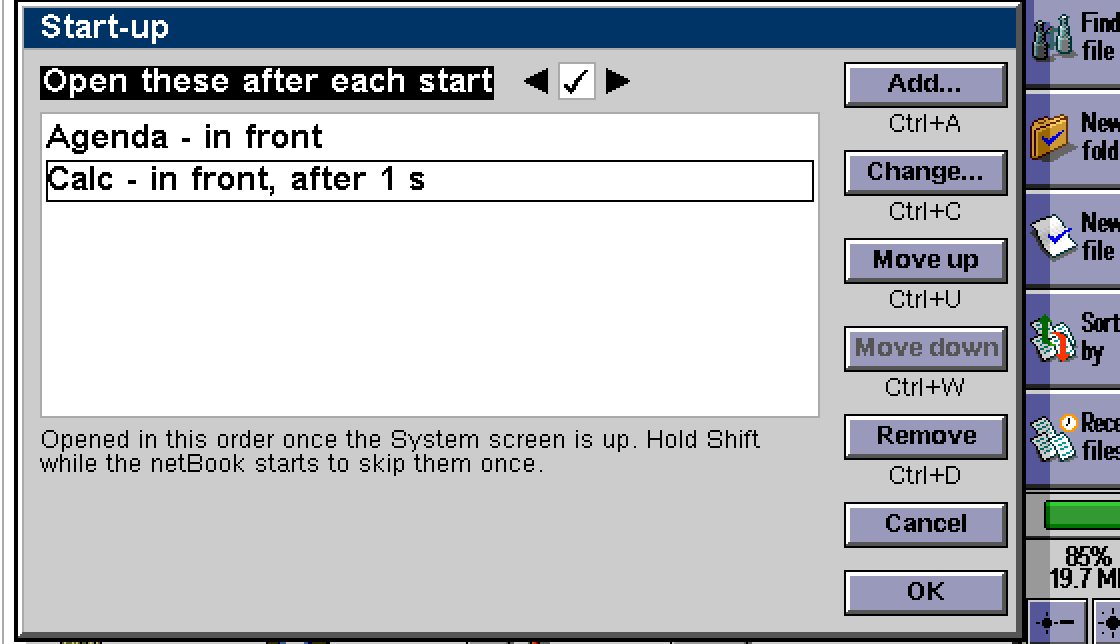
Control panel, Start-up opens your programs and files after every start, in your order, each in front or in the background. Hold Shift while the netBook starts to skip them once.
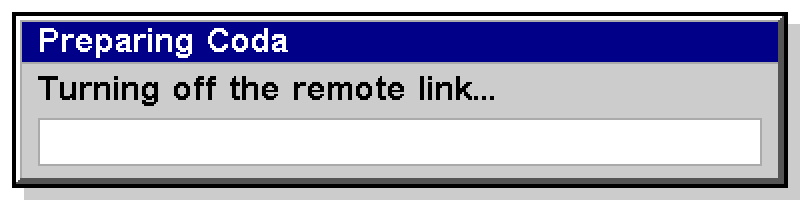
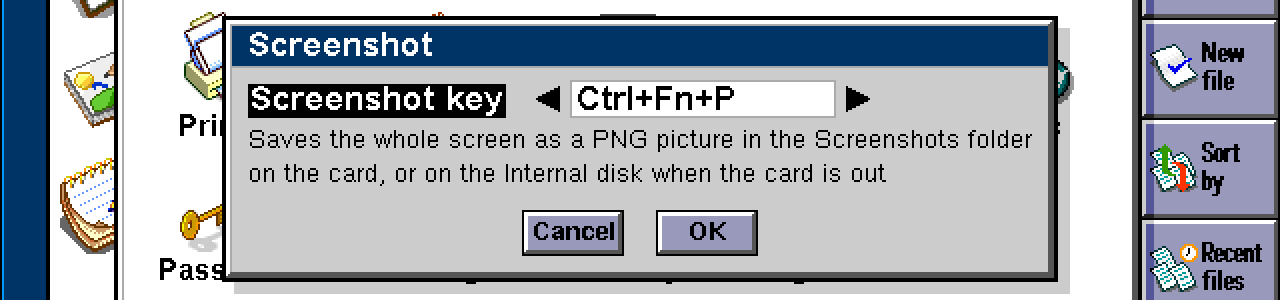
On a fresh start, Coda prepares itself in plain view: PC link and key clicks off, Serial speed and Internet time on, the date as 15/11/2026, a 24 hour clock and metric units with miles, as in the UK. Programs Psion started at boot are closed again once they've made their documents, giving back about 1.4 MB of memory. Word and Sheet save your changes every 5 minutes.
Tasks and memory
EPOC's own task list gives each program's name and its document, and nothing more. Coda's programs hold less to begin with: PsiMail, Sync, PsiPDF and PsiWeb take their big buffers when they need them and give them back after. When memory runs down, Coda asks PsiMail, PsiWeb, PsiPDF, PsiAmp and Files to give back what they can spare, and behind other programs to rest or sleep. Every ten minutes, and after a program closes, the spare room in every program's memory goes back, and a big piece a program frees goes back at once. Before a program runs out, Coda empties what can be rebuilt, such as PsiWeb's pictures, and tries again. When memory runs low, the Free memory dialog offers to close programs or put them to sleep, and very low, Coda puts the programs behind you to sleep by itself. A tap on the program's name at the top of the toolbar opens PsiMemMan.
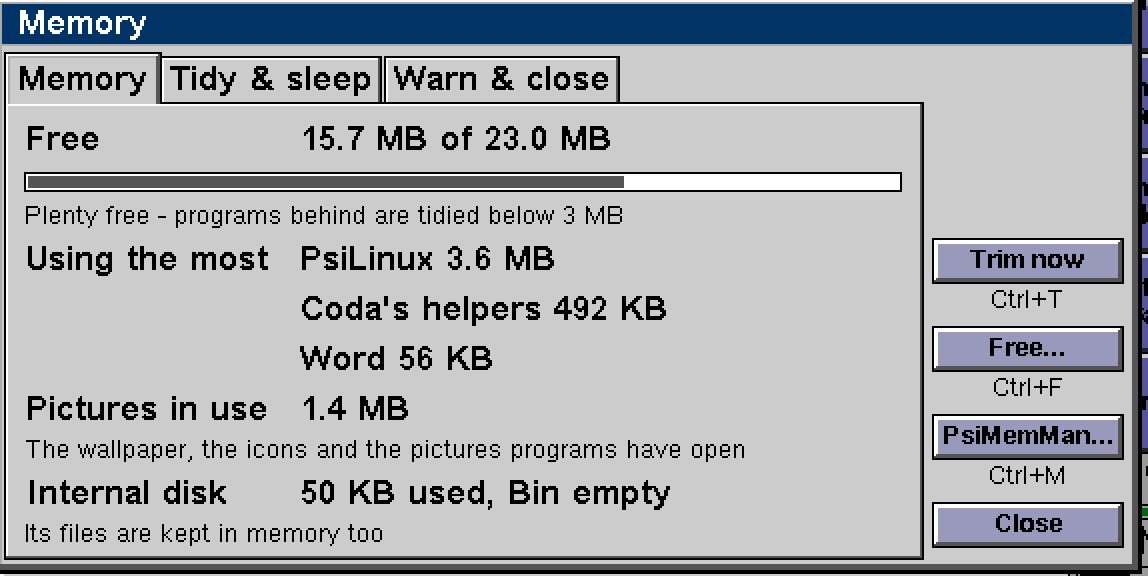
Memory has its own item in the Control panel. Type memory in PsiHub, or press Ctrl+M in Diagnostics. Its first page shows the free memory, the programs using the most, with Coda's helpers as one line, the pictures held for programs, and the internal disk with its Bin. Trim now asks every program to give back what it can and says how much came back. Free… opens the Free memory dialog.
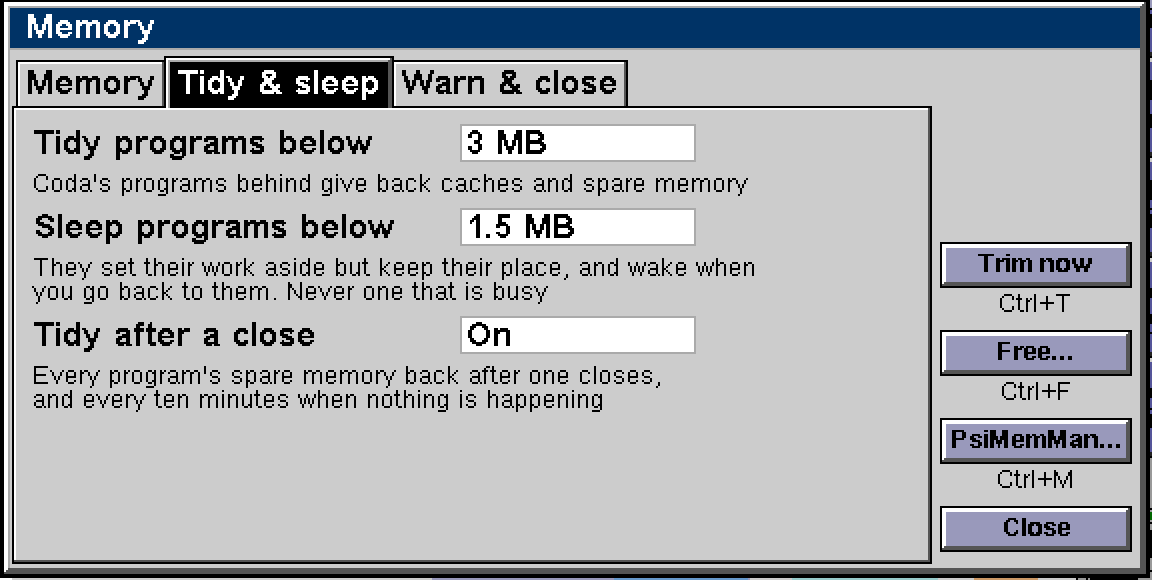
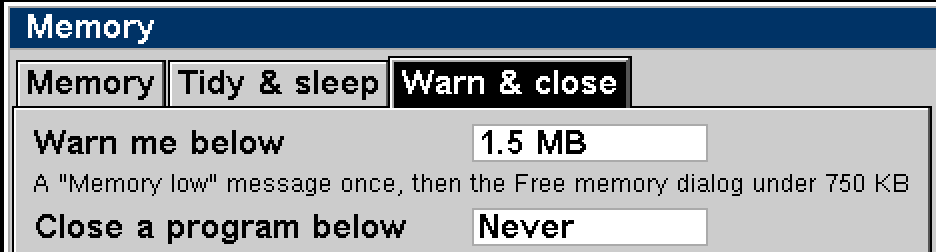
Two more pages set the levels Coda works to, each explained in a line. Tidy & sleep: below 3 MB the programs behind you give back caches and spare memory, below 1.5 MB they're put to sleep, never one that's busy, and after a program closes every program's spare memory goes back. Warn & close: a "Memory low" message below 1.5 MB, and whether to close the program that's been behind longest, Never as standard.
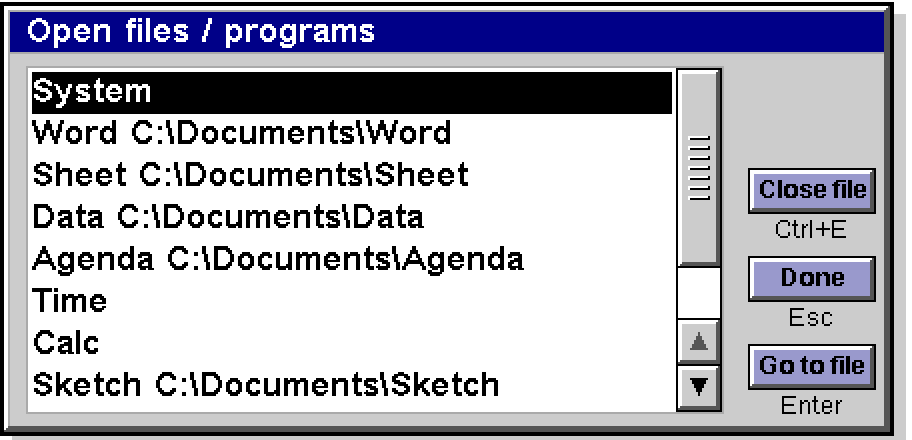
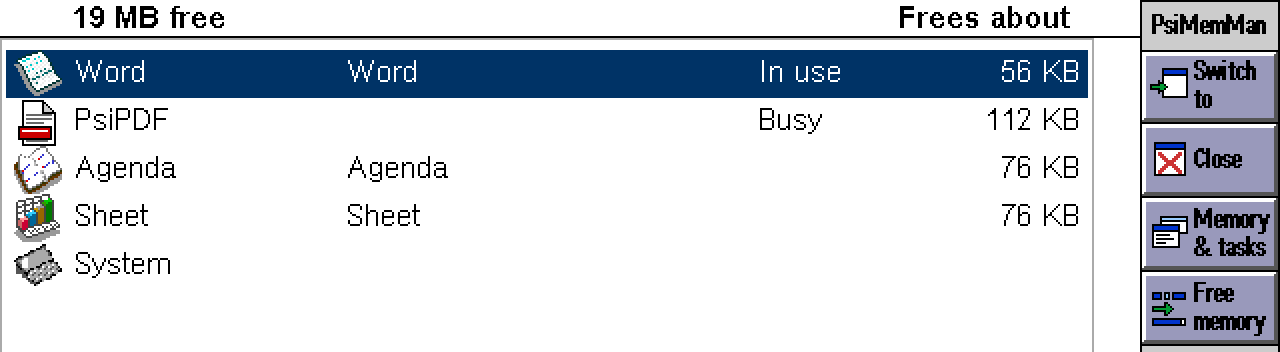
PsiMemMan, Coda's memory and task manager, opens on Programs: the free memory at the top, then the programs you have open, the one you were using first, each with its document and about how much closing it gives back. Enter, or a second tap, switches to one. Del closes it, saving first, as Psion's own list did, and it asks only when something could be lost: the program is busy, holds a connection, or doesn't answer. Esc takes you back. Tap the program's name at the top of any toolbar, press Ctrl+J on the System screen, or type tasks in PsiHub.
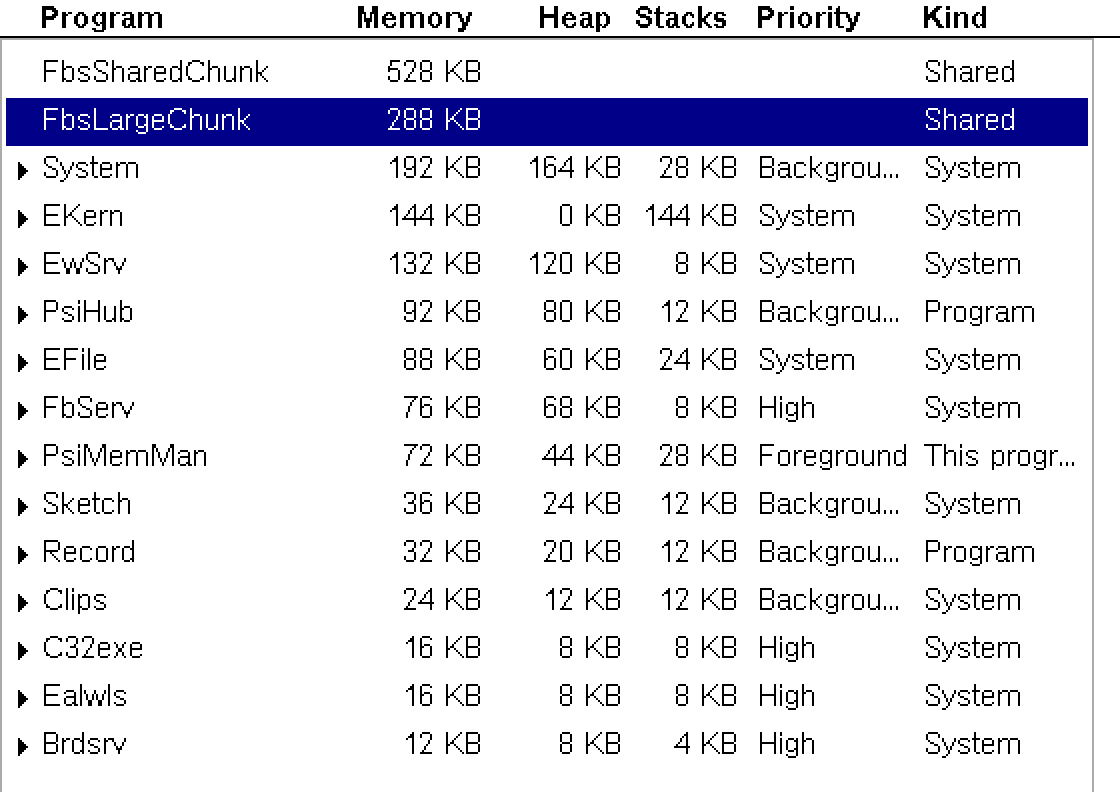
Memory & tasks opens the detailed views: every program and process with its threads, memory, heap, stacks and priority, ending one that doesn't answer, and giving back the unused heap of every program at once. Ctrl+Q comes back to Programs. Ideas from EPOC Task Manager by Robin Hood.
Close background programs, and PsiHub's Close all programs, leave open a program that's busy, connected or online, and say so in the question.
The Control panel
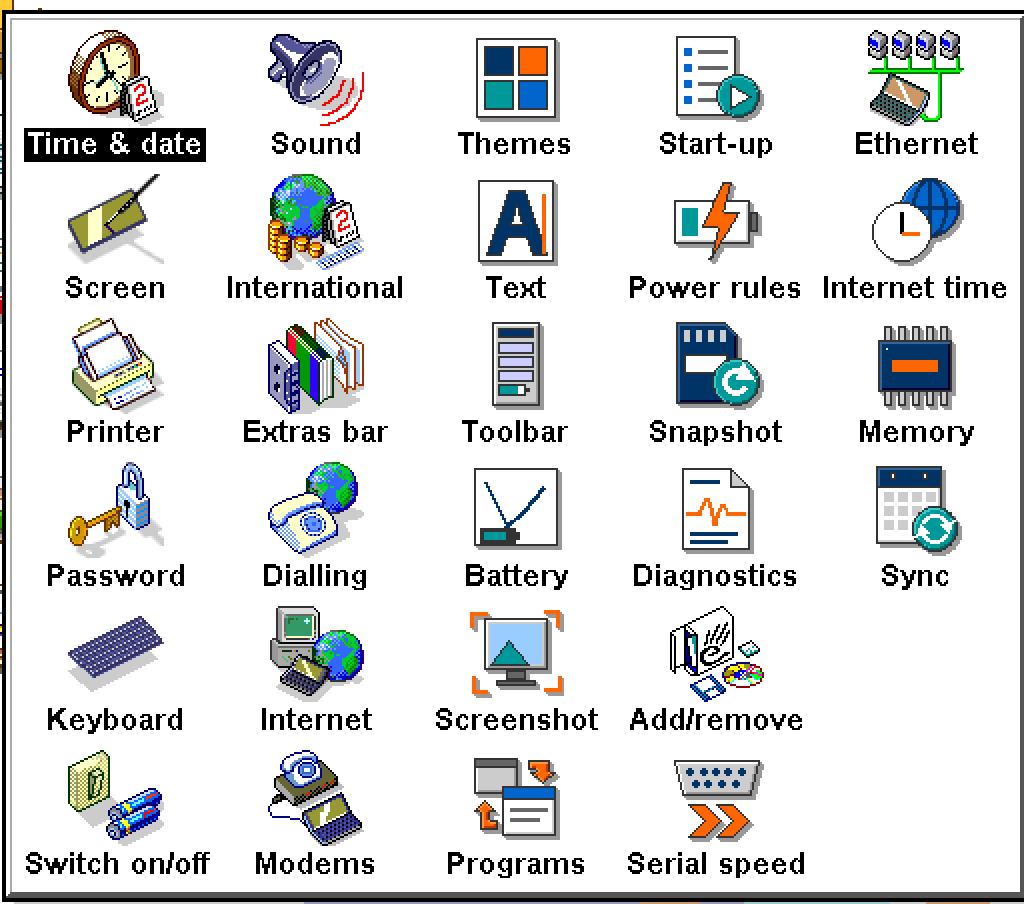
Coda's settings live where Psion's do, grouped by kind: Psion's own, then the network, then the look, then programs.
Safety and switching
The netBook has no flash ROM. At every cold start it copies the whole operating system off the card. So Coda is one file on the card, and Psion's own image sits right next to it.
Coda keeps what you don't use all the time on the card as ordinary files: Calc, Sketch and Record (and Psion's Sketch and Record), PsiAmp, PsiHub, Help, the typefaces, Smooth text's styles, the Office converters, the spelling dictionary and thesaurus, Sketch's clip art, the alarm sounds, Word's templates and OPL's demos. They cost no memory until you use them, so the System screen starts with about 20 MB free. Coda full, which keeps everything inside for a netBook without its card, is coming soon.
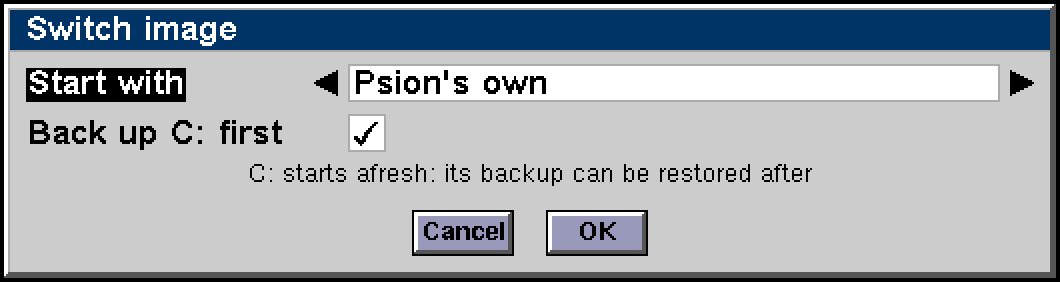
PsiBoot's File, Switch image lists the card's images by what they are: Coda, most free memory, and Psion's own (Coda full, no card needed, is coming soon). Before a switch it backs up your C: disk, keeping three dated copies, each read back and checked before the oldest is removed, and afterwards it offers to put it back. A restore keeps the new image's connection settings and copies your dial-up services into them.
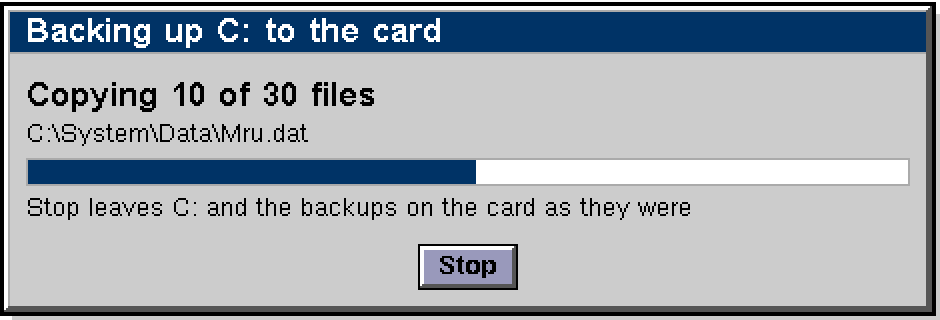
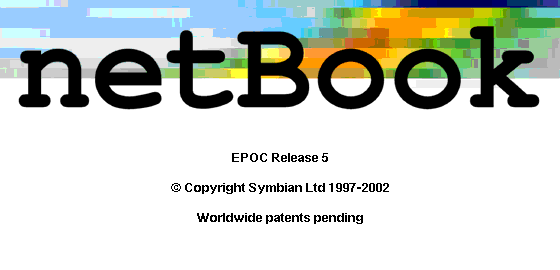
Starting from the card, or switching with a backup, shows a progress dialog all the way: the card made ready, then each file as it's copied and checked. Stop leaves C: and the backups on the card as they were. Last, it says the start-up picture shows while the image loads.

Removed and replaced
| Psion's | Coda's |
|---|---|
| PsiMail | |
| Opera, Web | PsiWeb |
| Comms | PsiTerm |
| nFTP | PsiTerm's SFTP |
| Browse dialog | PsiFiles |
| Calc | The new one; Psion's removed |
| Sketch, Record | New ones; Psion's hidden, in Control panel, Programs |
| Find files | Files' Find; Psion's on Find again |
| Word's .doc viewer | Word opens .doc itself |
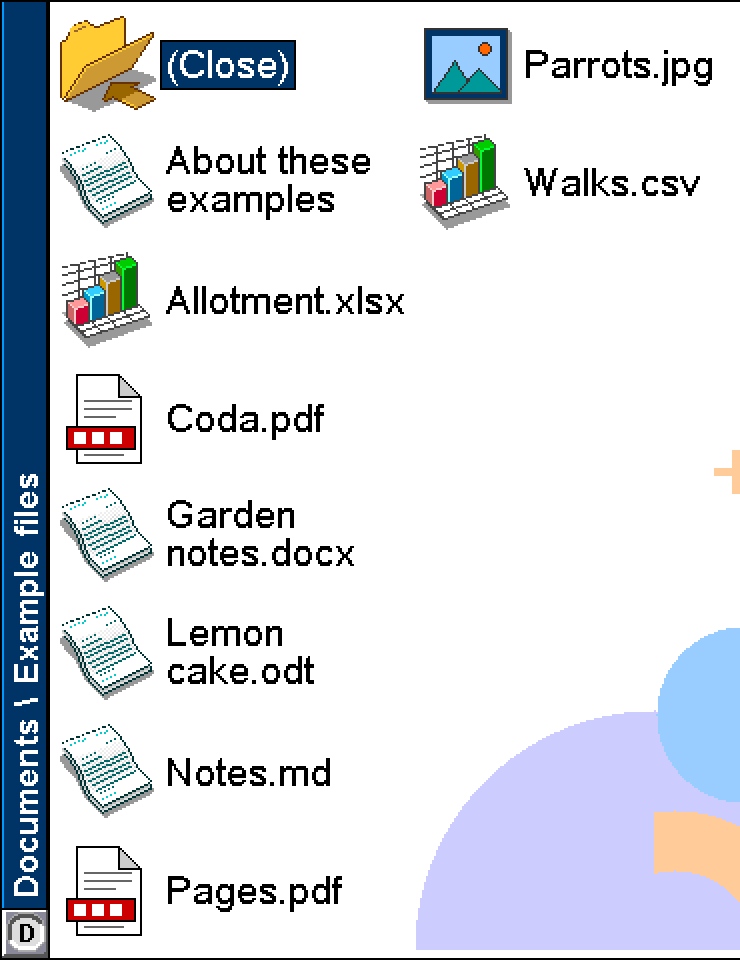
| Example files | Coda's own, on the card |
Small touches
Every feature on the netBook today, grouped as this page is. Each one links to its part of the page. Every change, in the diary
Coda tools Coming soon
The tools that make Coda, to build its images from your own netBook's OS.IMG: the image builder, the shrinker that makes the small image, ROM inspection to see what's inside an image, and the card kit that puts it all on the card. They're coming soon.
Coda Beta 1 is free, and always will be. It's the first beta: expect bugs, and back up first.