Install Coda
Your netBook.
Finished.
Coda comes ready to go. Download it, unzip it onto your netBook's CompactFlash card and switch on. Psion's own system comes with it, on the card beside Coda.
Beta 1Expect bugs - back up first.Report issues on GitHub
Start installing What you need
- Downloadthe Coda card
- CopyOS.IMG as a spare
- Unzipit onto the card
- Startthe netBook
Before you start
Three things,
and a backup.
A Psion netBook
With the CompactFlash card it starts from. The netBook has no flash memory of its own: its system is the file OS.IMG on that card, copied into memory at every start.
A CompactFlash card
256 MB or larger. Coda takes about 74 MB; the rest is room for PsiBoot's backups of the Internal disk, PsiLinux's saved sessions and your own files. A 128 MB card works but fills up. Your netBook's own card will do if it has the room. A spare card is the easy way: your old card stays exactly as it is.
A computer with a card reader
Windows, macOS or Linux, to download Coda and unzip it onto the card. Nothing to install.
Back up the Internal disk first.
The first time the netBook starts a different system, its Internal disk (C:) starts afresh. Copy your own files from the Internal disk to the card, or to your computer, before you begin. Once Coda is running, PsiBoot does this for you before every switch.
- Documents: Word, Sheet, Agenda and Contacts files.
- Data files of programs you've installed, such as their mail folders.
- Anything in C:\Documents and your own folders.
Install
Four steps.
About ten minutes, most of it the download and the card copying.
-
Download Coda.
Coda comes as one zip of about 34 MB: everything that goes on the card, ready to unzip. It is free: the Download page lists every available release.
Download Coda Free, about 34 MBBetaAn early beta: expect bugs, and back up first.Report issues on GitHub
If Coda is useful to you, you can buy me a coffee.
-
Keep a spare, if you like.
Switch the netBook off, take out its CompactFlash card and put it in your computer's card reader. In the card's top folder is a file called
OS.IMG, about 14 MB: your netBook's system. Copy it to your computer as a spare.You don't need it to go back: the zip has Psion's own system in it too.
-
Unzip it onto the card.
Unzip the Coda zip into the card's top folder. Let it replace
OS.IMG.OS-STOCK.IMGin the zip is Psion's own system, so you can always go back.CompactFlash card ├─ OS.IMG Coda, the most free memory ├─ OS-STOCK.IMG Psion's own system ├─ LOADER.MBM the picture while it starts ├─ System\ Coda's programs and files on the card ├─ Documents\ example files to try ├─ Linux\ Alpine Linux for PsiLinux ├─ LICENCES\ whose work is in Coda, on what terms ├─ Coda\ Diagnostics' logs, ready-made ├─ Backup\ PsiBoot's backups of C:, ready-made └─ README.txt the same, in shortThen eject the card properly before you take it out, so every file is finished writing.
Don't let your computer repair the card. The netBook leaves old bytes after the end of a folder it makes, which it ignores but a Mac's Disk Utility,
fsckorchkdskmay report as damaged or cross-linked entries. Nothing is wrong, and a repair can delete those folders, your backups with them. Just eject the card. -
Start the netBook.
Put the card back in. The netBook reads its system from the card only when it starts from cold: the reset button starts the system already in memory again. So unplug the mains adapter, take the main battery pack out, wait a few seconds, put it back (leave the small backup battery alone) and switch on.
You'll see the Coda picture and a progress bar while it loads, then Preparing Coda, once, as it sets itself up. Then you're at the System screen.
Now copy your Documents and other files of your own back to the Internal disk. Not a whole old Internal disk, and never its
Systemfolder: that would put the old system's settings, connections and Remote link over Coda's. From now on PsiBoot backs up the Internal disk and restores it with Coda's settings kept right.
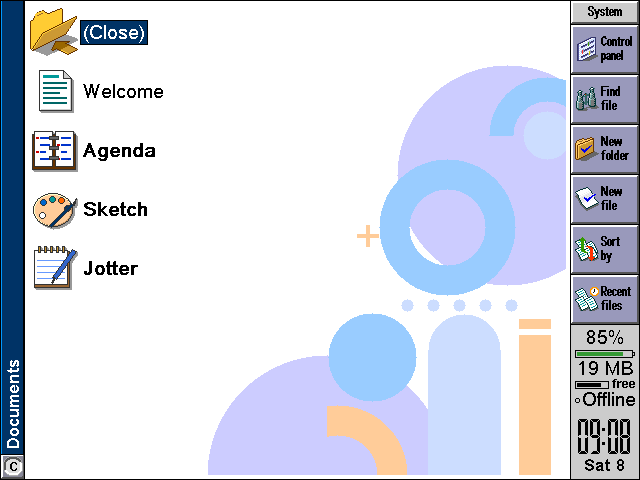
Where you'll be after step 4.
Two systems on one card
Pick one.
Change your mind.
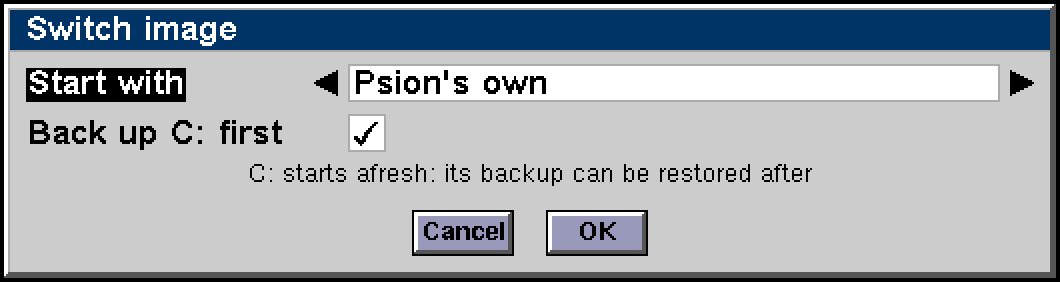
The card carries Coda and Psion's own. PsiBoot's File, Switch image (Shift+Ctrl+W) moves between them, and backs up your Internal disk first, showing how it's going, with Stop. A second Coda, Coda full, is coming soon.
Coda
Most free memory The one you start with. What you don't use all the time stays on the card and costs no memory until you open it. Keep the card in.
Psion's own
As it was Your netBook exactly as Psion made it. Always there to go back to.
Coda full Coming soon
No card needed Everything in the system itself, for a netBook you use without its card. A little less memory free. Not in the beta yet: it's coming soon.
Updates
Updating Coda.
Starting a new Coda empties the Internal disk (C:). Back it up first, then bring it back. These steps are for Coda Beta 1.05 and 1.06, and 1.03.
- PsiTerm users only. SSH keys and saved server passwords are left out of backups. Close PsiTerm. On the System screen press Ctrl+K and tick Show ‘System’ folder. On the Internal disk, open System, then Apps. Select the PsiTerm folder and press Ctrl+C. Go to the top folder of the card and press Ctrl+V. This copy holds your private keys, so look after it.
- Back up. Do this in Coda, not in Psion’s own system. Open PsiBoot from the Extras bar. Choose Backup, Back up C: to the card (Shift+Ctrl+B). Answer Yes if it asks. Wait until the new backup is listed.
- Save the card. Switch off and put the card in your computer. Copy everything on it to a folder on your computer.
- Unzip the new Coda onto the card and replace files when asked. Never delete or replace a whole folder: your Linux files are in the Linux folder. On Windows, use Extract All and set the card’s top folder as the destination, not a new folder. On a Mac, do not drag folders in the Finder. Type this in Terminal, with your zip’s name and your card’s name:
unzip -o ~/Downloads/Coda.zip -d /Volumes/CARD - Copy your own versions back, if you changed an example file, a Word template or PsiTerm’s Extra snippets file. Use the copy from step 3. Then eject the card.
- Start from cold. Put the card in. Unplug the mains adapter, take the main battery pack out for a few seconds (leave the backup battery alone), put it back and switch on. Wait for Preparing Coda to finish.
- Restore. If PsiBoot asks to restore C:, answer Yes. If it doesn’t ask, open PsiBoot, choose Backup, Restore C: from the card (Shift+Ctrl+R), pick your backup and answer Yes. When it asks Restart now, answer Yes. Don’t make a new backup before you have restored.
- Restart once more. In PsiBoot choose File, Restart (Shift+Ctrl+T). Your choice of program icons comes back.
- PsiTerm users: close PsiTerm. Tick Show ‘System’ folder again. Copy the PsiTerm folder from the card into System, Apps on the Internal disk. Answer Yes to copy into the folder, then Yes to all. Delete the folder from the card.
Set these again.
A restore does not bring back your wallpaper, the System screen’s preferences (Ctrl+K), your own button choices (Control panel, Extras bar) or your system font (Control panel, Text). Passwords are never in a backup: type them again in PsiMail, Sync and on websites. Your dial-up settings come back; check any other connection settings.
Coming from 1.03? Choose again which programs to hide in Control panel, Programs, Show.
Coda’s programs that update themselves, such as PsiMail and PsiWeb, can also be updated from their own Tools menus.
Help
If something isn't right.
- The netBook says "No Coda card".
- The Coda system is running without its card. Put the card back in. Coda full, which works without the card, is coming soon.
- A program says "This program is on the Coda card".
- Some programs, such as Calc and Sketch, live on the card in the Coda system. Put the card in and open it again.
- I want Psion's system back.
- In PsiBoot, File, Switch image, choose Psion's own. Or on your computer, rename
OS.IMGtoOS-CODA.IMGandOS-STOCK.IMGtoOS.IMG, then restart the netBook. - The netBook still starts Psion's system.
- It is running the system already in its memory. Unplug the mains adapter, take the main battery pack out for a few seconds, put it back and switch on: the netBook then reads
OS.IMGfrom the card. - The netBook doesn't start from the card.
- Put the card in your computer and check
OS.IMGis in its top folder, then unzip the Coda zip onto it again. Eject the card before you take it out. - I can't format the Coda card: "Coda is using this disk" or "In use".
- The netBook holds some of a Coda card's files open, so it can't format that card, even after switching to Psion's own system. Take the card out and format it in your computer.
- A program says a file is "corrupt", or shows a KERN-EXEC error.
- Restart the netBook from PsiBoot (File, Restart) and try again. If it comes back, please open an issue with the version from About, what you did just before, and the log from
Coda\Diagnostics\System.logon the card (turn on Control panel, Diagnostics first). - The silkscreen buttons open the wrong programs.
- This can happen after you restore an older backup of the Internal disk (C:): the old Shell settings come back and no longer match Coda. From Coda Beta 1.07 a restore leaves those settings out, and Coda repairs a wrong list of buttons when it starts, so update if you can. On an older Coda: in Files, open the Internal disk, then System, Apps, Shell, delete
Shell.iniand restart the netBook. The Shell makes a fresh one. It only resets your Extras bar choices and your own button assignments (Control panel, Extras bar). If the buttons are still wrong, please open an issue and say which machine you have. - The battery goes flat while the netBook is left alone.
- Update to Coda Beta 1.07, which fixes two things that could stop the netBook switching itself off. On an older Coda, turn Control panel, Diagnostics off, and untick Clock from the Internet in Control panel, Internet time. A network or modem card left connected also keeps it awake.
- Something went wrong.
- Turn on Control panel, Diagnostics. It saves a log of what happened in the
Coda\Diagnosticsfolder on the card. Diagnostics uses the card and can drain the battery, so from Coda Beta 1.07 it turns itself off after 30 minutes unless you choose otherwise. The logs name the servers and web pages your programs used, but not passwords, keys or messages: look through them, then attach that folder to an issue on GitHub. - My computer says the card has errors.
- Folders the netBook made itself (backups in
Backup\, for example) can look damaged to a computer's disk check, because the netBook leaves old bytes after a folder's list. The netBook reads them correctly. Don't run First Aid,fsckorchkdskrepairs on the card: a repair can delete those folders.
Ready when you are.
Coda is free, and always will be. It is never sold.
Download Coda See what Coda does
Beta 1Expect bugs - back up first.Report issues on GitHubBuy me a coffee